微软承认Windows 11右键菜单混乱,回应多年投诉将开放自定义功能
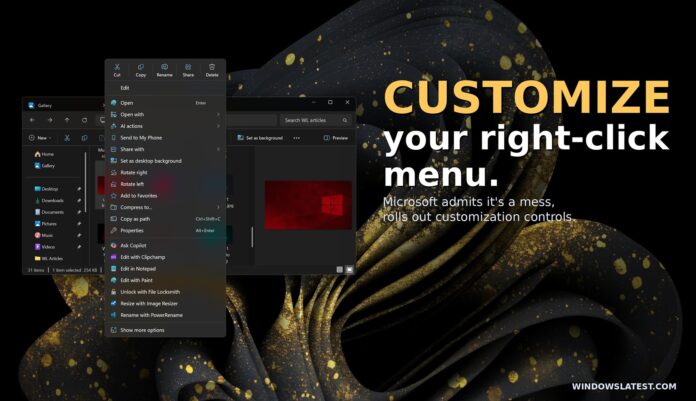
Windows 11 的右键菜单,也称为上下文菜单,显得杂乱无章,但情况即将改变。微软已确认,将允许你根据喜好自定义上下文菜单,也就是说你可以添加或删除项目。
微软负责 Windows 和设备设计与研究的 Marcus Ash 在 X 上发文确认,你将能够自定义上下文菜单。此外,右键菜单加载速度会更快,默认情况下也更加简洁。
Marcus 在 X 上写道:“我们正在努力让上下文菜单更快、默认更简洁,并可配置为最常使用的内容。更多细节将很快公布。”
可自定义的上下文菜单之前不在我的预期内,但现在我很惊喜,微软已经证明它在倾听用户反馈。这是公司让 Windows 11 成为更好操作系统计划的一部分,正如 Satya Nadella 所说,就是要通过关注基本面“赢回”用户。
Windows 11 的上下文菜单本应优于 Windows 10 版本
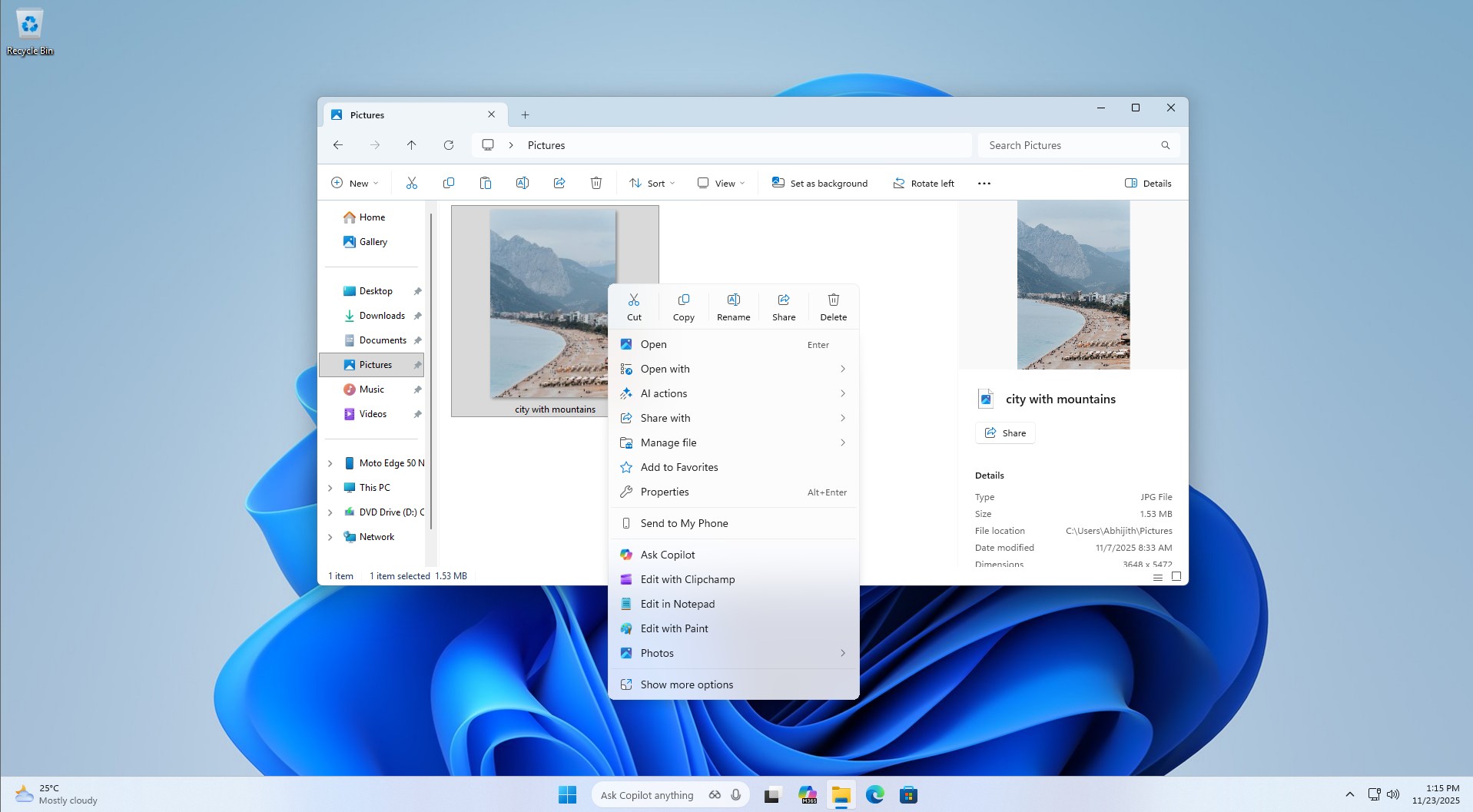 Windows 11 文件资源管理器中新右键菜单只占据屏幕纵向空间一半
Windows 11 不仅替换了开始菜单,还更改了 Windows 10 的右键菜单。新的上下文菜单更现代,拥有圆角和部分 Fluent 设计风格,但运行速度没有 Windows 10 版快。
另外,它有时项目过多,显得杂乱,占据屏幕空间过大。这很有趣,因为 Windows 11 本应让上下文菜单更简洁。
https://www.windowslatest.com/wp-content/uploads/2025/11/Windows-11-context-menu-vs-Windows-10-Context-Menu.mp42021 年,微软承认 Windows 10 的上下文菜单长期以来变得过于杂乱,原因主要是该功能在 20 年内“未受管控地增长”。它起始于 Windows XP 的 IContextMenu 系统,微软一直未加干预,导致菜单项目不断堆积。
多年来,Windows 10 的上下文菜单变得极长,重要操作如剪切和复制距离鼠标指针很远。用户常找不到所需内容,且组织混乱更添乱麻,比如“打开”和“打开方式”有时分得很开。
当时微软承诺,Windows 11 会基于 Windows 10 的上下文菜单,打造更现代、响应迅速、更有条理、且更简洁的版本。
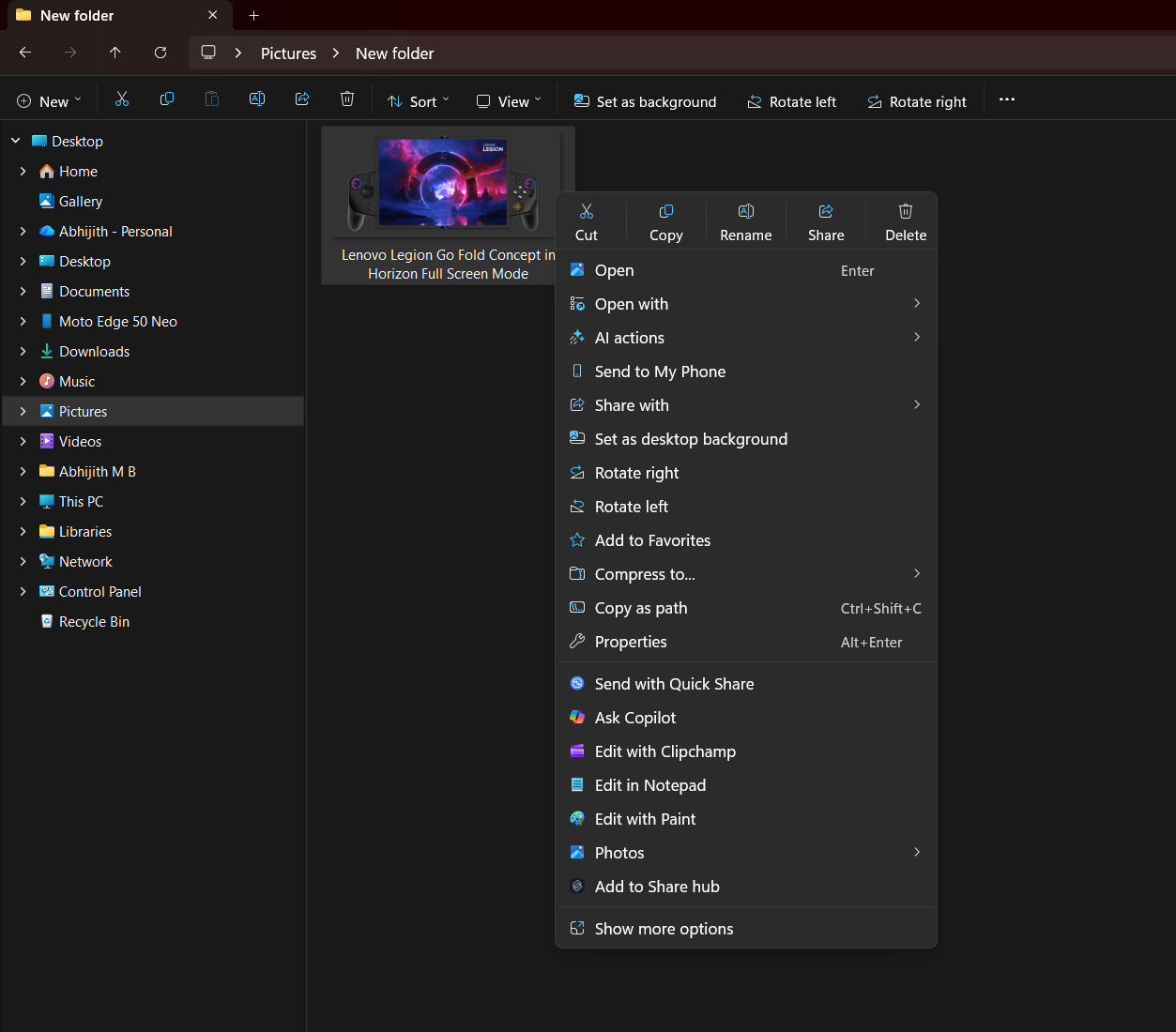 文件资源管理器中的右键上下文菜单
微软表示 Windows 11 通过将“常用命令…放在菜单触发位置旁边”,把“打开”和“打开方式”归组,并将应用添加的命令移入结构更清晰的区域,解决了这些问题。
同时承诺“没有彻底移除任何命令”,因为“显示更多选项”仍会加载“原封不动的 Windows 10 上下文菜单”,以支持尚未迁移新模式的旧命令和应用。
五年过去,Windows 11 明显未彻底解决这些主要问题。虽然它在整理项目上做得更好且确实“现代”,但依然显得杂乱无章。而且由于额外内边距,Windows 11 的菜单视觉上比 Windows 10 还“更大”。
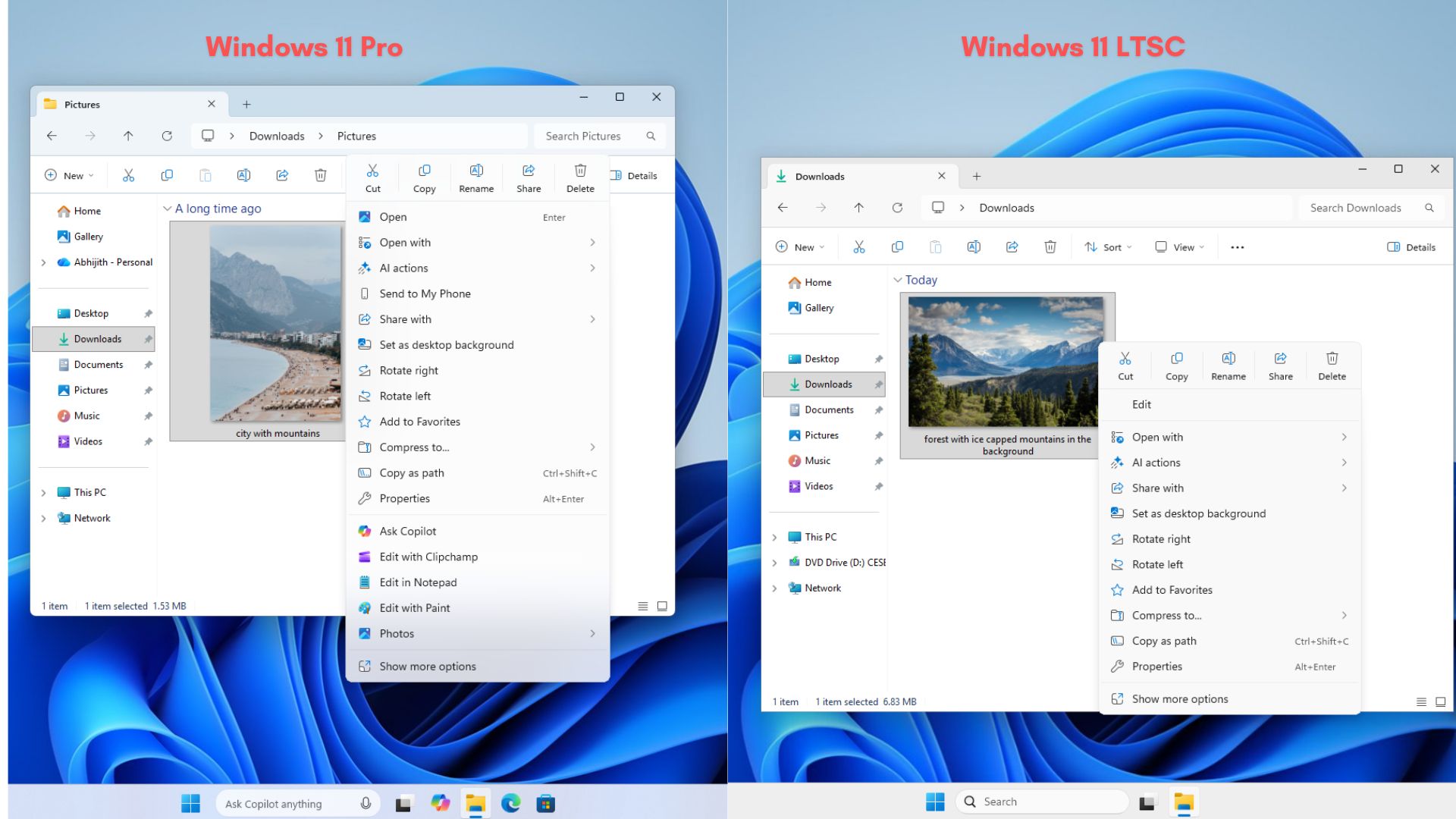 Windows 11 LTSC 版文件资源管理器的上下文菜单明显比专业版短
你总可以通过“显示更多选项”回到原始菜单,有些用户还用第三方应用设其为默认,但这并非理想方案。
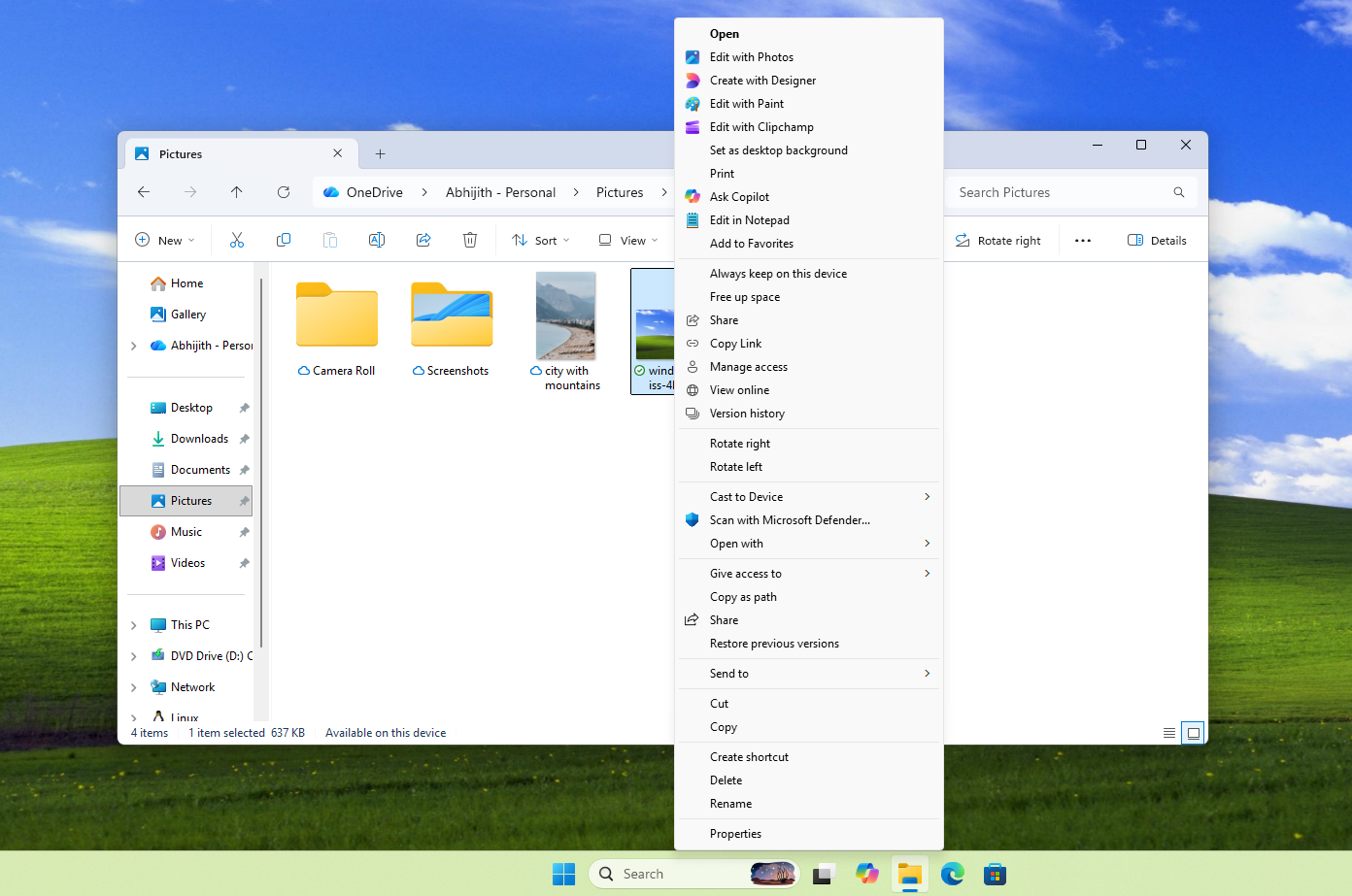 文件资源管理器上下文菜单中的“显示更多选项”会打开另一个看似 Windows 10 版本的菜单
更多自定义选项即将加入 Windows 11
上下文菜单并非唯一变得更可定制的功能。微软近期新增了任务栏移动功能,并推出新切换开关,让开始菜单变得更小巧。
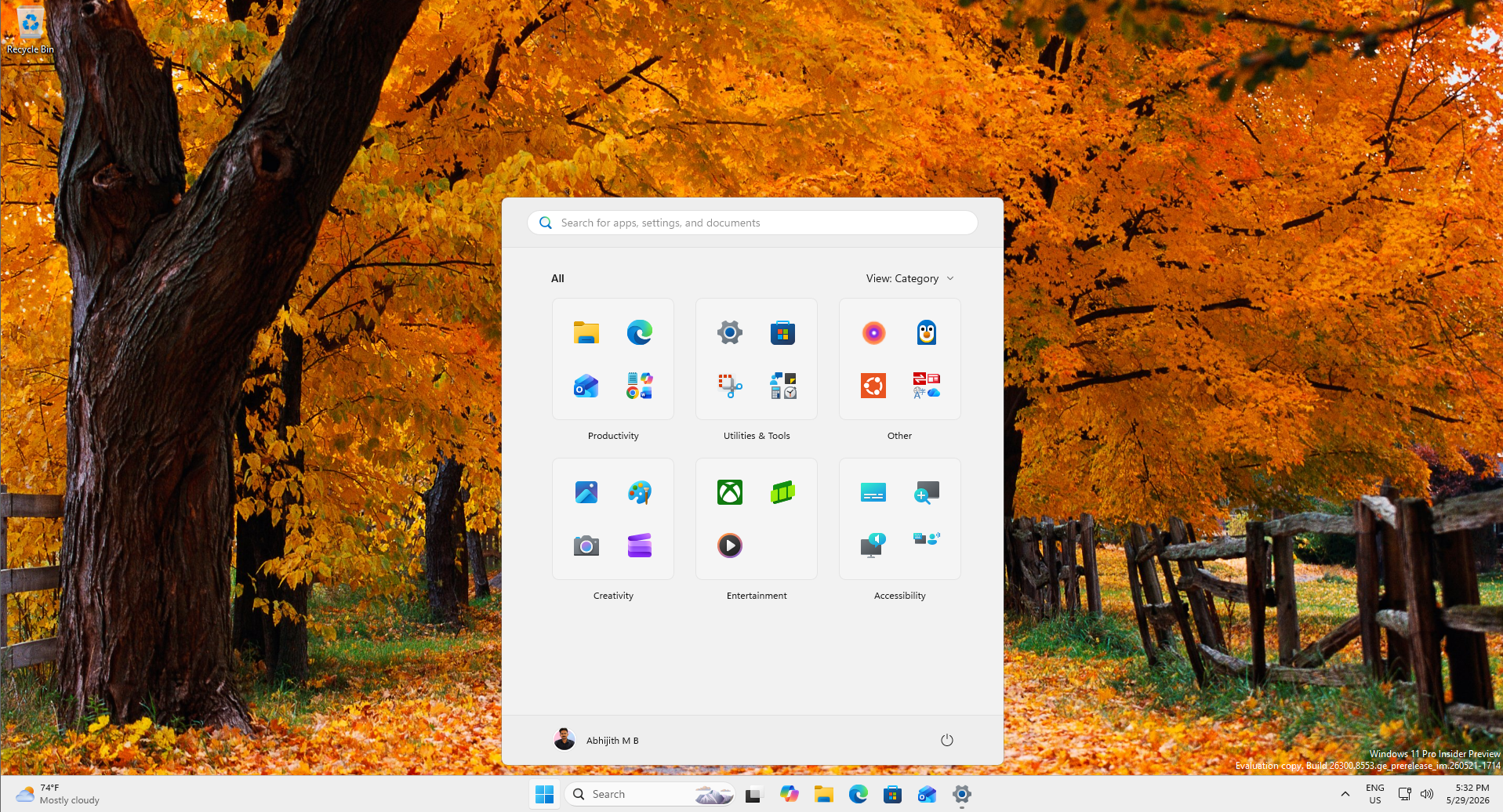
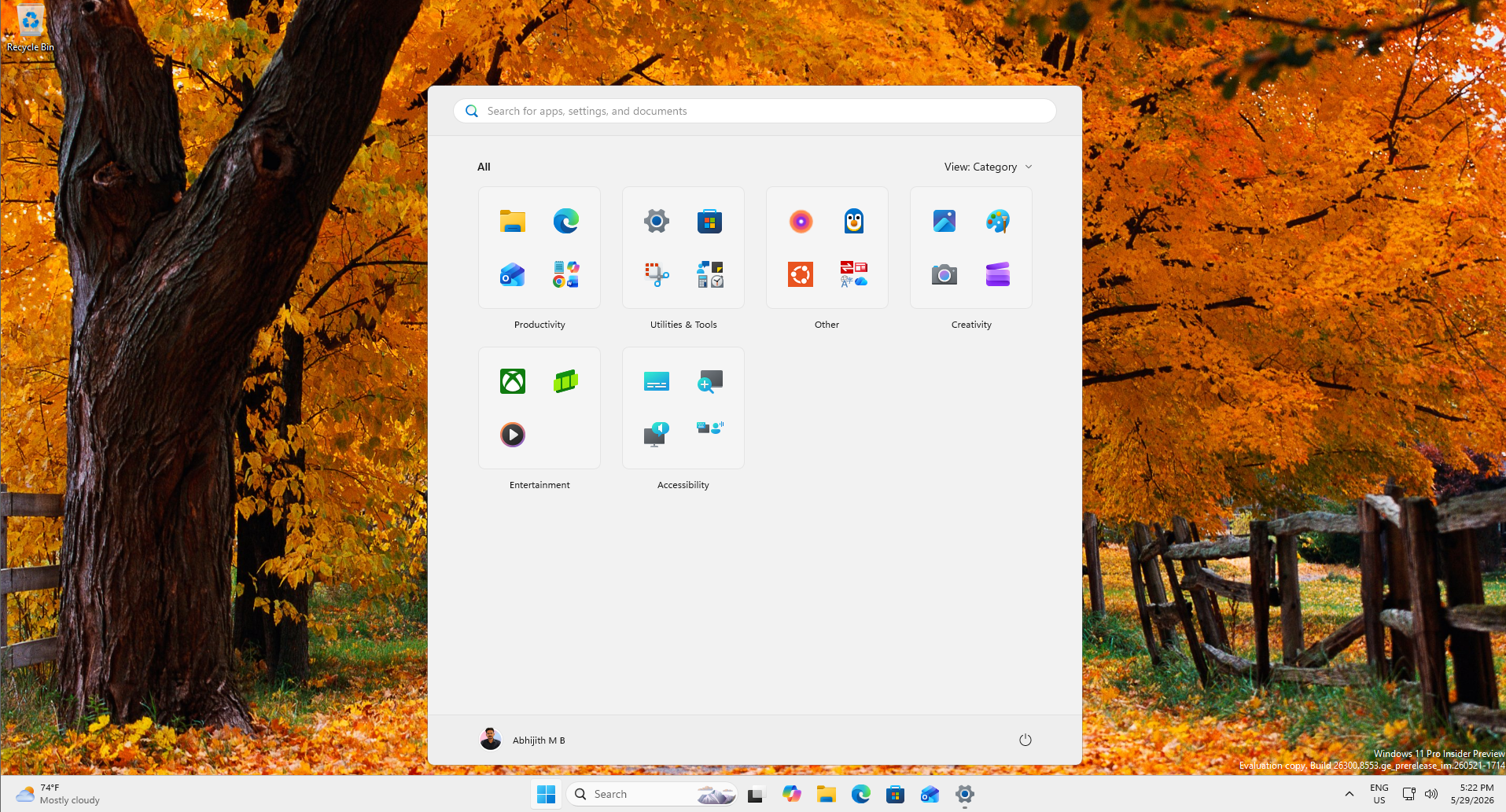
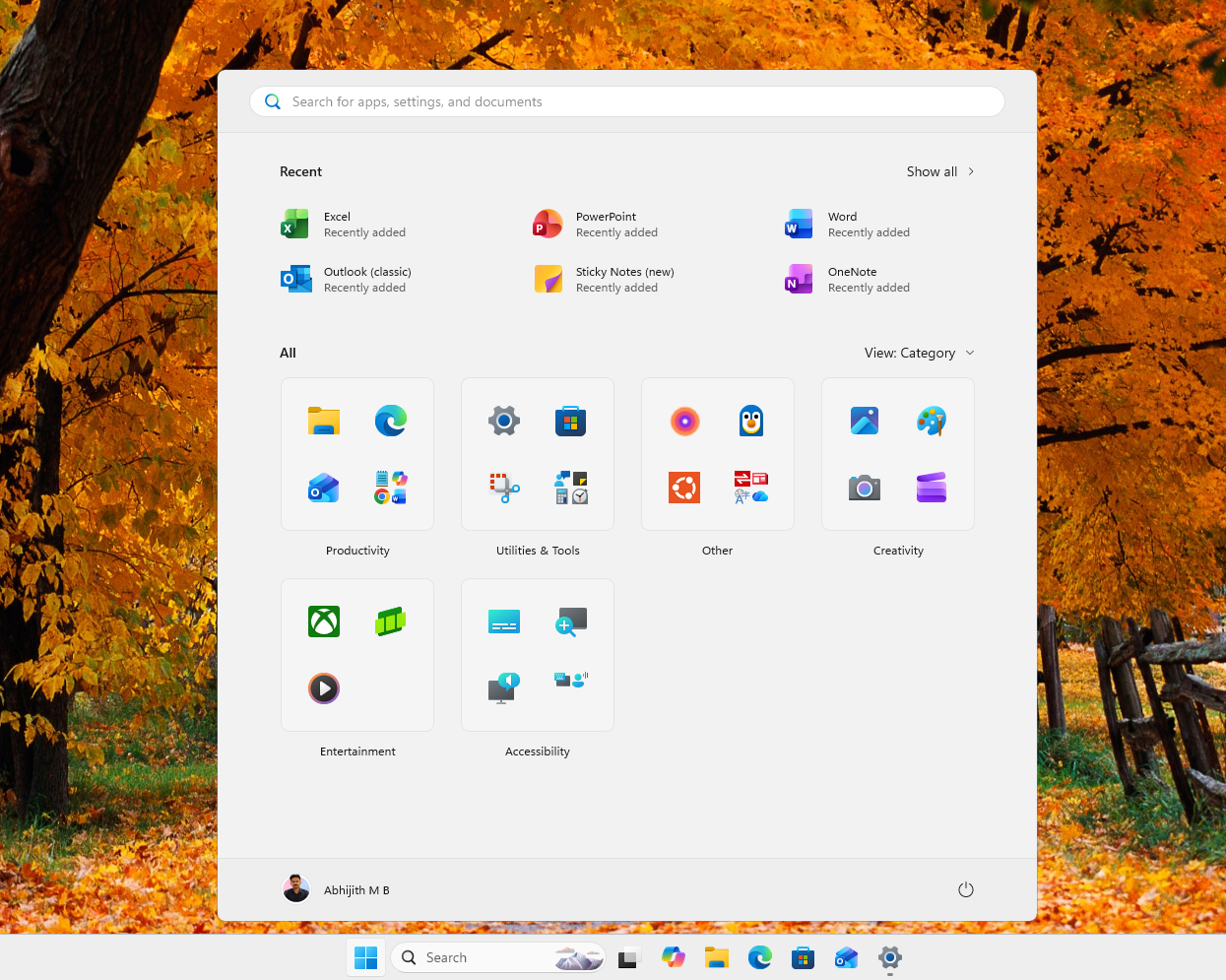
它还在测试模块化设计的开始菜单,用户可以关闭不同模块或全部模块,包括最不受欢迎的“推荐”板块,后者正改名为“最近”。
#tdi_5 .td-doubleSlider-2 .td-item1 { background: url(https://www.windowslatest.com/wp-content/uploads/2026/05/Vertical-taskbar-in-Windows-11-80x60.jpg) 0 0 no-repeat; } #tdi_5 .td-doubleSlider-2 .td-item2 { background: url(https://www.windowslatest.com/wp-content/uploads/2026/05/Windows-11-taskbar-vertical-left-side-80x60.jpg) 0 0 no-repeat; } #tdi_5 .td-doubleSlider-2 .td-item3 { background: url(https://www.windowslatest.com/wp-content/uploads/2026/05/Windows-11-taskbar-right-side-hands-on-80x60.jpg) 0 0 no-repeat; } #tdi_5 .td-doubleSlider-2 .td-item4 { background: url(https://www.windowslatest.com/wp-content/uploads/2026/05/Empty-Start-menu-with-All-and-Pinned-apps-disabled-while-Recent-is-enabled-80x60.png) 0 0 no-repeat; } #tdi_5 .td-doubleSlider-2 .td-item5 { background: url(https://www.windowslatest.com/wp-content/uploads/2026/05/New-Start-menu-with-All-apps-turned-off-looks-like-the-original-Windows-11-Start-menu-80x60.png) 0 0 no-repeat; } #tdi_5 .td-doubleSlider-2 .td-item6 { background: url(https://www.windowslatest.com/wp-content/uploads/2026/05/Start-menu-with-just-the-Pinned-apps-80x60.png) 0 0 no-repeat; } #tdi_5 .td-doubleSlider-2 .td-item7 { background: url(https://www.windowslatest.com/wp-content/uploads/2026/05/Start-menu-with-All-apps-only-in-Grid-view-and-List-view-80x60.jpg) 0 0 no-repeat; } #tdi_5 .td-doubleSlider-2 .td-item8 { background: url(https://www.windowslatest.com/wp-content/uploads/2026/05/Start-menu-with-the-Small-toggle-turned-on-80x60.png) 0 0 no-repeat; } #tdi_5 .td-doubleSlider-2 .td-item9 { background: url(https://www.windowslatest.com/wp-content/uploads/2026/05/Start-menu-with-just-All-apps-and-Recent-and-Pinned-apps-turned-off-80x60.png) 0 0 no-repeat; } #tdi_5 .td-doubleSlider-2 .td-item10 { background: url(https://www.windowslatest.com/wp-content/uploads/2026/05/New-Start-menu-with-all-sections-turned-off-80x60.png) 0 0 no-repeat; } #tdi_5 .td-doubleSlider-2 .td-item11 { background: url(https://www.windowslatest.com/wp-content/uploads/2026/05/New-Start-menu-80x60.png) 0 0 no-repeat; } #tdi_5 .td-doubleSlider-2 .td-item12 { background: url(https://www.windowslatest.com/wp-content/uploads/2026/05/New-Start-menu-with-Pinned-apps-turned-off-80x60.png) 0 0 no-repeat; } 新的开始菜单和任务栏体验 1 / 12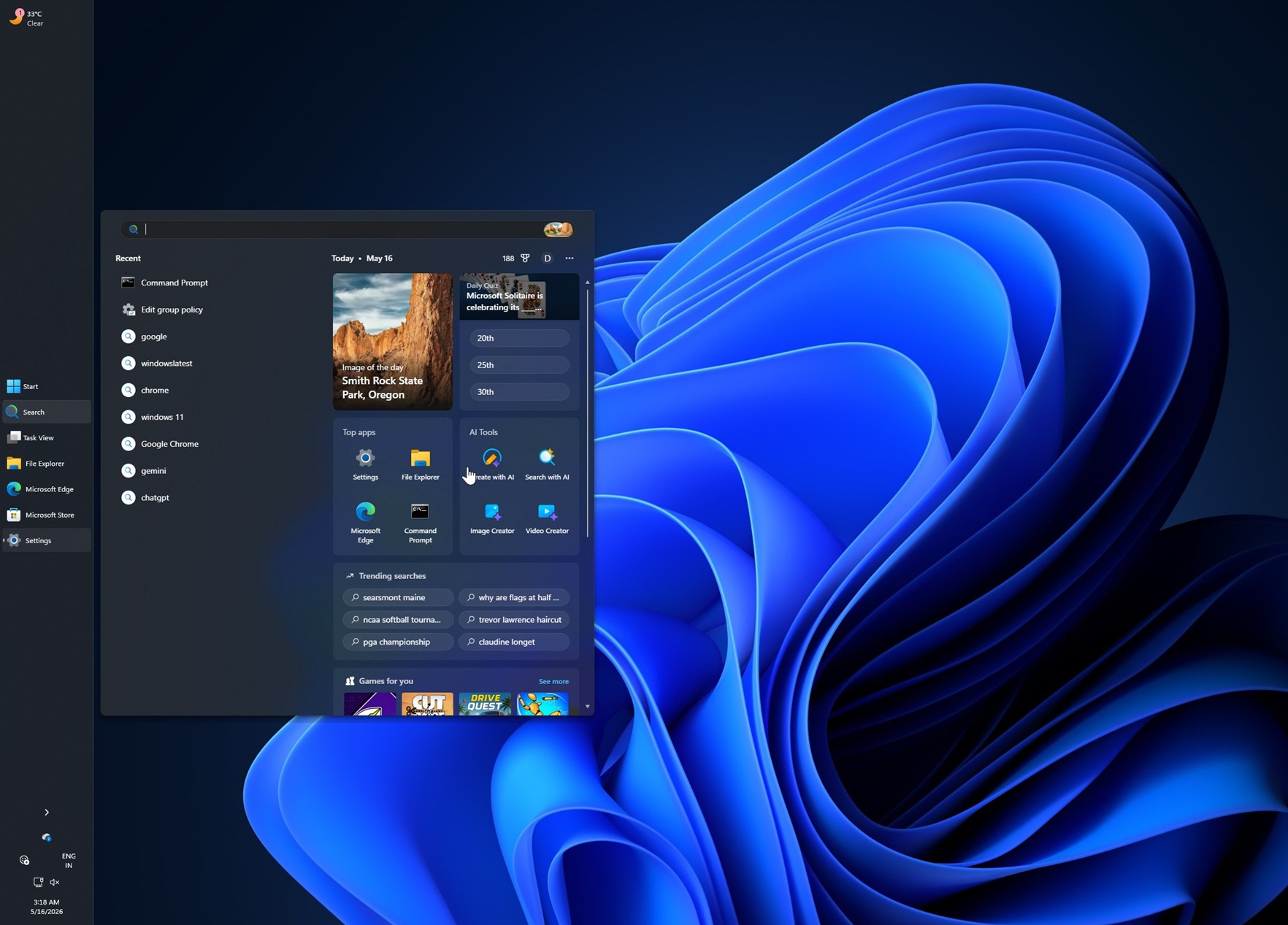
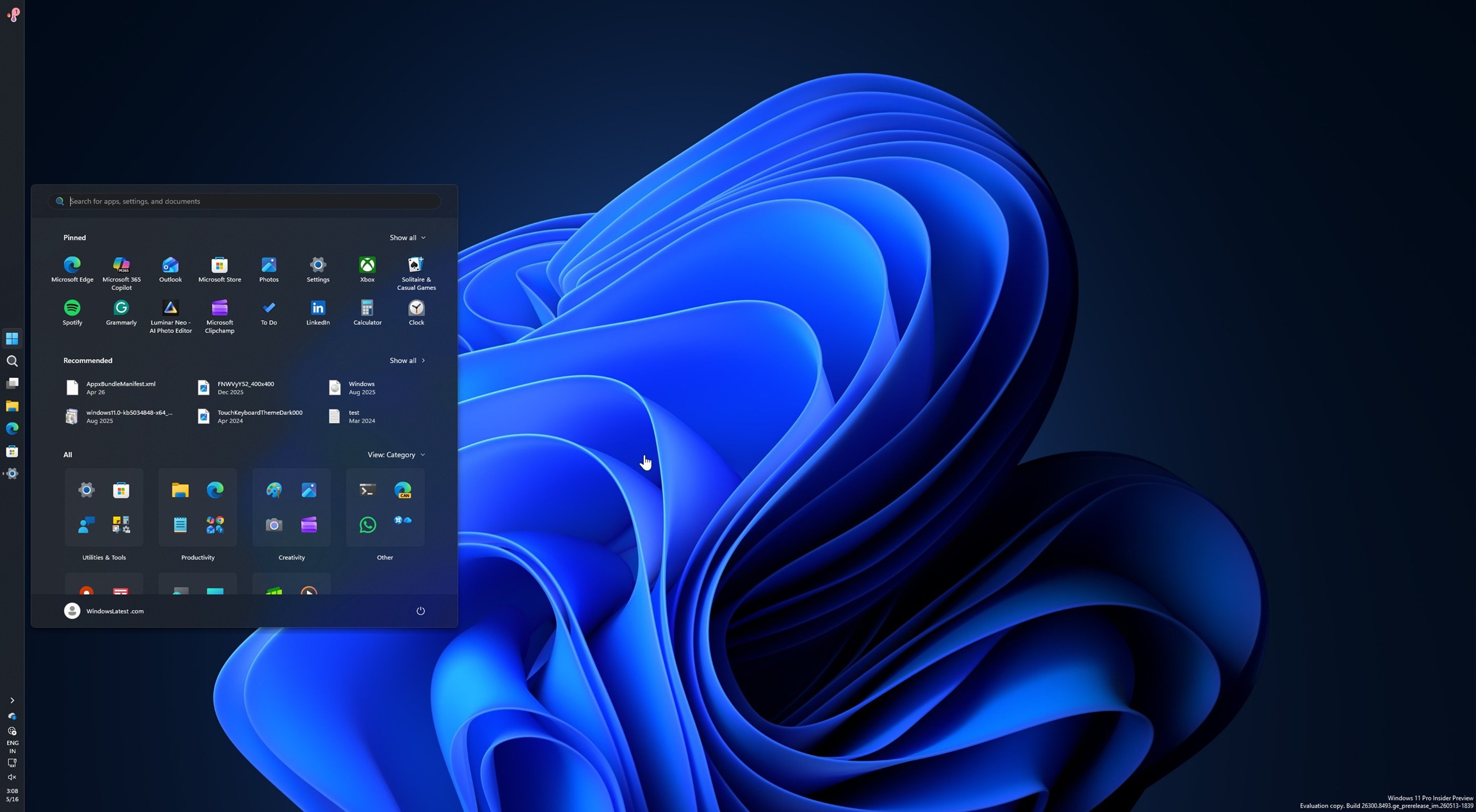
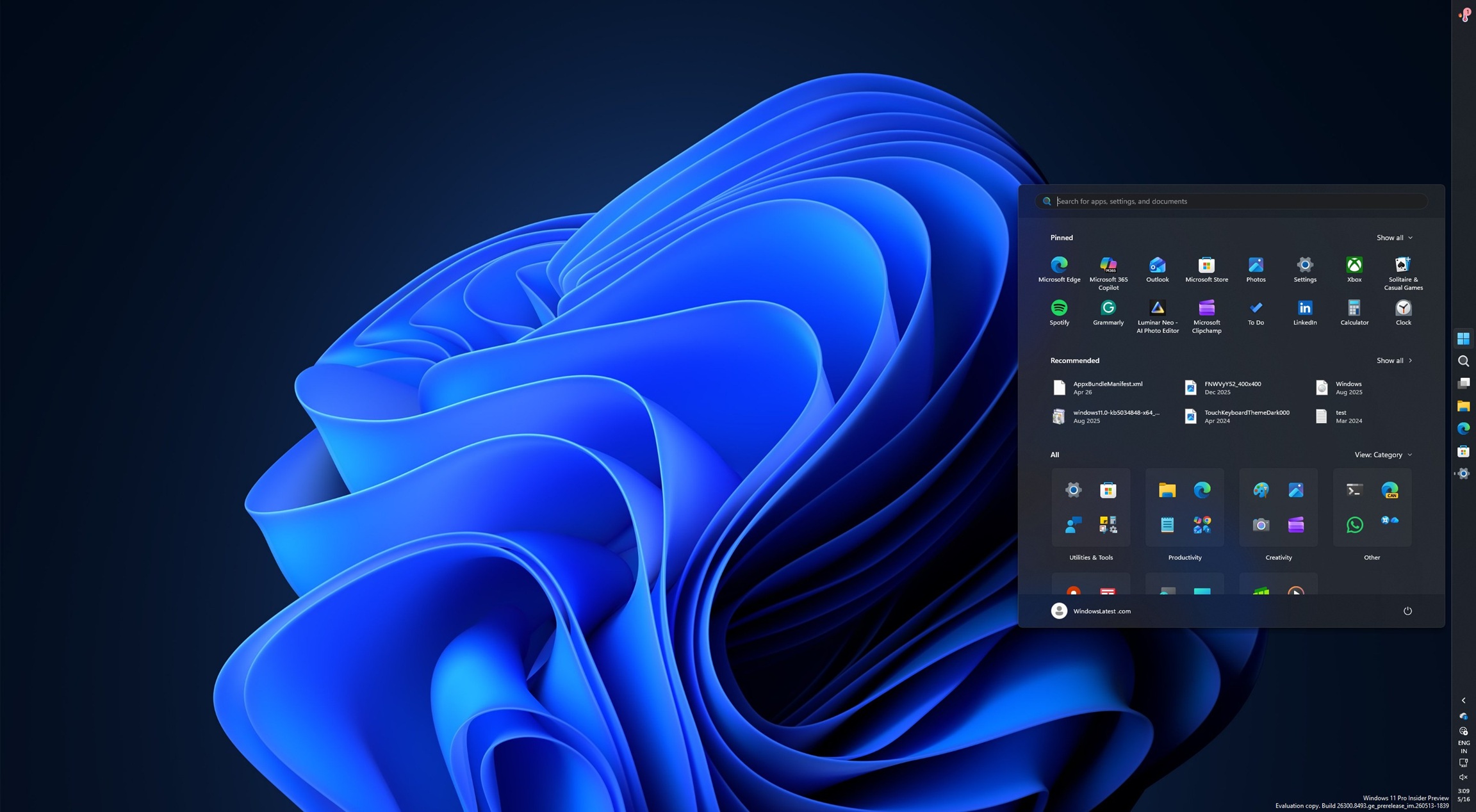
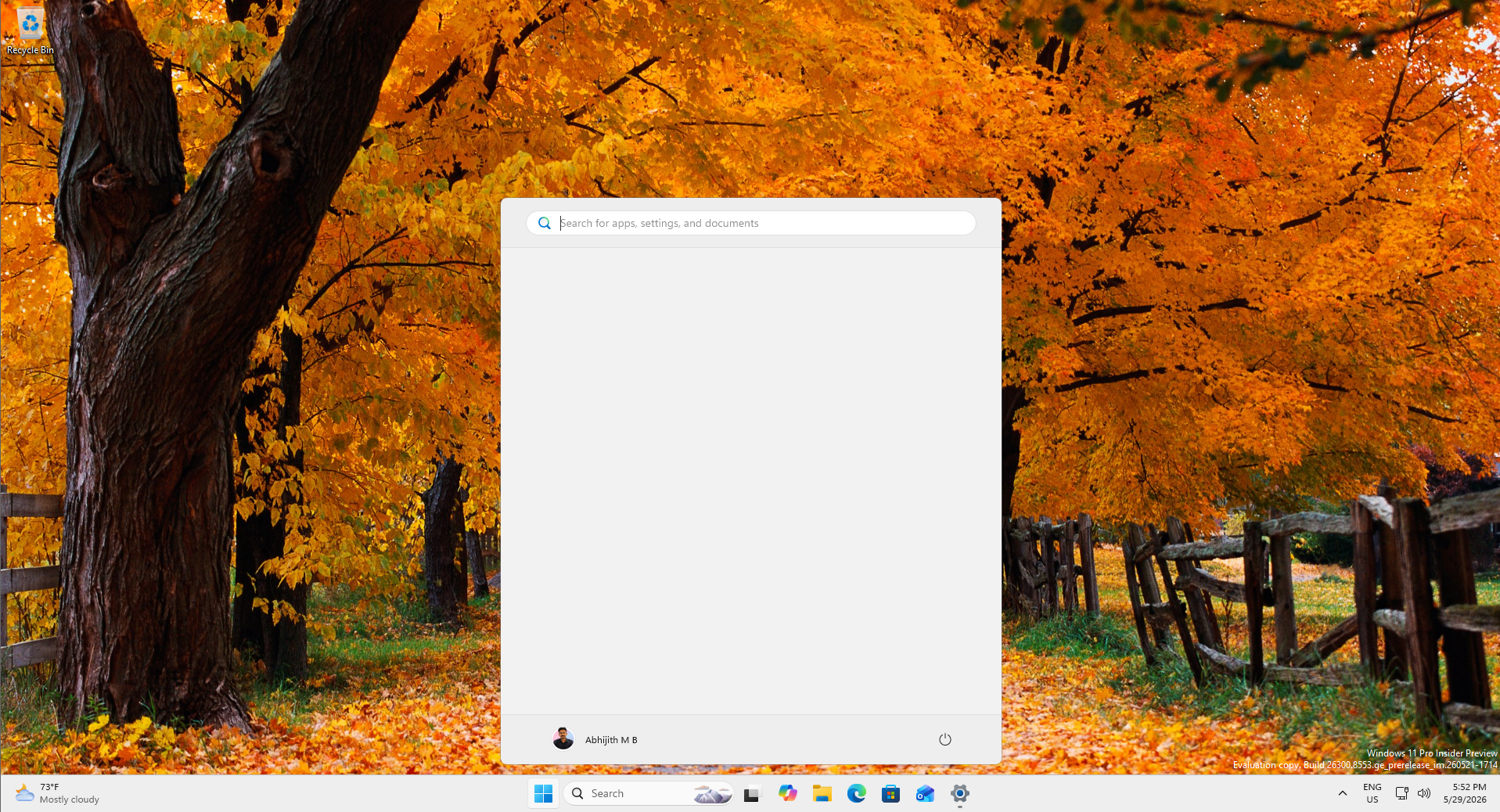 禁用全部和固定应用、仅启用“最近”后的空白开始菜单。图源 Windows Latest
 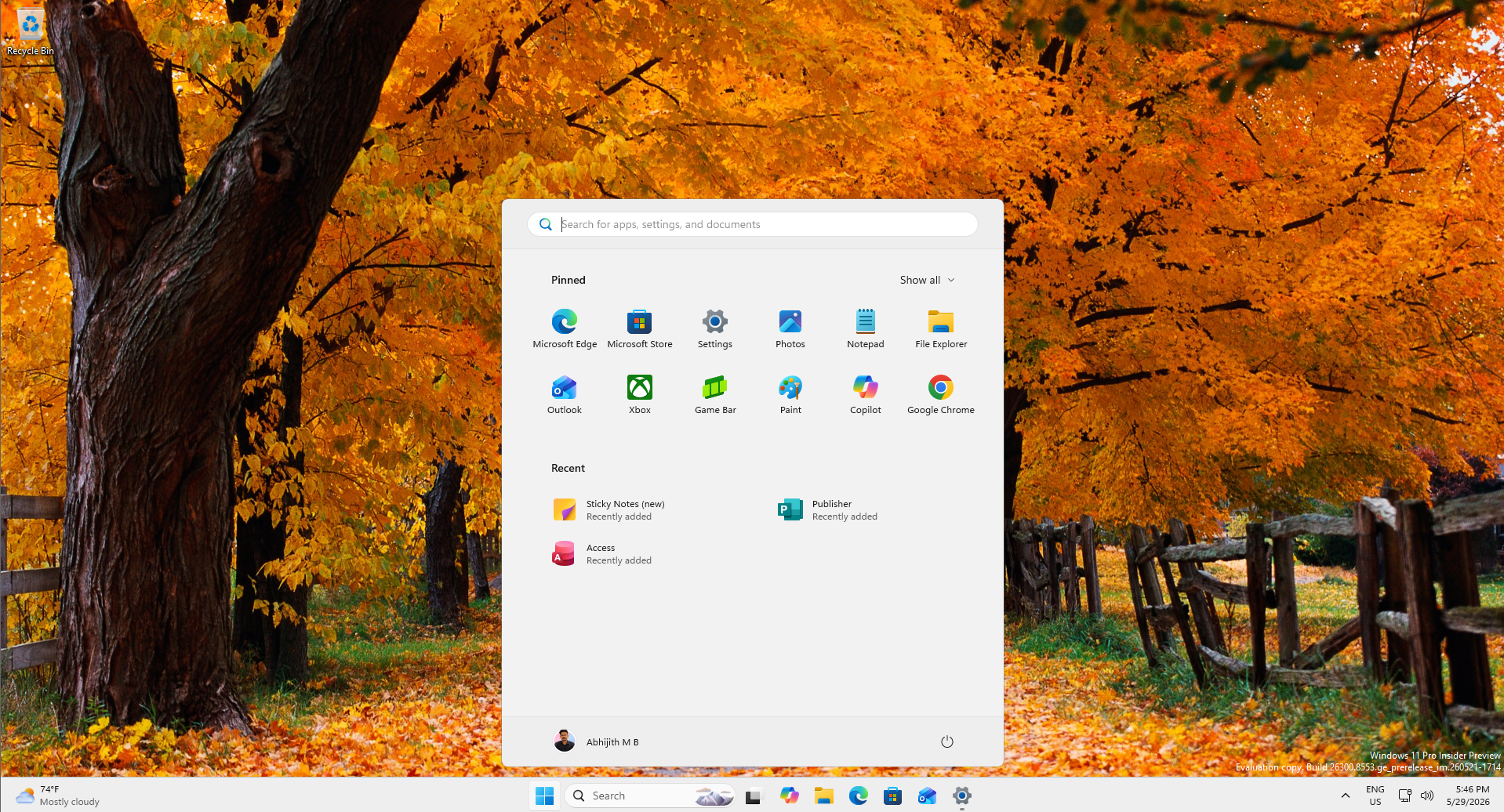 关闭全部应用后的新版开始菜单,看起来更像原版 Windows 11 开始菜单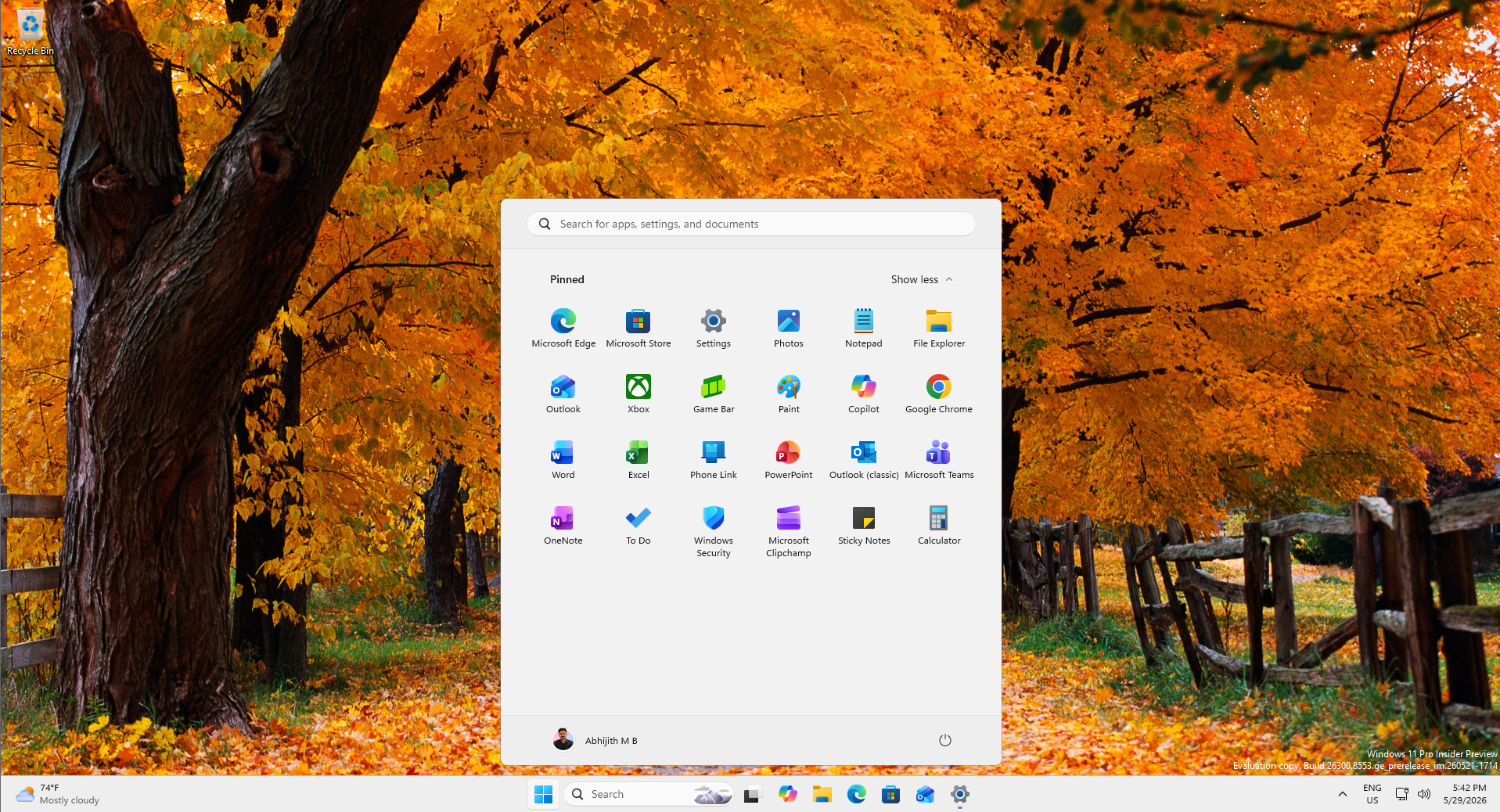
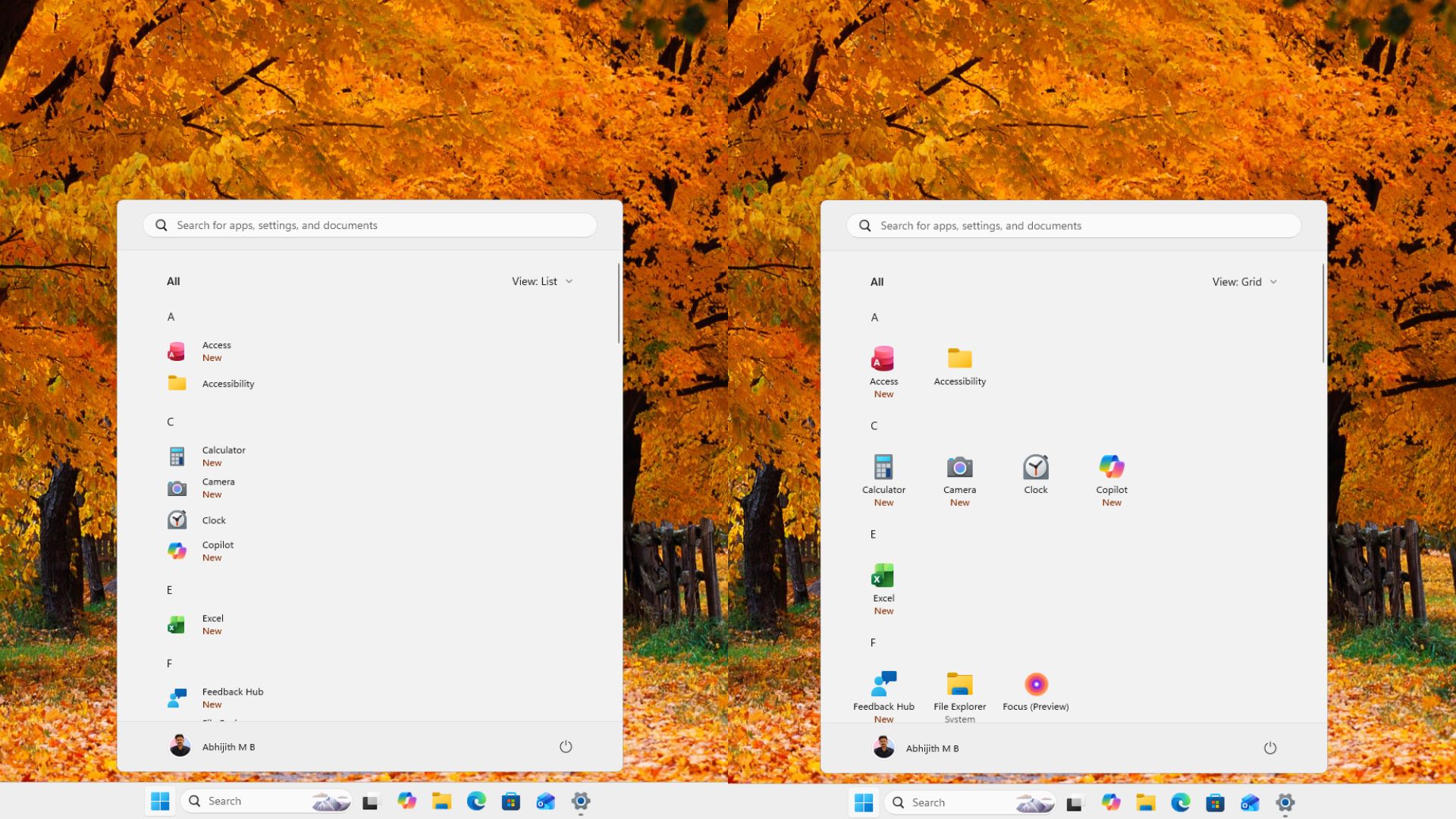
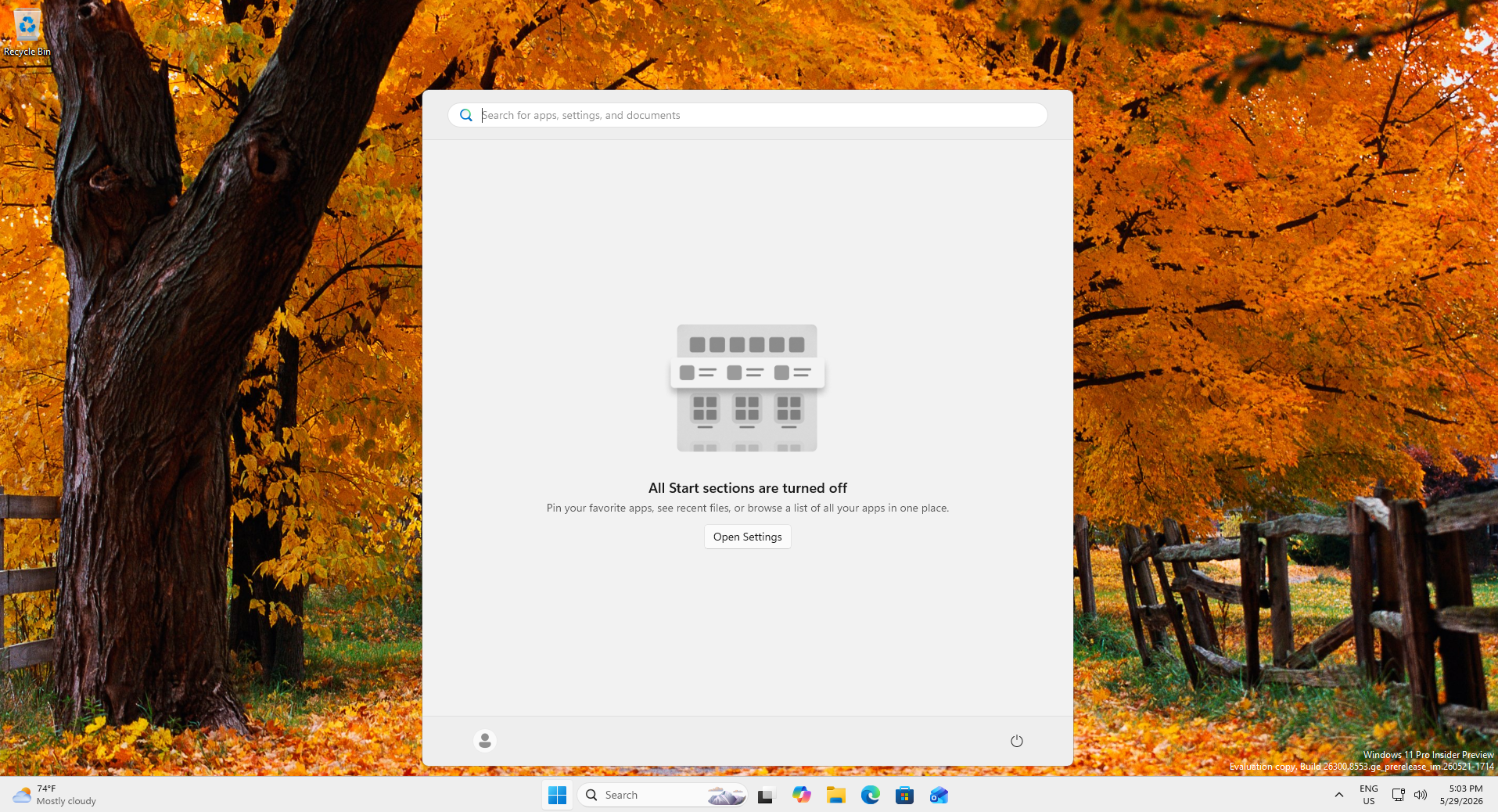 关闭全部模块后的新版开始菜单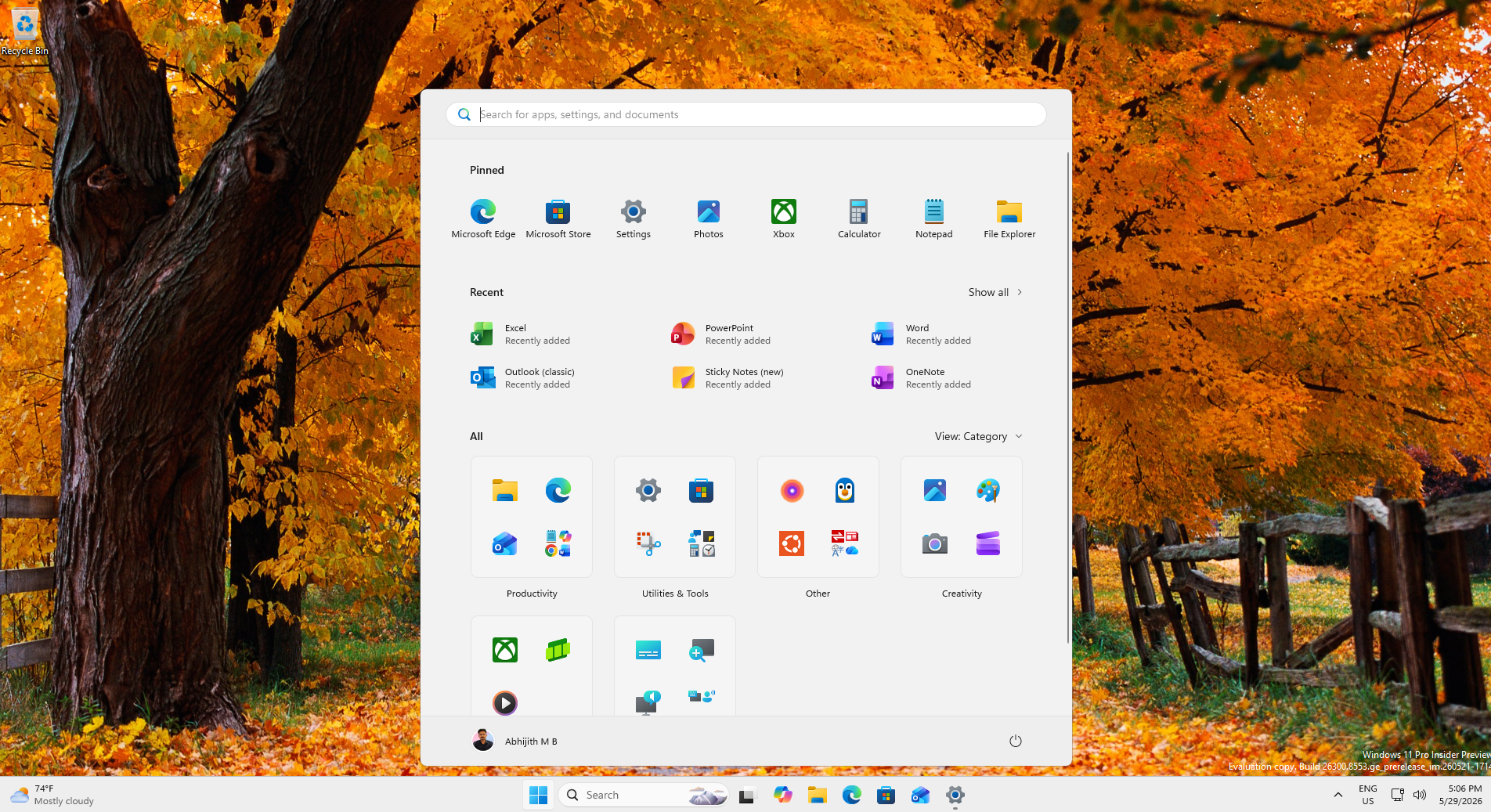
即将到来的上下文菜单变动是这一更大改进计划的另一部分。
你还希望微软在 Windows 11 中优先修复什么?请在下方评论告诉我。