Windows 10 KB5087544 out with Secure Boot status update, direct download links for .msu
Windows 10 KB5087544 is now available as part of Microsoft’s May 2026 Patch Tuesday, and it’s a mandatory update that’ll download automatically as long as you’ve signed up for ESU (Extended Security Update). Microsoft has also posted direct download links for KB5087544 offline installers (.msu), but they don’t work unless you’ve ESU active.
If you haven’t checked for updates yet, this patch is labeled as “2026-05 Cumulative Update for Windows 10 Version 22H2 for x64-based Systems (KB5087544).”
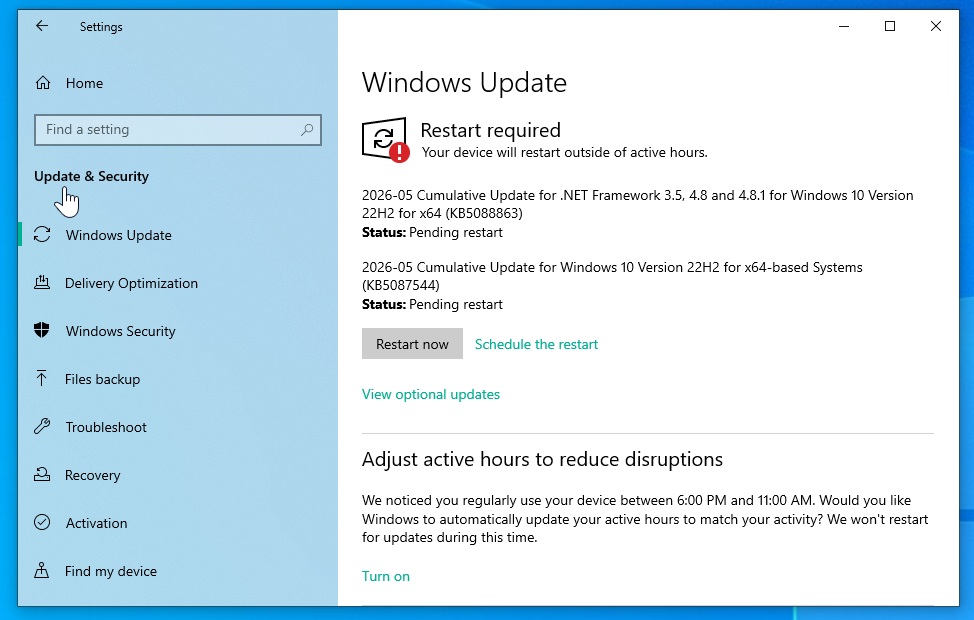
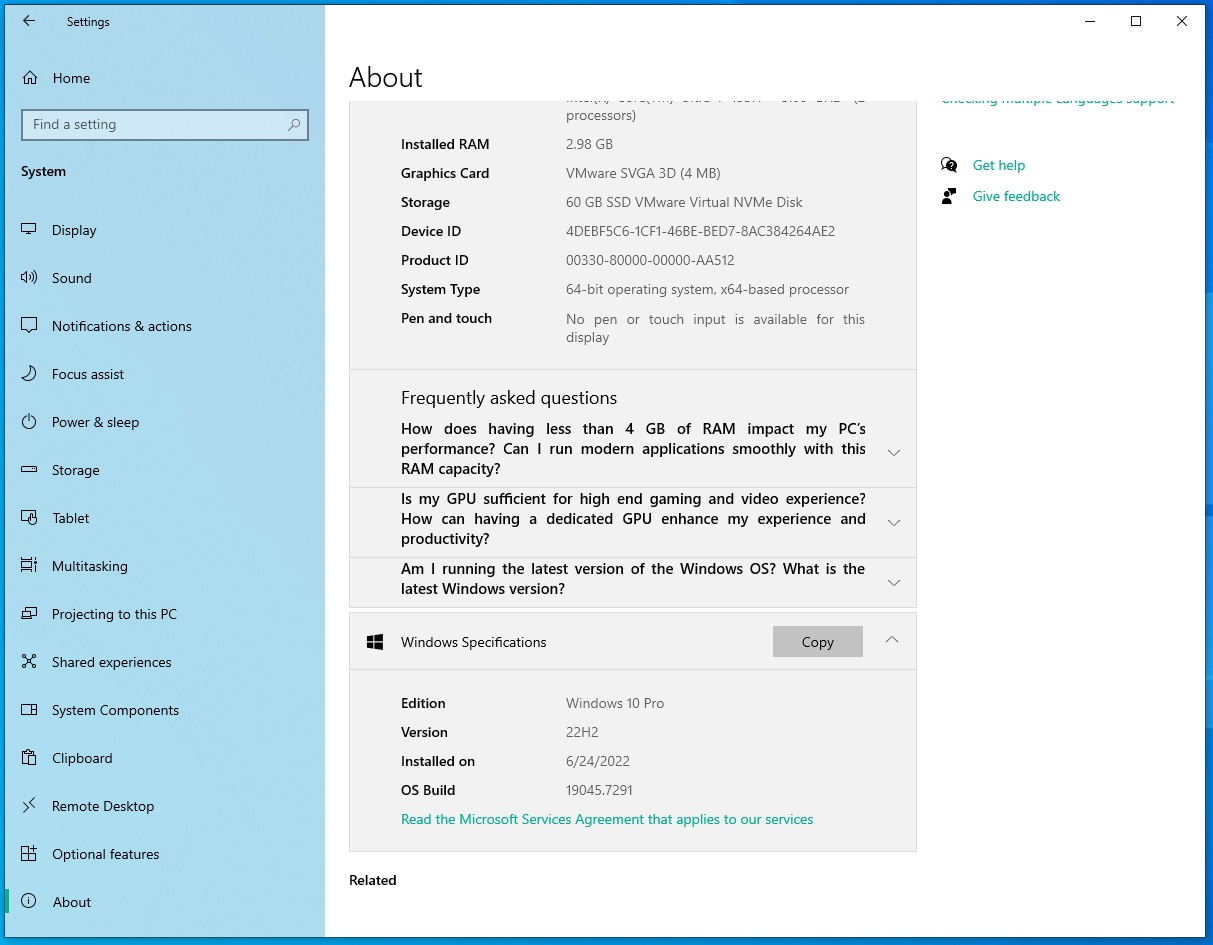
In our tests, Windows Latest observed that Windows 10 KB5087544 takes less than five minutes to download and install. After installing, it bumps the OS to Windows 10 Build 19045.7291.
Download Links for Windows 10 KB5087544
Windows 10 KB5087544 Direct Download Links: 64-bit and ARM-64 | This opens Microsoft Update Catalog, where you can download the update in .msu, but you don’t have to use it in most cases. I recommend using Windows Update, but if that’s failing, and you’re unsure what to do, try your luck with Update Catalog.
You can download and install the Windows 10 May 2026 update from Settings > Updates & Security > Windows Update.
What’s new in Windows 10 Build 19045.7291?
With the May 2026 Update for Windows 10, Microsoft is pushing out new Secure Boot certificates for more PCs using a controlled, phased rollout. Devices will only receive these updated certificates after they demonstrate sufficient successful update signals, relying on high-confidence device targeting data to prevent boot failures.
This phased rollout helps ensure device stability, especially given that older Secure Boot certificates are slated to expire in June 2026.
1. Secure Boot status in Windows Security app
Windows 10 Build 19045.7291 doesn’t include any major changes, but it does include at least one notable feature. Microsoft is bringing Secure Boot status to the Windows Security app.
Previously, it was not easy to verify whether your Secure Boot certificate is updated on Windows 10. Now, the Windows Security App features dynamic status reporting for Secure Boot states. This means, if you open Windows Security, go to the Device Security tab, and scroll down to Secure Boot section, you’ll notice the current status.
In my case, Secure Boot status is fully up to date with all certificates applied, and it shows a green guard icon.
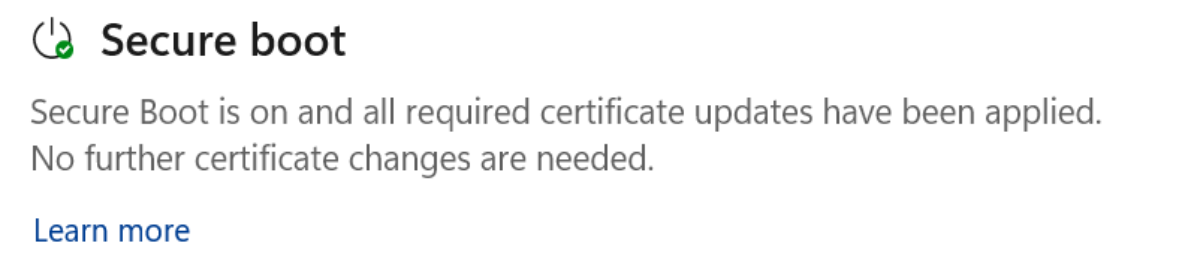 The Secure Boot section showing the “fully updated” status with a green checkmark icon.
In a support document, Microsoft noted that a green icon indicates no action is required and that your device is protected with Secure Boot 2023 certificates, but a yellow icon means there’s a recommendation for you.
For example, take a look at the screenshot of a yellow Secure Boot alert. It states that PC is unable to get the automated Secure Boot certificate via Windows Update, and it’s mostly due to the hardware or firmware limitations. You need to take an action here, and that is to contact your OEM.
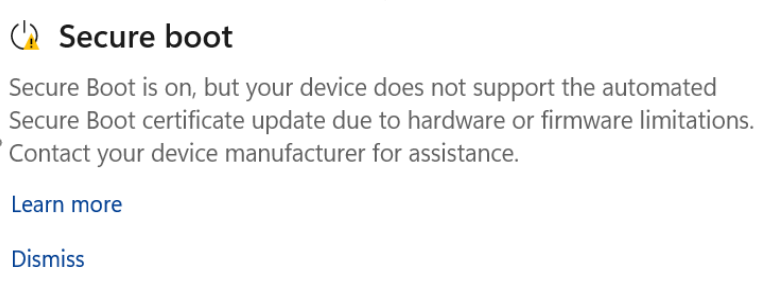 The Secure Boot section is showing the “Not yet updated” status with a yellow warning icon.
There’s also a red alert, which means that your device cannot receive required updates for the Windows boot experience, and the alert would stay on the screen unless you accept the risks.
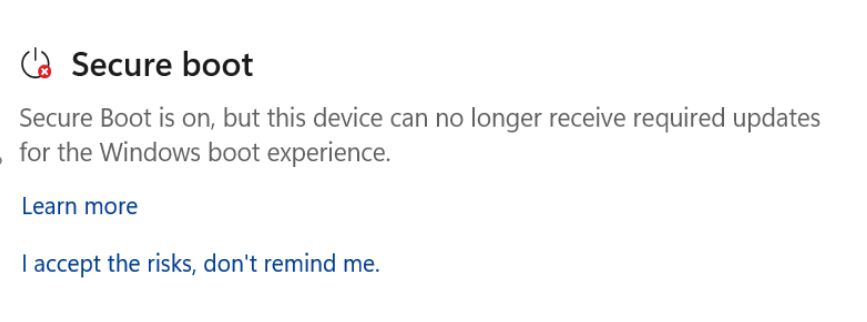 The Secure Boot section showing the “Requires action” status with a red stop icon.
It is worth noting that these Secure Boot errors are not rare. In our investigation, Windows Latest found that Secure Boot updates are failing across thousands of PCs, exposing long-standing firmware problems.
Most OEMs rarely care about the firmware for budget PCs, and even high-end PCs, but Secure Boot failures should be a wakeup call for the entire PC ecosystem
2. Remote Desktop fixes and other improvements
If you use multiple desktops, you will be happy to know that Windows 10 KB5087544 resolves an annoying visual bug where the Remote Desktop Connection security warning dialog would render incorrectly or appear distorted on multi-monitor setups that use different display scaling settings.
This particular bug was accidentally introduced in the April 2026 update (KB5082200), and build 19045.7291 finally squashes it.
The update also includes a minor time zone adjustment for the Arab Republic of Egypt, updating the system to support the government’s Daylight Saving Time change order from 2023.
Is Microsoft aware of known issues with the Windows 10 KB5087544?
Microsoft has highlighted a notable known issue in Windows 10 KB5087544 that primarily affects enterprise users. If your device uses an unrecommended BitLocker Group Policy configuration, you might be asked to enter your BitLocker recovery key during the first restart after installing the update.
This issue triggers under a very specific set of conditions:
- BitLocker is actively enabled on your primary OS drive.
- The Group Policy for TPM platform validation is configured to explicitly include PCR7.
- Your System Information (msinfo32.exe) reports that Secure Boot State PCR7 Binding is “Not Possible”.
- The Windows UEFI CA 2023 certificate is present in the device’s Secure Boot Signature Database.
Fortunately, this is a one-time prompt. Subsequent restarts will not trigger the BitLocker recovery screen.
If you are an IT administrator, Microsoft recommends temporarily setting the “Configure TPM platform validation profile for native UEFI firmware configurations” policy to “Not Configured” before deploying the May 2026 update to avoid the recovery screen entirely.
Servicing Stack Updates and Deployment
As is standard practice, Microsoft has combined the latest Servicing Stack Update (SSU KB5084130, version 19041.7183) with this cumulative update. This specific SSU brings enhanced logic to verify if a device is hosted on Azure, utilizing an updated certificate chain for validation to ensure Azure-hosted devices can successfully download and install future certificate updates.
If you have already moved past Windows 10, Microsoft has also rolled out a massive update for newer devices today. You can check out our comprehensive coverage of the Windows 11 May 2026 Patch Tuesday update, which introduces the new full-screen Xbox Mode, eliminates File Explorer’s dark mode visual glitches, and brings significant performance optimizations.