Windows 11 KB5077241 adds Internet speed test, direct download links for offline installers (.msu)
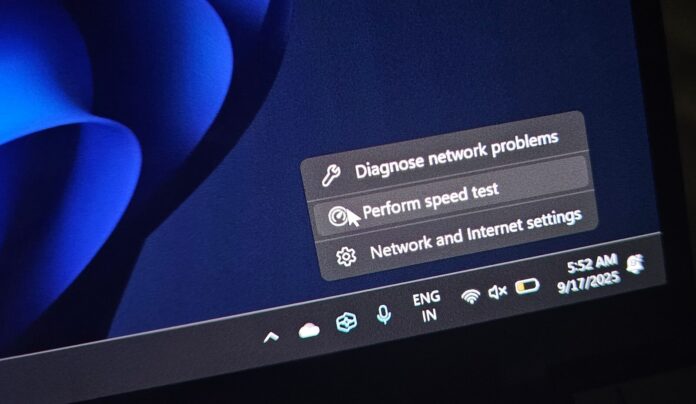
Windows 11 KB5077241 is now rolling out with new features, such as Emoji 16, which means you’ll get a handful of new emojis, and a new built-in network speed test tool on the taskbar. In addition to Windows Update, Microsoft has posted direct download links for KB5077241 offline installers (.msu).
KB5077241 is an optional update, and it shows up as “2026-02 Preview Update (KB5077241) (26200.7922)” on PCs with Windows 11 25H2. If you’ve version 24H2, you’re going to get the same update, but the build number will bump to 26100.7922.
I checked for updates, and it showed up immediately along with “2026-01 .NET Framework Preview Update (KB5074828).” For those unaware, .NET Framework is required by Windows apps, but there are no visible changes for your apps or deployment in this specific update.
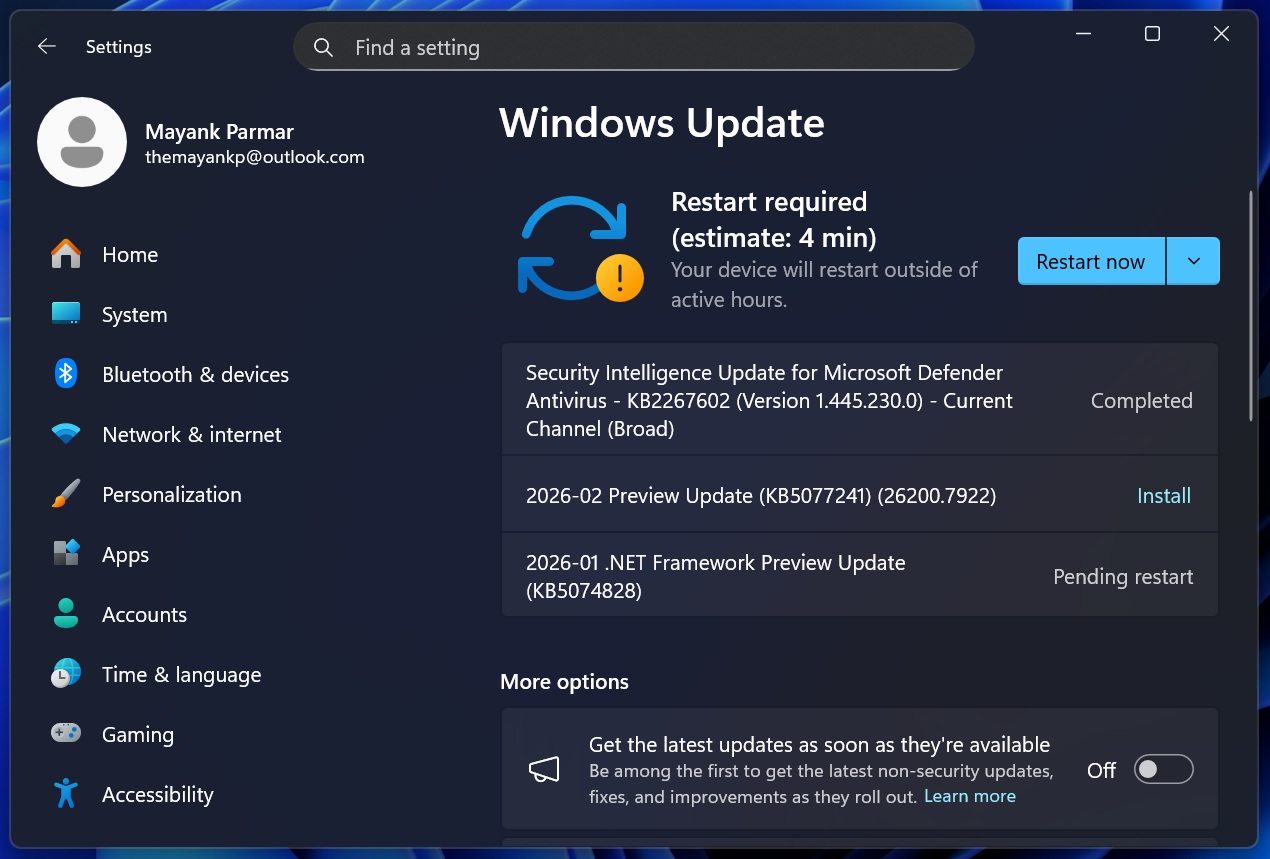
In our tests, Windows Latest observed that the optional preview update downloads automatically when the toggle “Get the latest updates as soon as they’re available” is turned on. If you do not want to install the optional updates by mistake, make sure the toggle is unchecked.
Although optional updates have a ‘preview’ tag, they’re more or less similar to the forthcoming Patch Tuesday update. If you choose to skip Build 26200.7922, you’re going to receive the same set of fixes or improvements on March 10, 2026 when Microsoft releases Patch Tuesday updates.
Download Links for Windows 11 KB5077241
Windows 11 KB5077241 Direct Download Links: 64-bit and ARM-64 | Microsoft has also posted the direct download links on Update Catalog, which can be used when Windows Update is failing or when you want to deploy the preview update across dozens of PCs in your network.
To access Update Catalog, you need to head to the above link and click on ‘Download’ next to the supported OS version. For example, when I go to Settings > System > About, my CPU is listed as 64-bit, which means I need to download the x64 update package (.msu), not the arm64 one.
I downloaded the February 2026 optional update, and the size is approximately 4.5GB. That’s because Windows Updates now include the local AI models, which are downloaded even when your PC does not support the AI models. This particularly happens when you use the offline installers (.msu). But don’t worry, as models are never installed on unsupported PCs.
Build NumberSizeOS VersionArchitecture26200.79224524.2 MBWindows 11 25H2x64-based26200.79224305.6 MBWindows 11 25H2arm64-based26100.79224524.2 MBWindows 11 24H2x64-based26100.79224305.6 MBWindows 11 24H2arm64-basedI downloaded Windows 11 Build 26100.7922 in 10 minutes at a 200 Mbps connection, but it could take longer. I’ve personally observed that Windows Update throttles downloads, even when your internet connection is fast, so the update can take minutes to download. In some cases, updates could also get stuck.
Once you’ve downloaded Windows 11 KB5077241, it installs in less than 5 minutes and requires a single reboot to apply the changes.
What’s new in Windows 11 Build 26200.7922 (25H2) / Build 26100.7922 (24H2)?
New features are rolling out gradually, so they won’t show up even if you run Build 26200.7922 (25H2) / Build 26100.7922 (24H2).
1. Emoji 16.0 is now rolling out
Emoji 16 has been out for more than a year, but Windows has been late to the party. Even today, Windows 11 still doesn’t show the new emojis inside the Emoji (Win + .) and Clipboard panels.
Last year, Windows Latest reported that Windows 11 version 24H2 had already added support for Emoji 16. The catch was that the new emojis didn’t appear in the Emoji or Clipboard picker at all.
Instead, they only showed up inside apps like OneNote and WhatsApp. That made it clear Windows could already render Emoji 16 characters, but the built-in picker simply didn’t surface them. The supported set included Shovel, Fingerprint, Leafless Tree, and more.
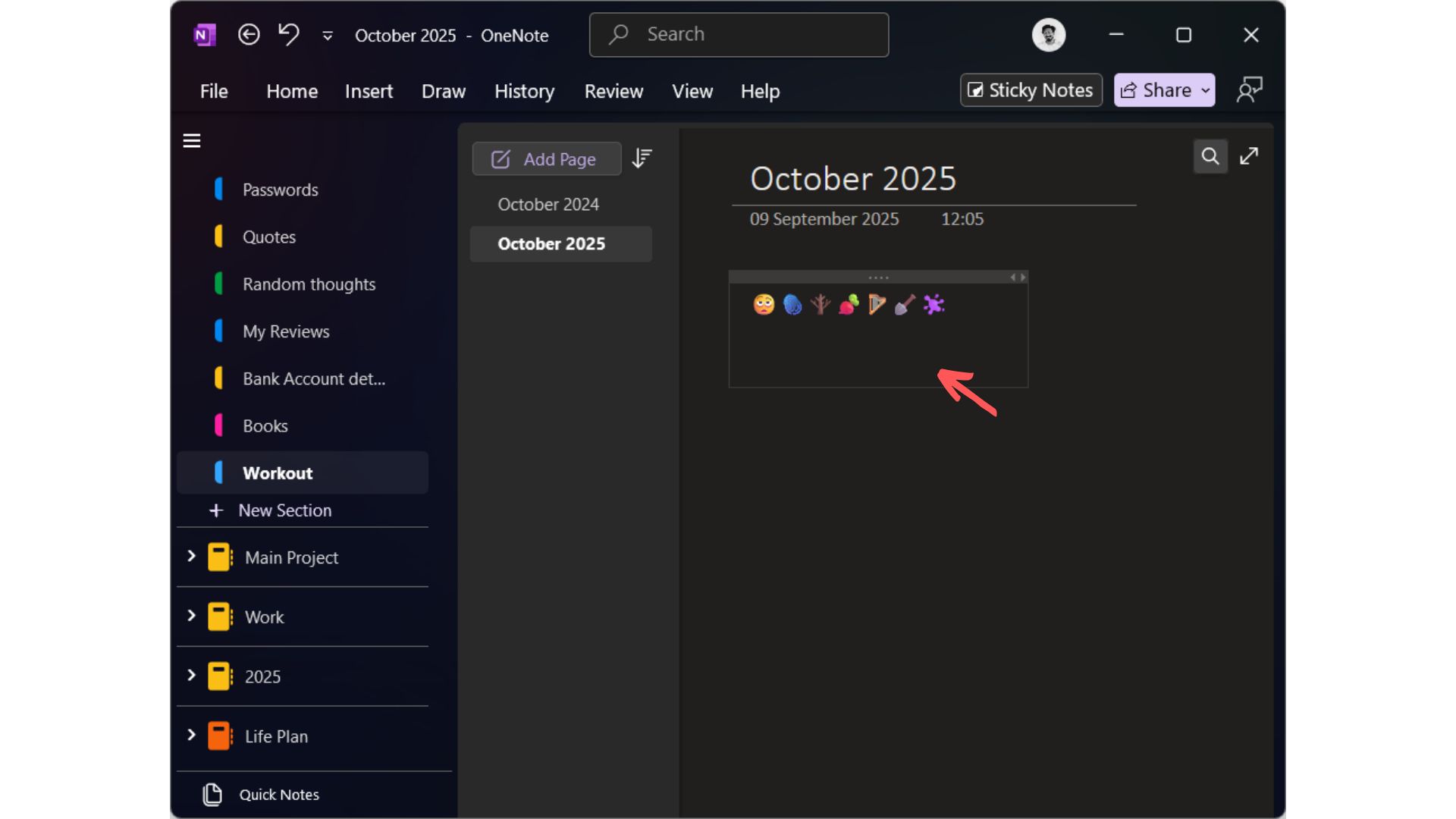
Now, with Windows 11 KB5077241, Microsoft is finally bringing those Emoji 16 additions to the Emoji panel, so you can search for them and insert them directly from the picker.
Emoji 16 support in the Emoji panel is still rolling out, and it may not show up immediately after applying the update.
2. Windows 11 taskbar now has a built-in network speed test tool
Today’s update adds a new feature called “perform speed test,” which allows you to test your internet connection speed by opening Bing.com and downloading or uploading files to Microsoft’s partner SpeedTest.
A built-in network speed test tool is a great tool, but is it really ‘native’ when you’re redirected to Bing.com? I don’t think so.
In Windows 11 KB5077241, when you right-click on the network/Wi-Fi icon, you’ll notice a new ‘Perform speed test.’
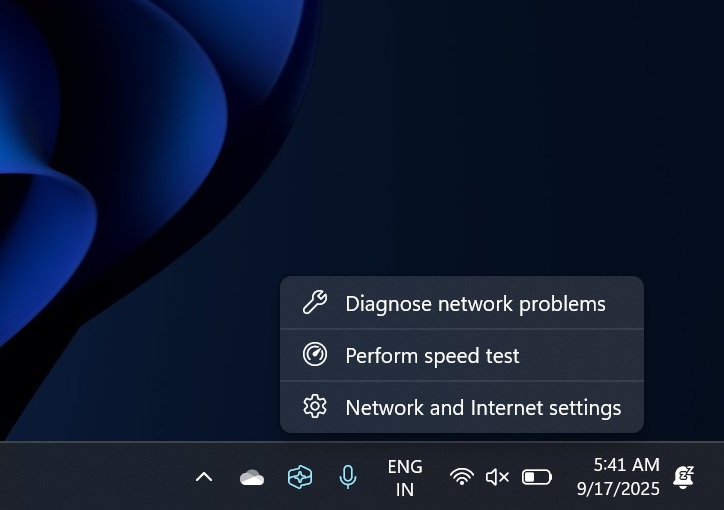
I also noticed that the Wi-Fi panel has the same ‘Perform speed test’ button, which sends you to Bing.com.
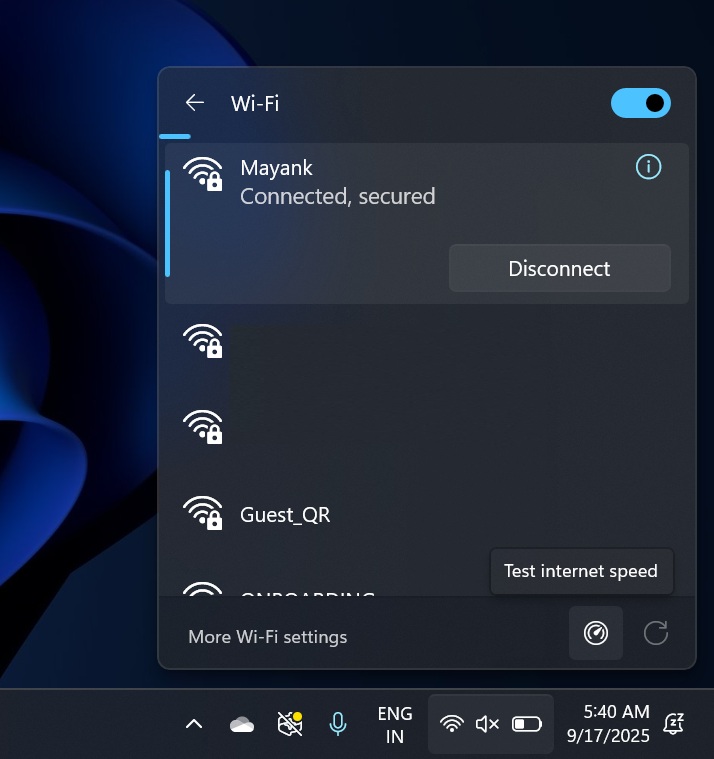 Image Courtesy: WindowsLatest.com
I tested Windows 11’s so-called internet speed test tool when it showed up last year, and it actually does work as advertised. When I clicked the button, Windows immediately redirected me to Bing.com in my default browser. In my case, the Windows taskbar opened Bing in Edge with the query “internet speed test.”
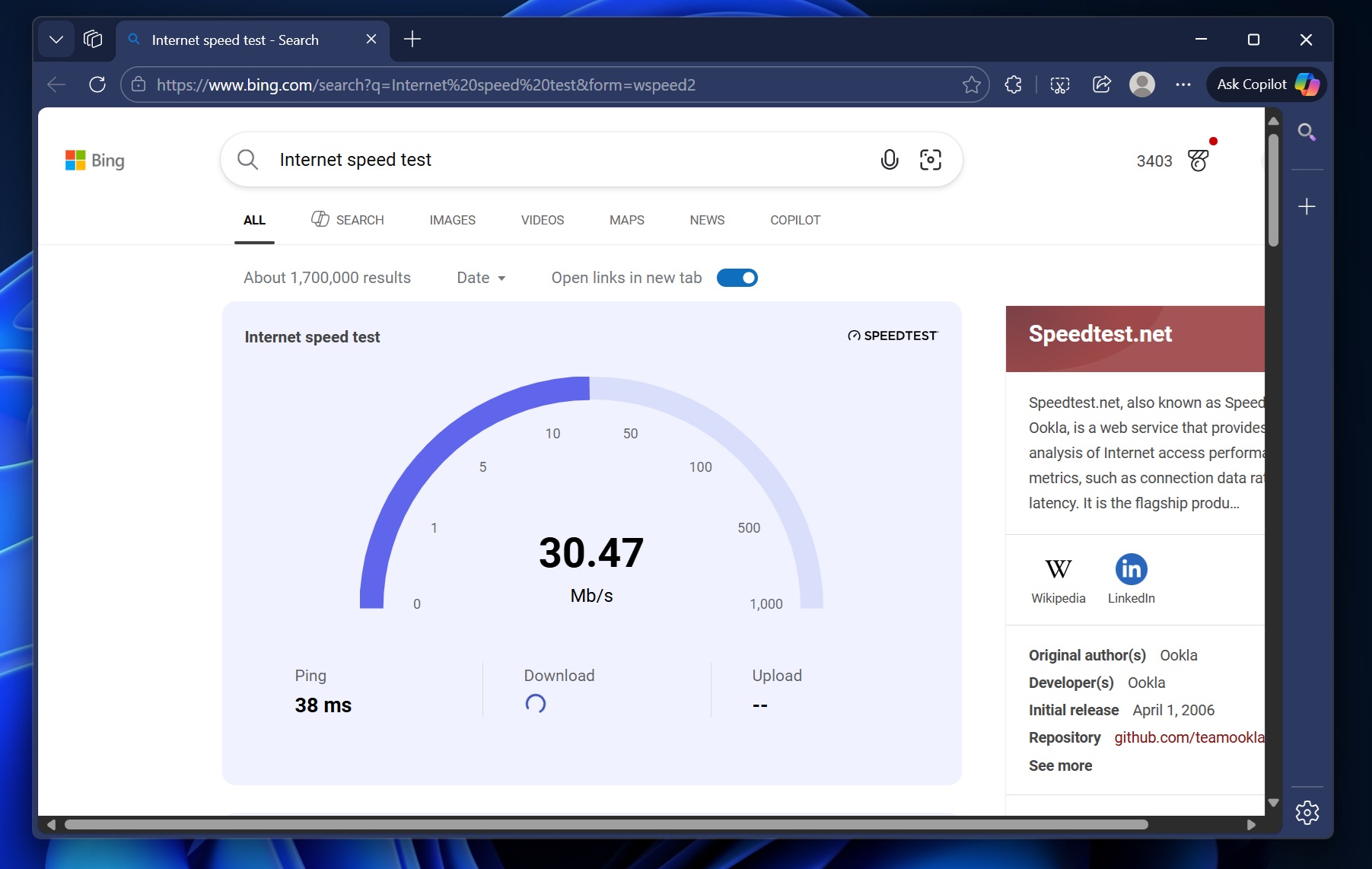
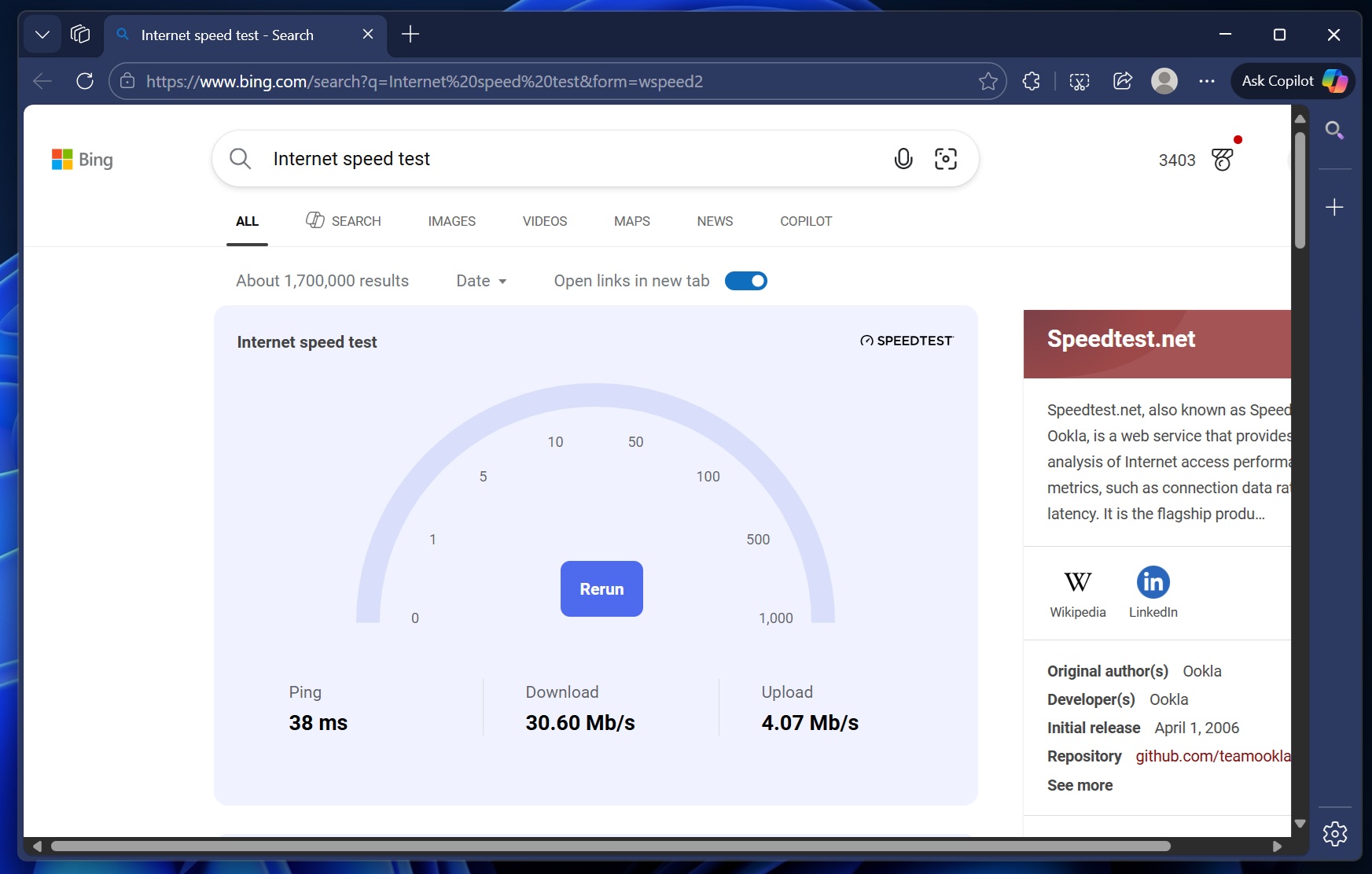
As you can see in the above screenshot, Bing’s Speedtest-sponsored speed test feature lets you check ping, download, and upload speed. You can also rerun the test as many times as you want.
It is worth noting that Bing previously used Microsoft’s own internet speed test engine, which was based on Azure. Later, Microsoft ditched its homegrown internet speed test tool in favour of Ookla’s Speedtest. Bing also redirects you to Ookla’s SpeedTest when you click on the name.
If you don’t want to use Bing to test your internet connection, you can use Winget to install an open-source tool called LibreSpeed:
winget install --id=LibreSpeed.librespeed-cli -e3. Windows 11 now comes with the Sysmon tool
Windows 11 KB5077241 includes System Monitor (Sysmon), which has been part of Sysinternals for decades. Sysinternal is mostly used by IT admins for enterprises, but even regular users prefer Sysmon, which is why Microsoft is bringing it as a native app to Windows 11 Pro and Home.
With Sysmon, you can monitor your computer, including background activities, and capture system events, particularly when you’re dealing with a potential security issue.
While it’s now included in Windows 11, it’s still turned off by default. You can enable Sysmon from Settings > System > Optional features > More Windows features, and select Sysmon.
4. Windows Backup for organizations
Windows Backup has been around for consumers for a while now, but you could not use it to restore files or images in your organization when you’re at the first sign-in restore experience. This changes with Windows 11 KB5077241, which allows you to pull data from Windows Backup for Organization (WBO) and restore during first sign-in on a new PC.
The restore includes your personal settings and Store apps on PCs, part of Microsoft Entra or Cloud PCs.
5. Changes to Windows Quick Machine (QMR)
Microsoft has confirmed that QMR is now automatically enabled on PCs running Windows 11 Pro, mostly personal PCs, but not on devices that are part of a domain (organization).
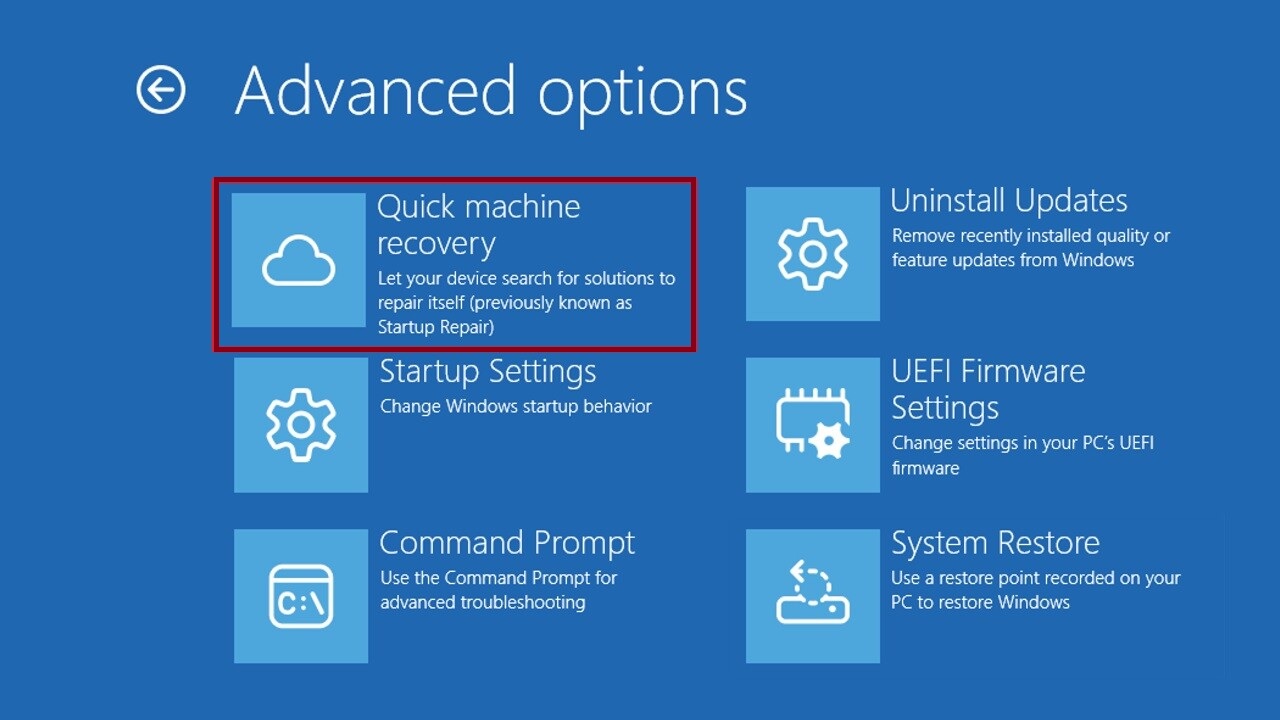
QMR is not turned on enterprise PCs unless enabled by your organization
6. Taskbar’s system tray is now better when it’s handling multiple windows
In Windows 11, if you go to Settings > Personalization > Taskbar, you’re going to find multiple toggles to personalize how the taskbar works. For example, there’s a toggle that lets you “Combine taskbar buttons and hide labels” when many apps are open on your PC.
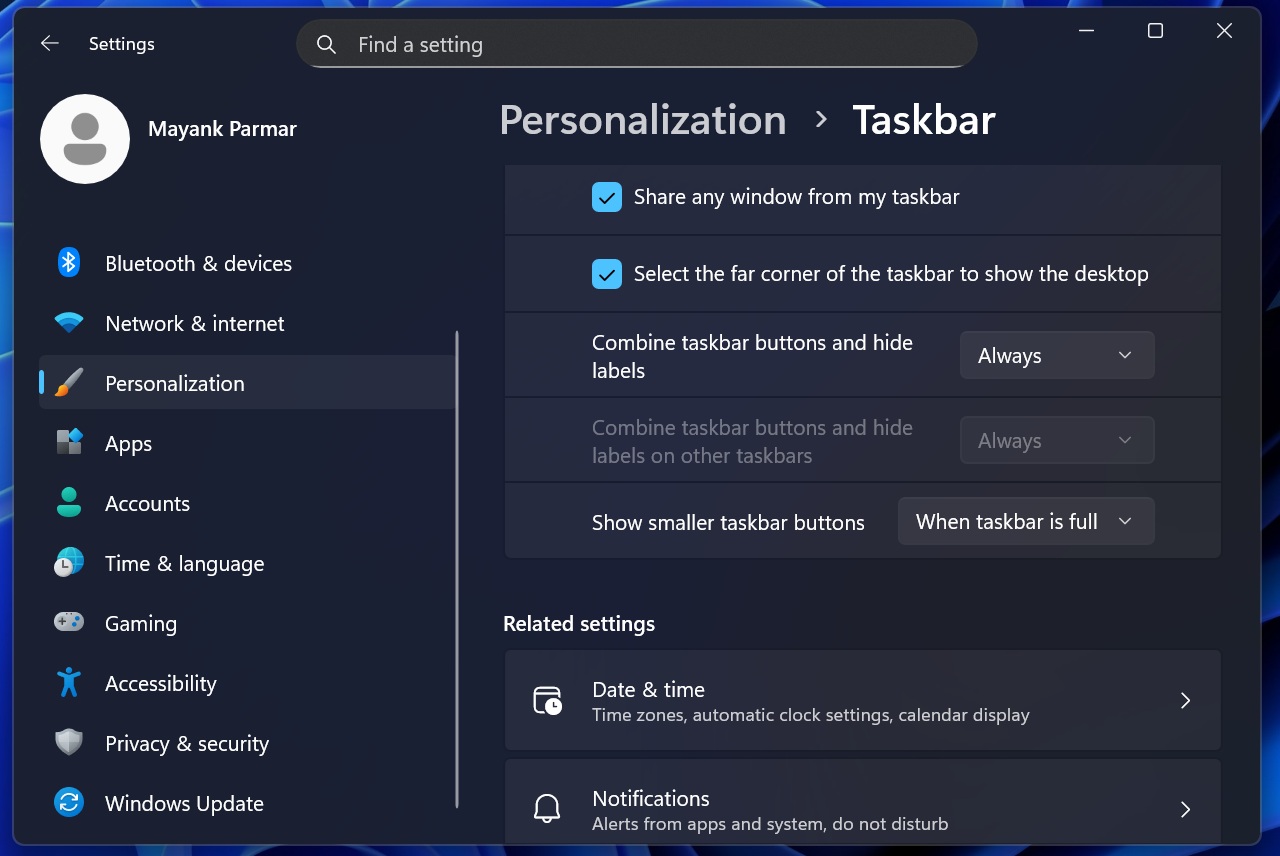
Before the update, if you had one app with multiple windows open, and the taskbar ran out of space, Windows would often treat those windows like a group or set. That means Windows would show the overflow even when there’s still visible empty space on the taskbar.
Windows is supposed to show the overflow menu only when there are multiple apps on the taskbar, and it’s running out of space. But thanks to how the taskbar previously calculated the ‘overflow,’ Windows showed the overflow menu while there’s still visible empty space on the taskbar.
Starting with Windows 11 KB5077241, Windows no longer moves multiple windows of apps like File Explorer together. When space runs out, it moves only the individual window buttons that don’t fit into the overflow menu.
There are some other notable fixes, too. Here’s the full list of fixes and improvements in Windows 11 KB5077241:
- Start menu now lets you directly open a page that lists the benefits of using a Microsoft account. This option shows up in the profile menu in the Start menu.
- Windows Search now lets you focus on a specific group. For example, if you search “To Do,” and there are results for apps named ‘To Do’ as well as documents, you can click on the “Apps” header to collapse everything else.
- Microsoft has added controls to tilt or pan the camera, but it only works on PCs with a supported camera. If you have a supported camera, you’re going to find it in Settings > Bluetooth & devices > Cameras > Basic settings.
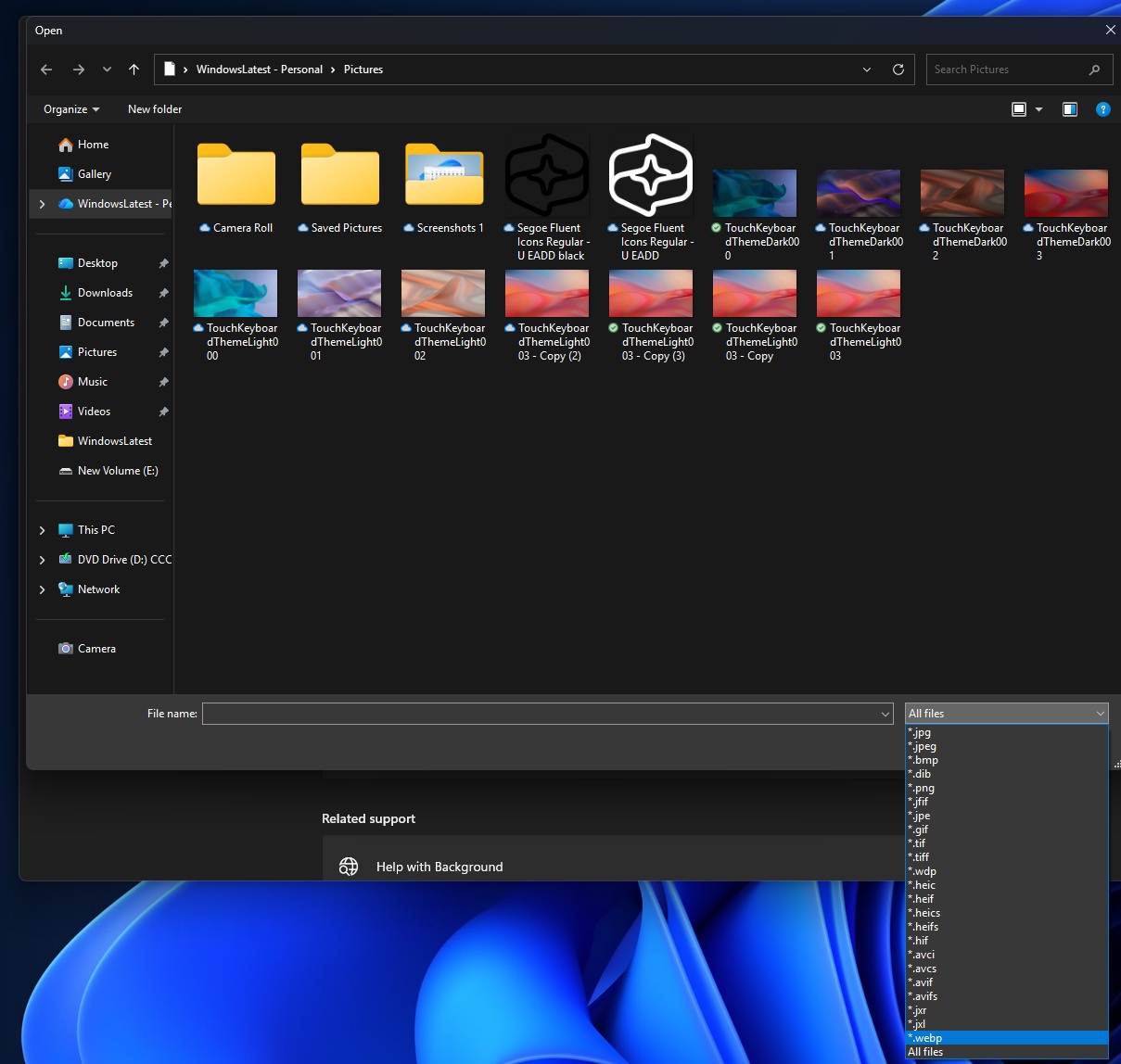
- You can now use .webp images as your desktop background.
What about known issues in Windows 11 KB5077241?
Microsoft says it’s not aware of new known issues, but we’re testing the update across our computers, and I’ll share more if we run into new problems.
What about you? How is the update treating your PC? Let me know in the comments below. Also, as I noted above, KB5077241 is an optional update, so you don’t have to rush and install it right away. You’re going to get these features when Microsoft ships the March 2026 Patch Tuesday updates on March 10, 2026.