Microsoft confirms Windows 11 update breaks Recycle Bin delete prompts, but your files are still safe
Microsoft has confirmed a new bug in Windows 11’s June 2026 update where Recycle Bin prompts show misleading internal file names, but the company says you don’t have to worry, as your files are still safe as long as you haven’t permanently purged them. I was able to reproduce this behavior on all PCs with the June 2026 Update.
KB5094126 (June 2026 Update) was released on June 9, 2026, as a mandatory Patch Tuesday release, and it installs automatically. After installing the cumulative update, we noticed a number of issues, including a bug where the Recycle Bin struggles to detect the correct file name and causes confusion.
In our tests, Windows Latest observed that the Recycle Bin shows incorrect file names in the confirmation dialog. For example, I tried deleting an Excel file with the clean name “windowslatest-performance,” but the confirmation dialog showed a different name, which appears to be an internal file name.
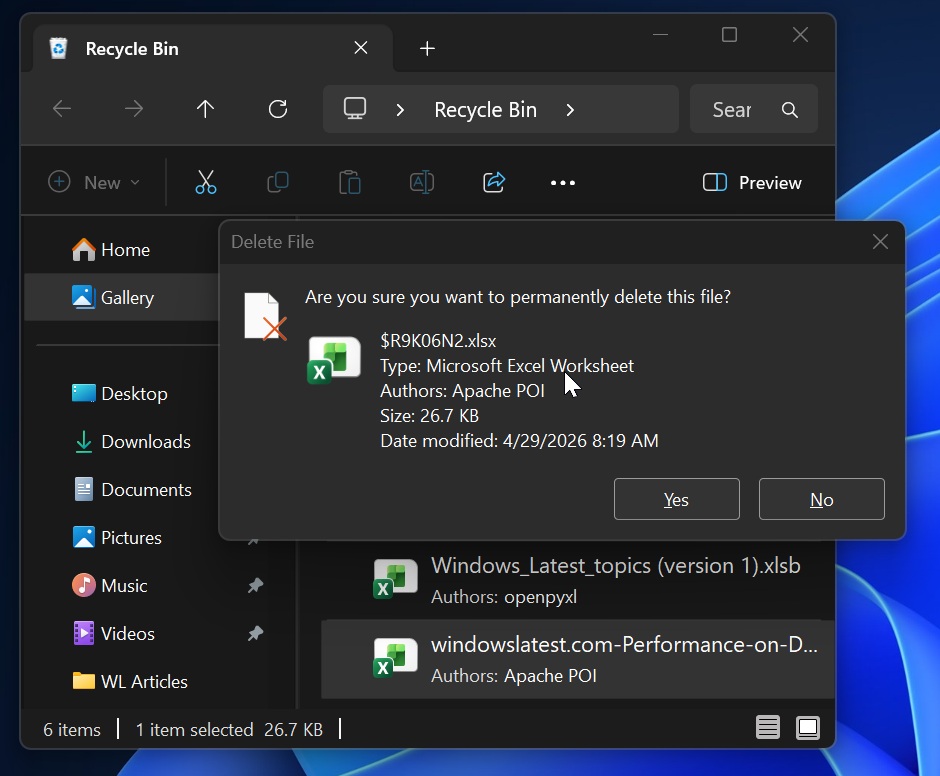 Mismatch in file name when you use Recycle Bin in Windows 11 | Image Courtesy: WindowsLatest.com
As you can see in the above screenshot, I’m now looking at an internal filename “$R9K06N2,” but if I click “Yes” and proceed to delete it, only the actual file is deleted, not the internal Recycle Bin file.
Windows 11 KB5094126 bug does not affect the Recycle Bin’s ability to delete or restore files, and the original names appear correctly in the bin list. Only the confirmation dialog is affected.
“This issue affects only the confirmation dialog. In the Recycle Bin, the item still appears with its original file name,” Microsoft noted in a support document spotted by Windows Latest. “If you restore the item, Windows restores it using the original file name.”
Microsoft says it has identified the root cause and plans to patch it in the next cumulative update, but those affected who use Windows 11 Enterprise in their organization should reach out to Microsoft support. I’m told that Microsoft support is offering a workaround for affected business devices.
Consumer PCs, which are also affected by the Recycle Bin bug, need to wait for the next cumulative update.
Windows 11’s June 2026 update is causing major problems
Recycle Bin detection problem is not a big deal, as it only affects your ability to verify the correct file name. Instead, you should watch for other critical problems in Windows 11’s June 2026 Update.
In our tests, we found that Windows 11 KB5094126 (Build 26200.8655) breaks Office app integration in other apps, so if you try to open Word, PowerPoint, or Excel from third-party software, Office will crash.
You won’t be able to open any of the Office apps this way, but I found that if you search for Office apps in the Start menu and try opening your files, it works. Office does not work only when you access it via a third-party app, such as through a button that opens a file in Word, PowerPoint, or Excel.
This issue was also first spotted by Windows Latest, and after our coverage, Microsoft finally admitted that it messed up.
According to Microsoft, apps that use OLE automation to interface with Office apps have encountered a compatibility issue, and those who experience it will notice that either the Office apps fail to open or documents display an error message.
“Reports indicate that this issue may affect applications such as CCH Engagement, Workpaper Manager, dental software (such as Dentrix and Softdent), and Zotero; other similar applications might also be impacted,” Microsoft noted.
Microsoft plans to roll out an update in the coming weeks to address issues with Office apps on Windows. The next Patch Tuesday is scheduled for July 14, 2026.
BSODs and BitLocker recovery sceren affect some PCs, first time after January 2026 update trouble
The last few Windows updates have been quite stable, and based on our tests, the last buggiest release was the January 2026 Patch Tuesday. I wasn’t expecting things to go haywire with the June 2026 update, but it’s causing several major problems, including a bug that causes BitLocker recovery and BSODs.
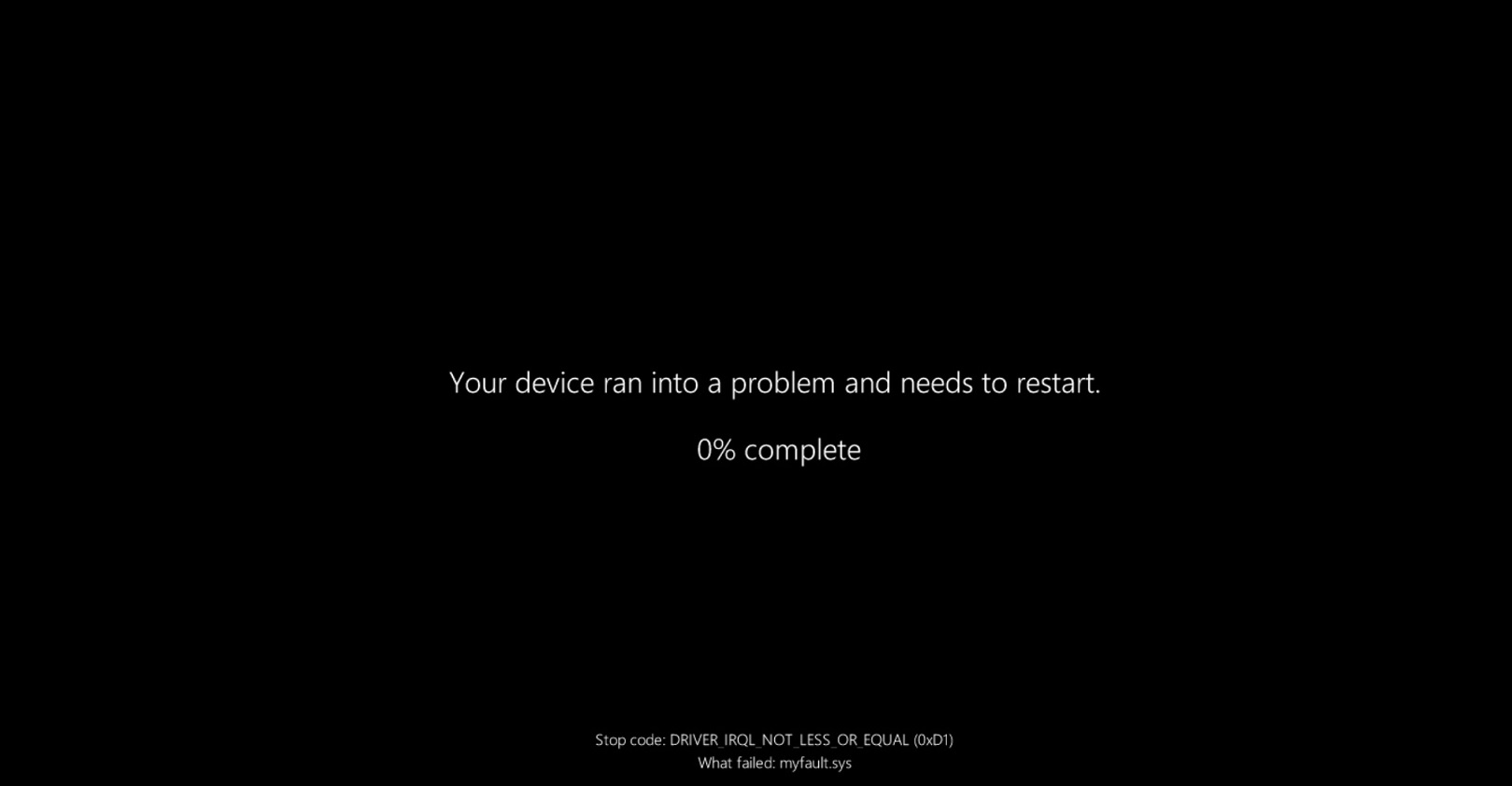
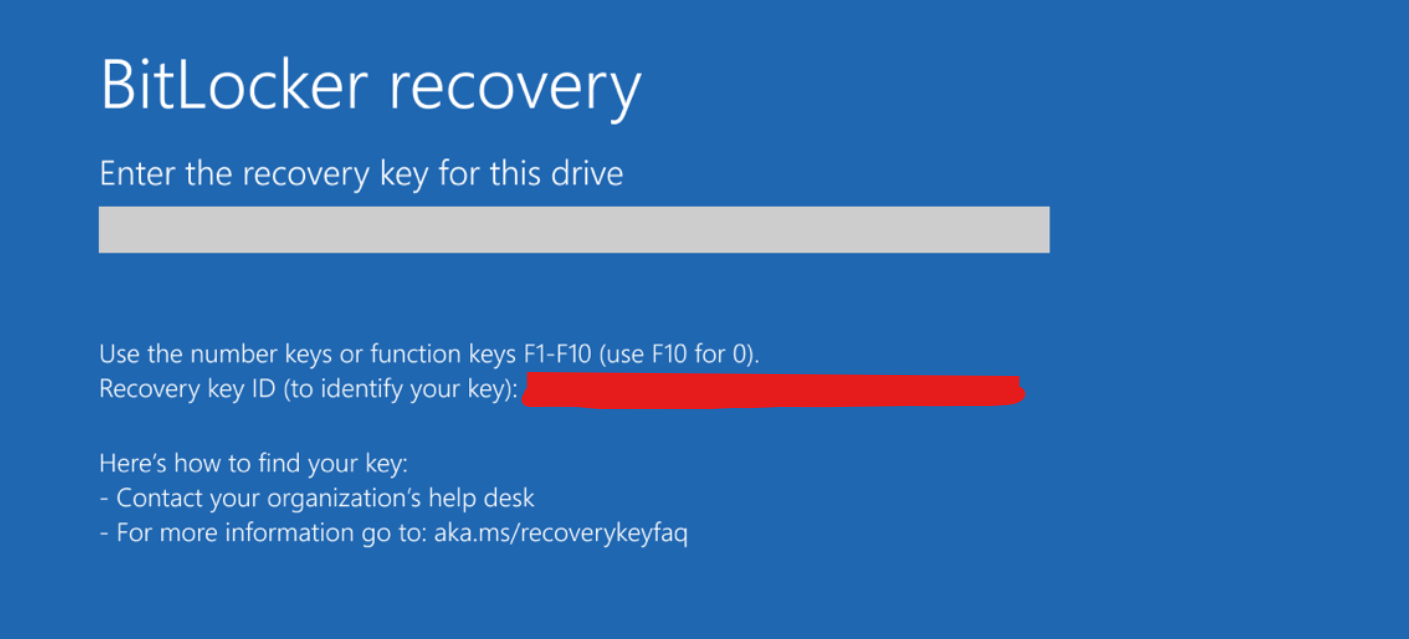
If you are affected, you will encounter a Black Screen of Death, and Windows will repeatedly prompt you for the BitLocker key. Even if you enter the correct key, you will return to the same screen or hit BSOD. The issue appears to be tied to a compatibility problem between the OEM’s BIOS and Windows Secure Boot changes
We found that you need to disable Secure Boot in the BIOS menu, then attempt to install the update. Once the June update is applied, you can re-enable Secure Boot.
In the long run, you should make sure the BIOS is updated, as our tests found that older firmwares are causing problems with new Secure Boot certificates.
Microsoft hasn’t acknowledged BSOD issues in the June 2026 update yet, but I wouldn’t be surprised if they do so in a week or two. Also, if you’re confused about whether you’ve received the June update, go to Settings > System > About:
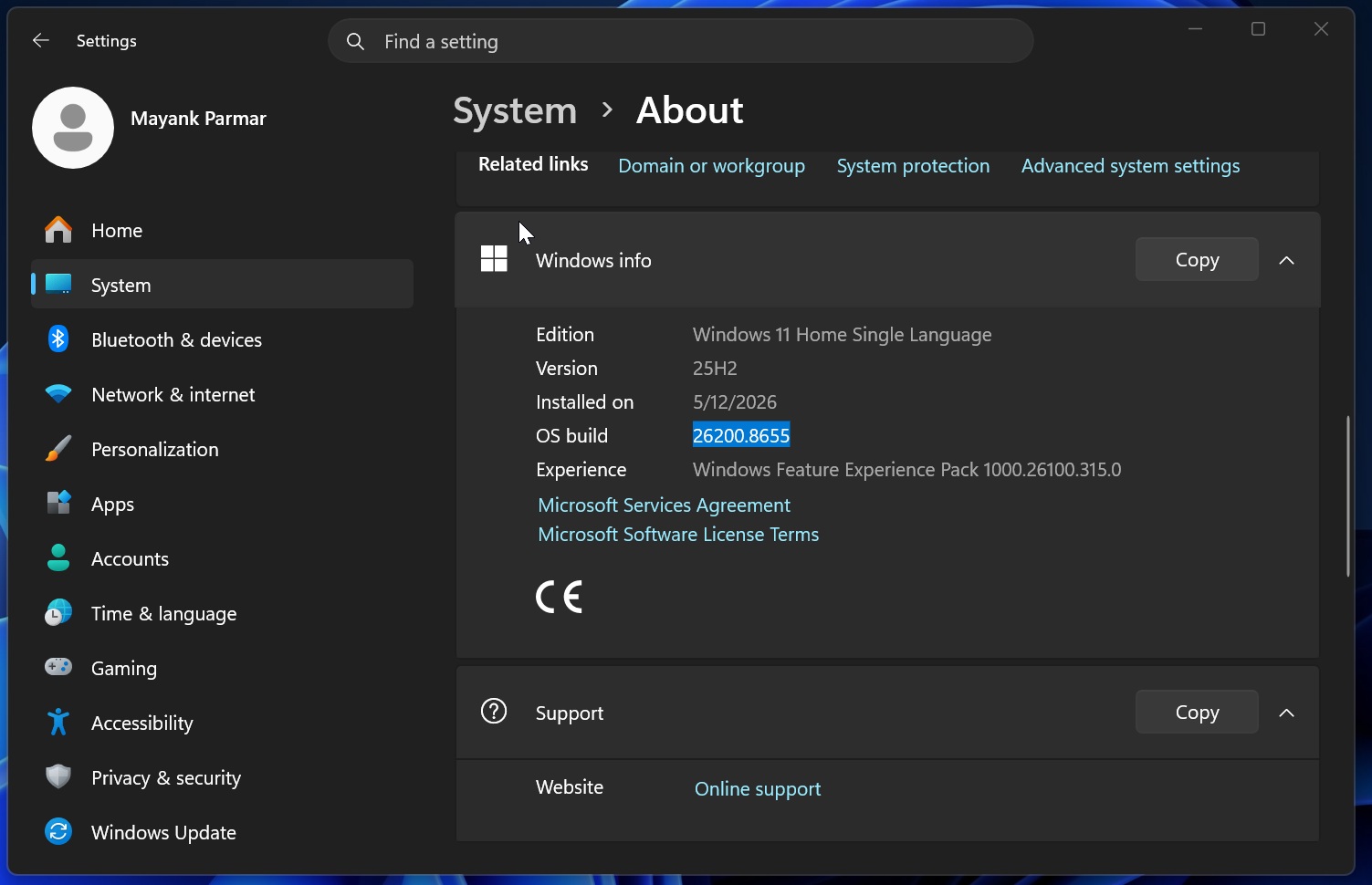
If the Build number is 26200.8655+, the June 2026 Update is installed on your PC.