Hands on: 8 inbox Windows 11 apps are getting a major update, now rolling out
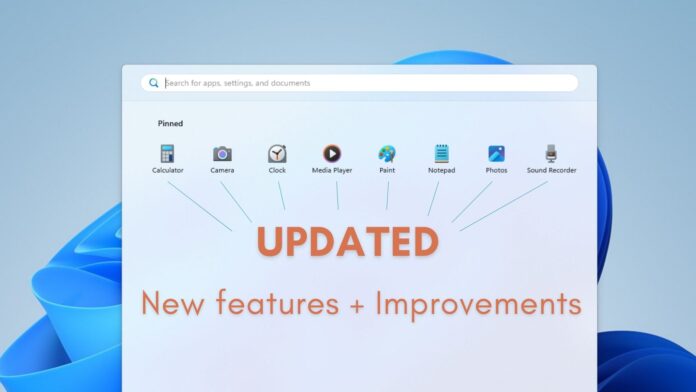 Microsoft updates inbox apps with new features and improvements
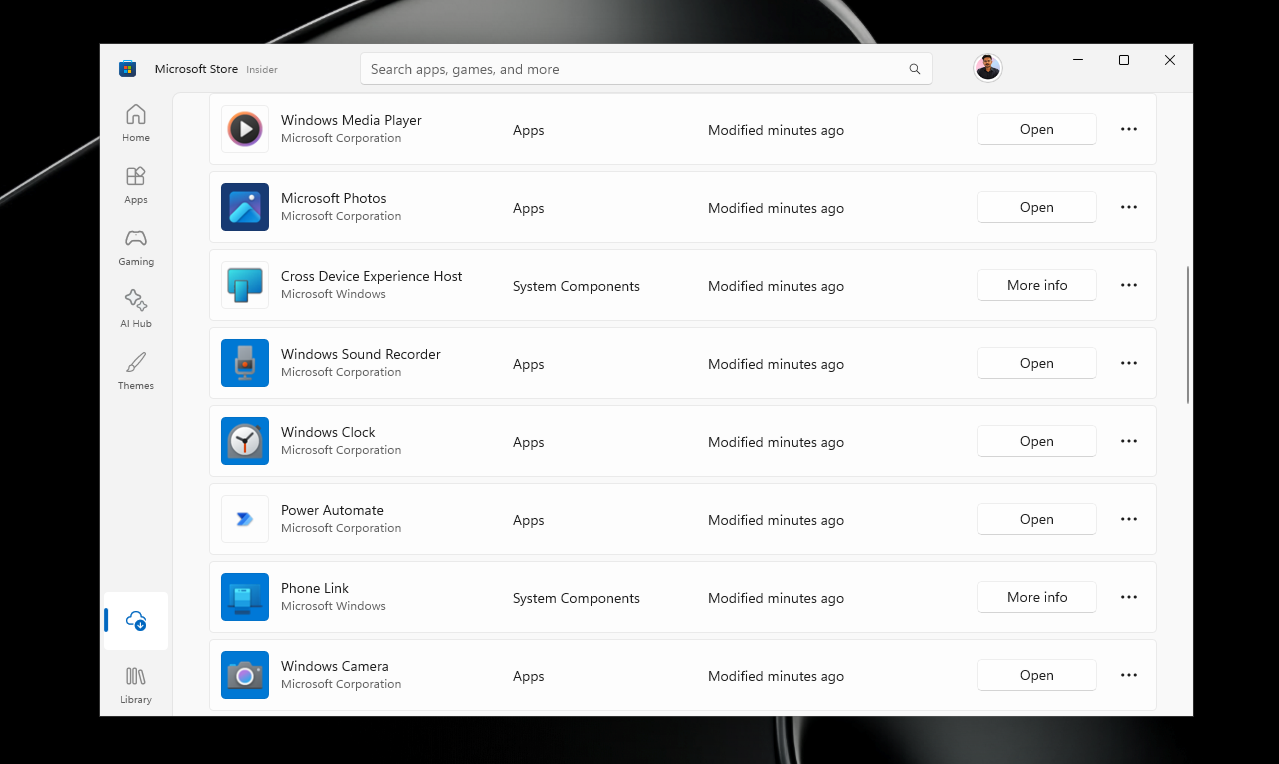
 Microsoft rolled out its latest Windows Insider flight to its Experimental (26H1) channels this week, and with it, you get a slew of new features and refinements for those nifty in-box Windows apps that include Calculator, Camera, Clock, Media Player, Paint, Photos, and Sound Recorder.
None of it will make the evening news, but it’s the kind of release that makes Windows feel less broken to use every day.
Calculator gets language layout fixes and more accurate square-root results
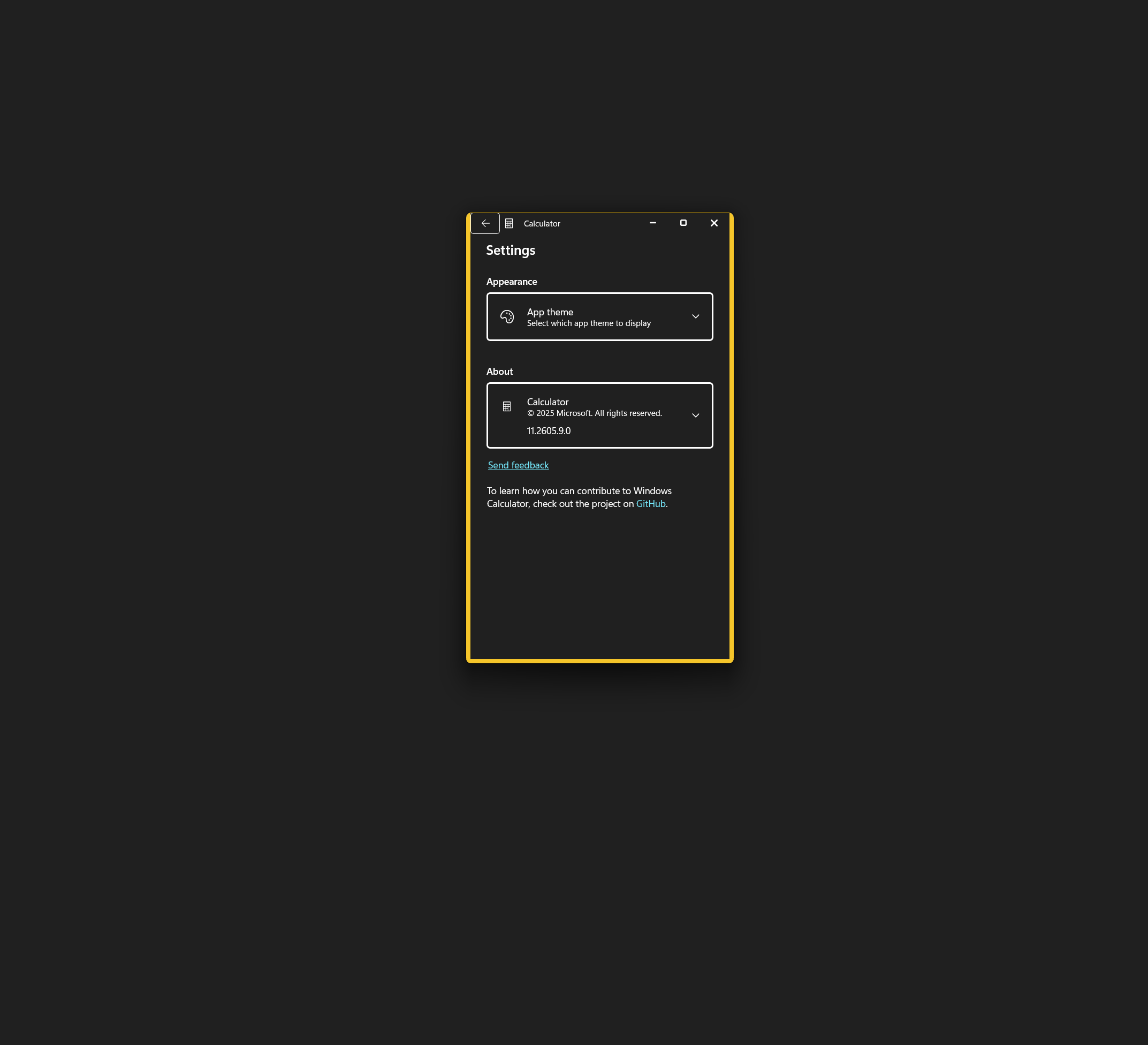
If you happen to be on version 11.2605.9.0 of the Calculator app, follow along as we walk through what’s new and shiny with this release.
The Windows team has been plugging away to fix crashes when calculations that should equal zero return an answer with a small leftover value. Apparently, that was an issue, but no longer should be, going forward.
To test out the fix, you can
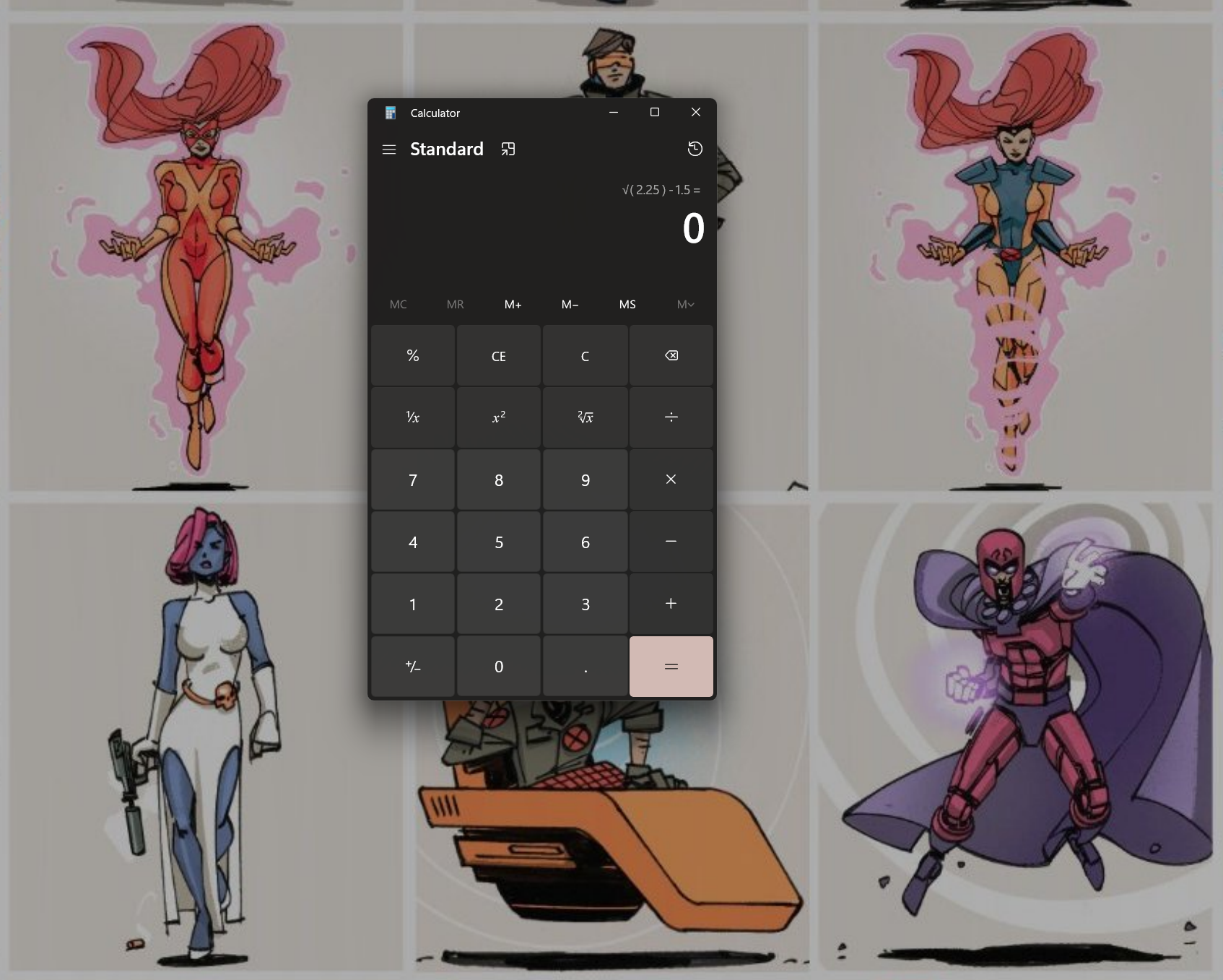
The results should produce a clean zero rather than a decimal artifact that would apparently crash the app. Let me know your results in the comments.
High Contrast
Another fix has been applied to the Calculator app that deals with High Contrast Aquatic or Desert options in the Settings page. The options for Aquatic or High Desert now display the correct text associated with the title color. Visit the Settings app to double-check.
voilà
Language Layout
The Windows team has also adjusted its Arabic and Hebrew language support by fixing how they are laid out within the app. To test it out, look at the graph, number pad, equation field, and scroll buttons, and how they are now properly oriented.
Here’s how to test it out.
Reliability
The Windows team has assured Windows Insiders that they will no longer ship the Calculator with outdated code, ending the odd failure to resume operations. Ideally, these zero out the “random” crashes that have occurred within the Calculator app.
Camera adds a continuous zoom slider and native QR code scanning
The Windows team didn’t stop at the Calculator app. The team went on to adjust and tweak the Camera app version 2026.2605.7.0) during this release, and here’s how to quickly check to confirm they are installed.
Slider
For Windows users, the updated Camera apps bring some neat fixes to some long-standing pain points of the experience, such as improved granular tweaking with a new Zoom slider. Gone are the standard three-level zoom options.
To test out the improved camera zoom,
1. Open the Camera app
2. Choose the Camera you plan to record with (depending on how many camera-powered apps you have installed)
3. Adjust the zoom slider to the desired level
Front-Facing Camera
For most laptop owners, the front-facing camera is an overlooked component of Windows devices, but that doesn’t mean the Windows team didn’t show it some love.
If you’re someone who relies on that front-facing camera for enterprise chat meetings, family catch-up, or for the rare field worker who is saddled with a Surface Pro, the Windows team offers wide-angle support.
1. Open the camera
2. Switch to Front-Facing Camera
3. Confirm it loads without errors or crashes.
Multiple Resolution Support
As with most wide-angle cameras, Microsoft now supports higher-density resolution options.
To test it out, do steps 1 and 2 from the previous walkthrough, but on the next step, look through the video resolution list.
4. Select the desired resolution and confirm support.
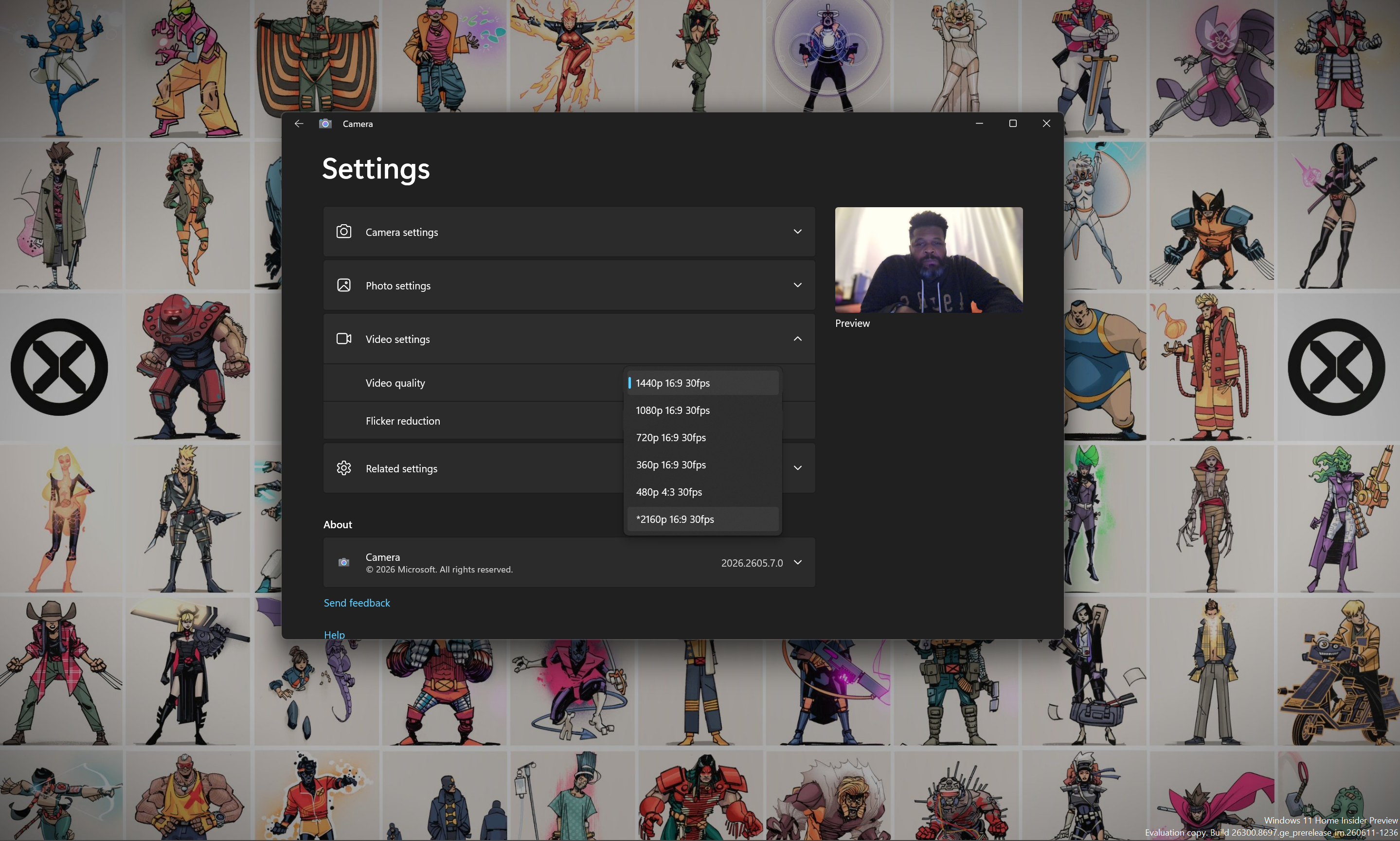
QR Code Scanning
You can finally start scanning QR codes directly from the Camera app without having to install a 3rd party add-on.
To test out the native QR scanning support, simply:
QR Code support may seem trivial to most Windows laptop users, but for the aid worker, hotel concierge, warehouse worker, nurse, or PoS technician, this addition is a lifesaver and long overdue.
Clock overhauls its timer behavior and adds a 15-minute snooze
The Clock app update (version 11.2605.9.0) is the largest in this batch, touching timers, Focus Sessions, alarms, the World Clock, and accessibility.
Apparently, the Timer app had an issue of not being able to count up after hitting zero. Not anymore; you should find that the timers function normally.
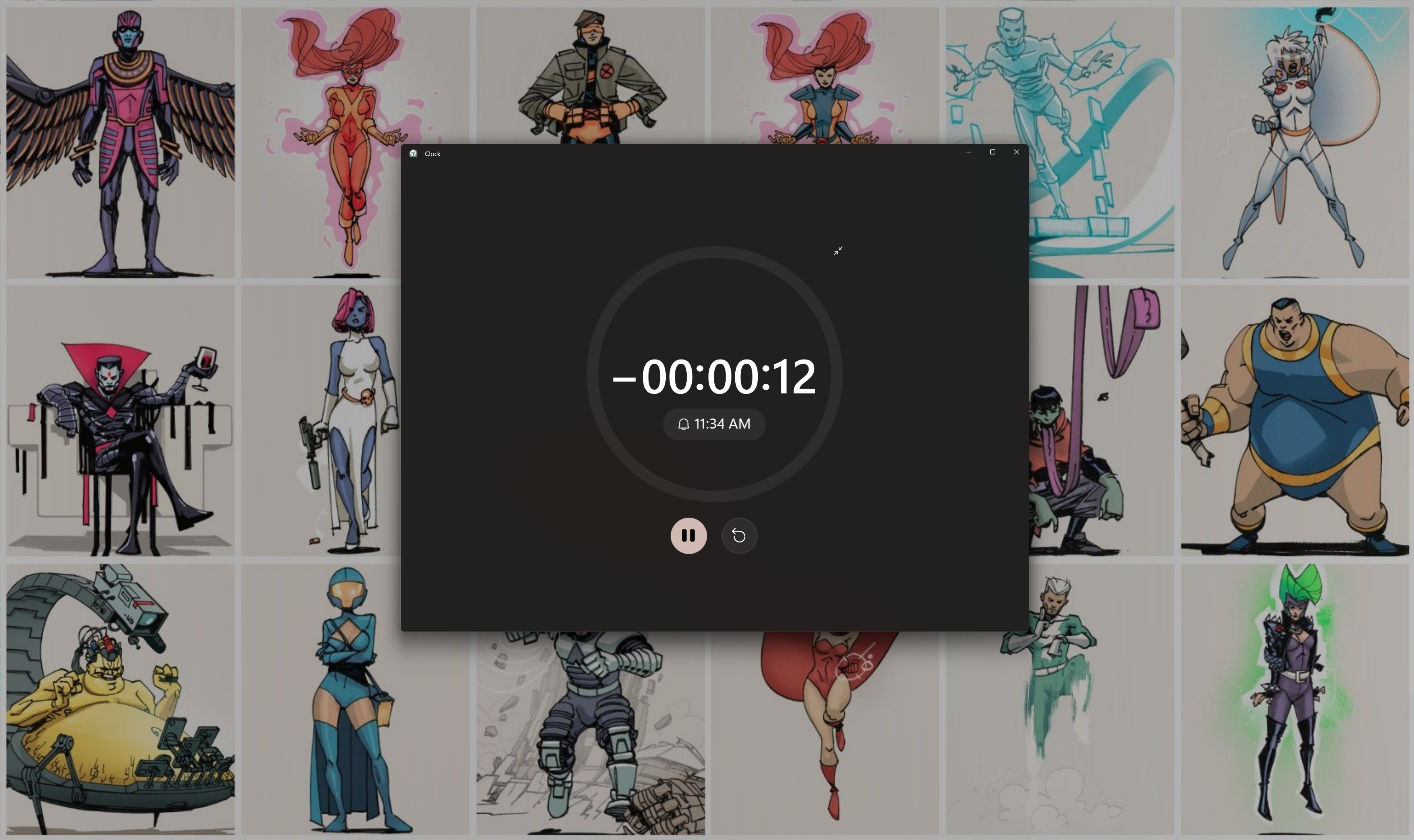
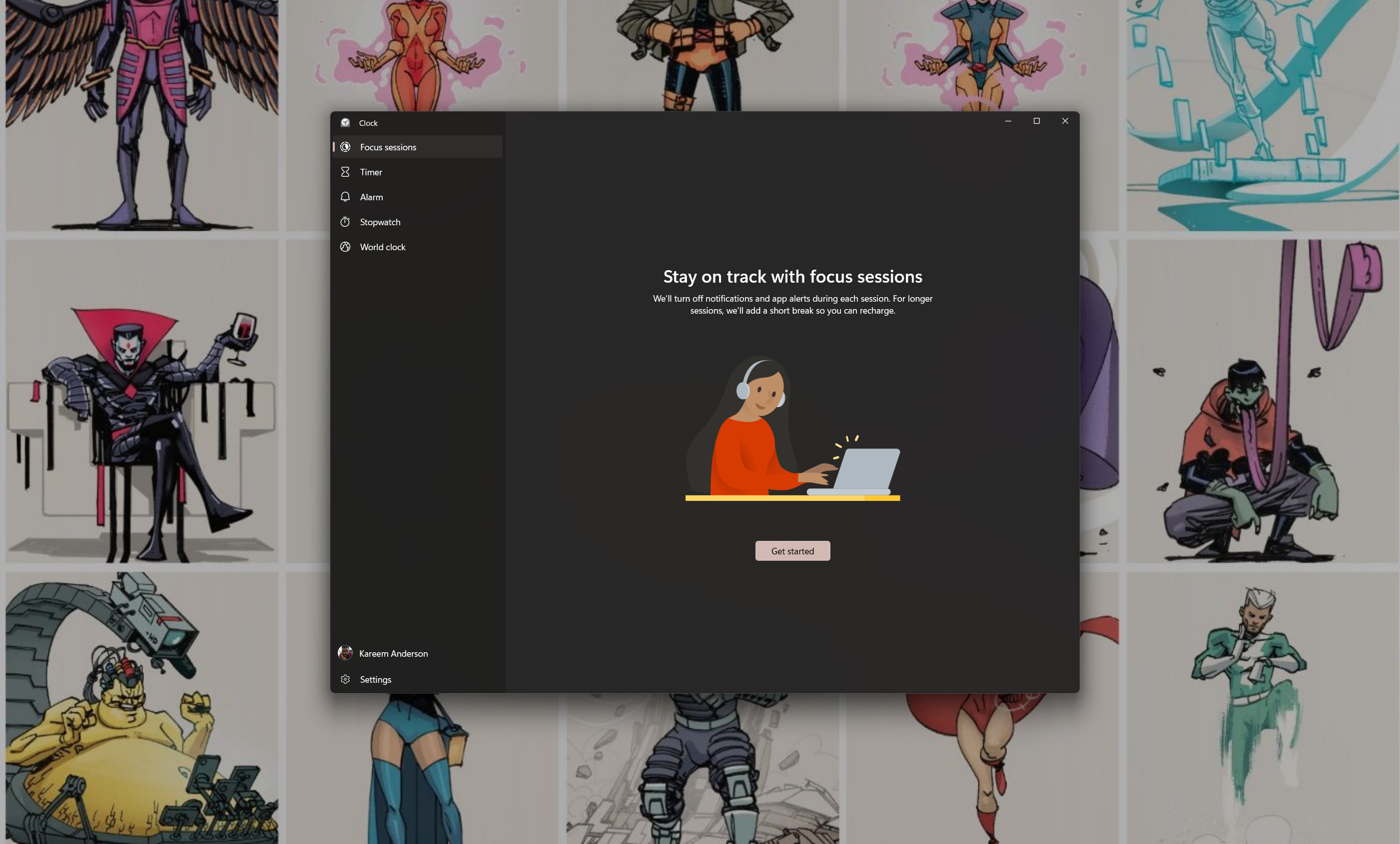
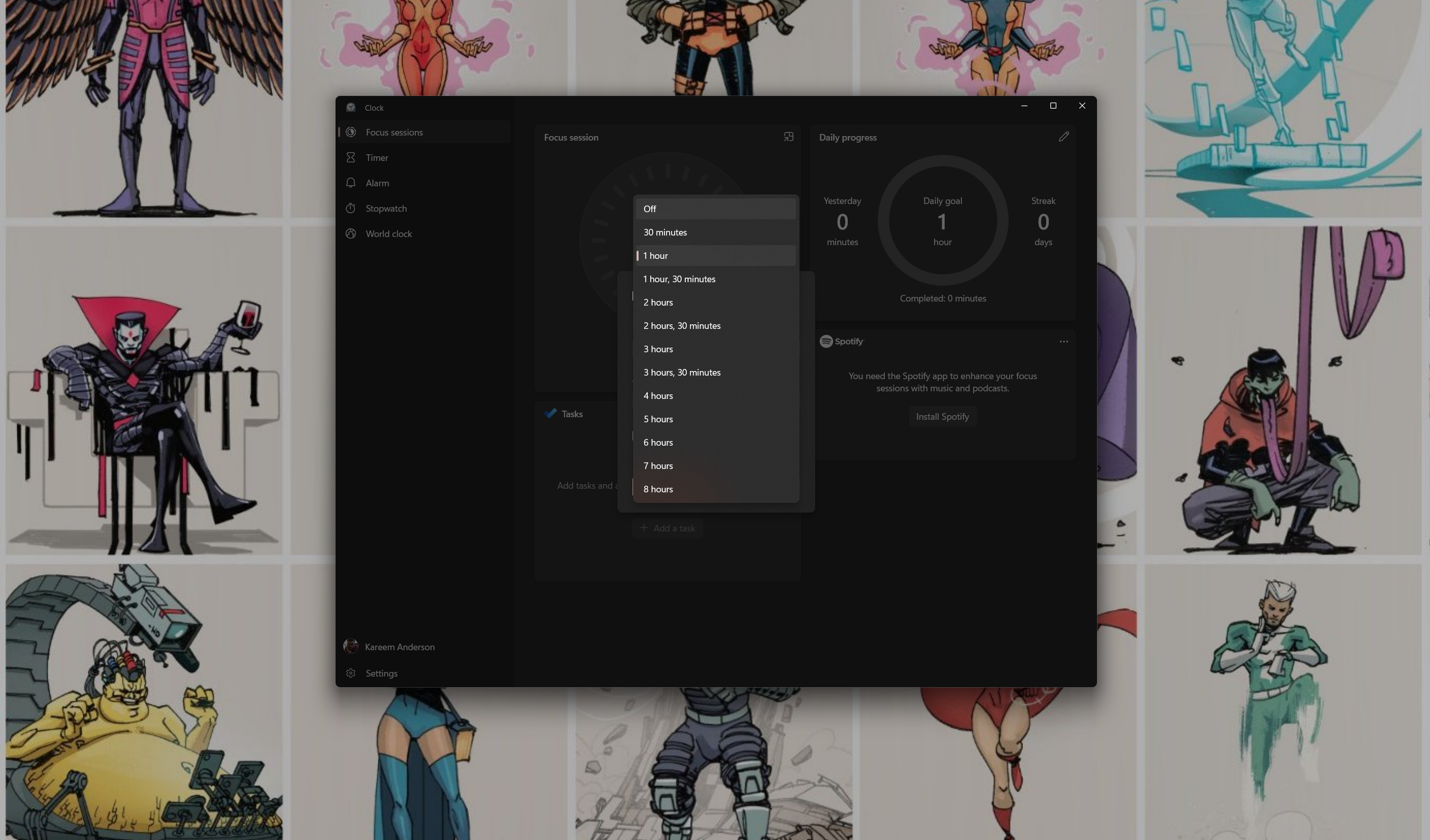
Focus Sessions adds an Off option for the daily goal, which was previously absent, and completed tasks no longer clutter the active session list. A rounding bug that could show progress as a minute short (49 minutes instead of 50) is fixed.
There is now a new 15-min snooze option for procrastinators like me, which allows for even more ways to tell the computer to leave me alone.
The Countdown Widget now supports three simultaneous countdowns, up from two. The rest of the Clock changes are reliability and accessibility fixes:
- The World Clock compare page now loads dates progressively as you scroll rather than stalling
- Country and city names in World Clock have been refreshed to current names
- An icon that incorrectly showed a moon during all-day daylight in polar regions is corrected
- The back button in clock comparisons now takes you back one step instead of jumping the date to 1926
- Newfoundland now uses the correct time zone (St. John’s)
- Editing a disabled alarm no longer makes it appear enabled
- Screen readers no longer read timer values twice, and now announce countdown names correctly
- Keyboard focus no longer disappears after pressing the Timer Reset button
Media Player lets you customize caption styles and enforces playlist names
The Media Player update (version 11.2605.14.0) adds the ability to personalize closed caption appearance. Styling is connected to Windows caption settings, and a quick link inside the app opens those settings directly so you don’t have to go hunting through the Settings app to find them.
To customize your caption style:
Another improvement is in the labeling and titling of playlists. You can no longer create a playlist without giving it a title.
A banner now appears in the play queue when the media library is still being indexed, explaining why some items may not show up yet.
The update also fixes a layout glitch with selected items in lists, improves file-type recognition to reduce playback failures, and addresses a crash that could occur when modifying the play queue during session transitions. The codec error dialog has been rewritten to give clearer guidance on what to do when a file needs a codec that isn’t installed.
Paint adds adjustable eraser transparency and fixes JPEG save
The Paint update (version 11.2605.61.0) brings two user-facing changes worth noting. The eraser tool now has a transparency slider, letting you control how much of the image shows through instead of erasing to a hard edge.
You can now also test the improved rotating JPEG save functionality process.
A crash that occurred when opening damaged or invalid image files is fixed; the app now shows an error message instead. The selection outline behavior from classic Paint has also been restored, where the outline now hides while you move, resize, or rotate a selection, which removes the visual clutter that had crept in with recent versions.
Stamp brush strokes now render without color shifts or artifacts, and the AI image generation panel spacing has been cleaned up. Several background crash fixes are included, covering the startup toolbar, background task completion, and app shutdown.
Notepad speeds up and fixes its Find/Replace behavior
Notepad’s update (version 11.2605.29.0) leads with a launch performance improvement, which is a welcome change given how much the app has grown in recent years.
The more substantive fixes in the update are in Find/Replace. Helper tips were persisting between searches instead of clearing, the empty-result notification has been replaced with a less intrusive inline tip, and a “Beginning/end of document reached” notice now appears when wrap-around is disabled so you know the search has bottomed out.
Spell-check underlines that were sticking around after they should have cleared are also fixed, as is a crash that occurred specifically when pasting content copied from Visual Studio. Spanish and Portuguese keyboard users get a fix for a Ctrl+A shortcut conflict that was overriding the Select All behavior in those layouts.
One other detail worth noting is that a bug causing certain plain-text files to display incorrectly on open has been resolved, though Microsoft hasn’t specified which file types or encodings were affected.
Unlike the other seven apps in this build, the Notepad update is rolling out to Beta and Release Preview channels as well, so stable-channel Insiders will pick it up too.
Photos gets AI watermarking controls and better pixel art zoom
The Photos app (version 2026.11060.2004.0) adds an AI watermarking option for images generated or edited with Copilot.
You can now navigate text within an image better and via the keyboard.
Tiny images like 16×16 pixel art now zoom in much further to fill the screen without becoming blurry, which is a welcome fix for anyone who uses Photos to inspect icons or small graphics.
A crash that could occur during text recognition is also fixed, and keyboard focus in the navigation bar now requires a single Tab press to skip past hidden controls instead of three.
Sound Recorder fixes its waveform display and a memory leak
Yep, even the Sound Recorder got a few fixes.
The Sound Recorder update (version 11.2605.1.0) is the smallest in this batch, but it addresses some long-standing annoyances. The live waveform now renders correctly when recording with a Bluetooth microphone, which previously showed nothing. A stray horizontal scrollbar that appeared at the bottom of the waveform without serving any function has been removed, as has an issue where the Mark button appeared grayed out on first launch.
Markers are now automatically disabled for WAV recordings, since the WAV format cannot store them and they were being silently discarded before. Rapidly deleting multiple recordings no longer triggers a false “file doesn’t exist” error. A memory leak that occurred each time a recording started has also been resolved.
None of these updates introduce a new Copilot integration or a redesigned UI. What they do is close gaps in apps that ship on every Windows install and get used by people who have never touched an Insider build. QR scanning in Camera, continuous zoom, AI watermark controls in Photos, and a Clock that counts past zero are features that work the way users expect them to work.
The build is currently rolling out to the Experimental and Experimental (26H1) channels. App version numbers are confirmed in the release notes for each app and can be checked under Apps & Features in Windows Settings.