Windows 11 26H2 is weeks away, and Microsoft just revealed everything about it
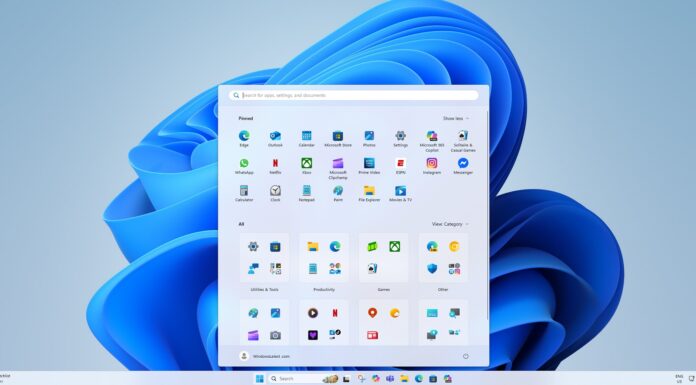
Windows 11 26H2 is a boring release, but at the moment, Windows needs more of these than fancy updates that could possibly disrupt Microsoft’s attempt to make the OS more stable.
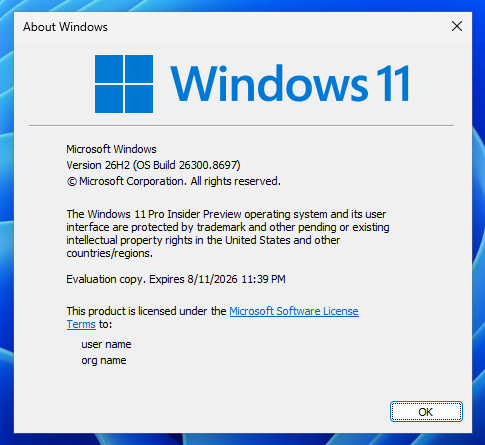
We’re expecting the Windows 11 2026 Update to ship in about a month, around the end of September or early October, and I found some details that tell us a bit more about how it’ll work. But before you understand why and how the Windows 11 26H2 “feature” update is being released, I need to give you some context if you haven’t been following Windows development closely.
What has changed with Windows “feature” updates?
Windows has received major “feature” updates with dozens of features and improvements in a single release for years. In October 2024, Microsoft shipped Windows 11 24H2, and it introduced a wide range of issues, some so bad that they were not patched for months as Microsoft continued to chase new problems. It also caused compatibility issues and introduced regressions on some hardware.
Microsoft has been trying to reduce some of these problems by taking a more scaled approach.
Over the years, Microsoft has changed how Windows is updated. Previously, you’d have major upgrades with a new Windows version, such as Vista, 7, 8, 8.1, 10, and eventually 11.
During the Windows 10 era, Microsoft moved to an approach popularly referred to as “Windows as a Service.”
The WaaS approach allows Microsoft to add new features to Windows more frequently, but it didn’t really address compatibility problems and other major issues that could show up when the underlying Windows branch changed.
Windows 11 24H2 was the last major servicing branch change
After the Windows 11 24H2 debacle, Microsoft decided it needed a different approach that allows you to have new features without relying on these annual, potentially deal-breaking feature updates.
The company started using a “shared” servicing model to reduce Windows quality issues. With shared servicing, features and improvements can be rolled out across Windows 11 versions that use the same codebase.
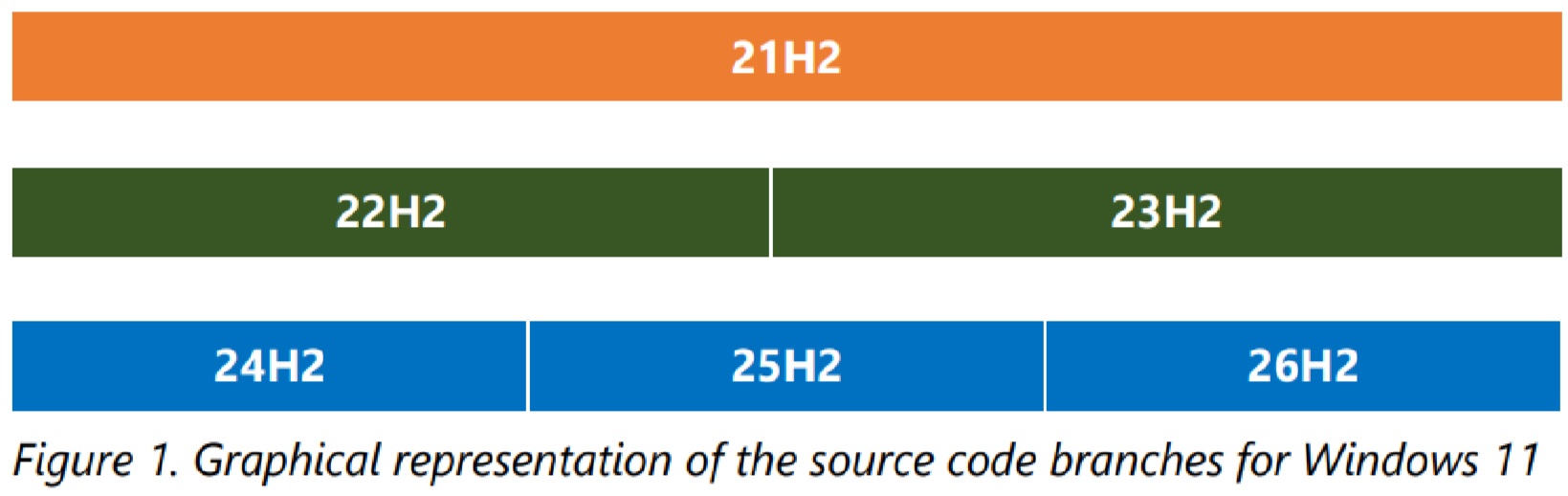
So far, Microsoft has had two shared branches for recent Windows 11 releases: 22H2/23H2 and 24H2/25H2. Now, 26H2 is also part of the 24H2 branch.
“Updating from one version of Windows to another from the same branch greatly reduces the risk of application or hardware compatibility issues,” Microsoft explained in a document seen by Windows Latest. It added that versions on a shared servicing branch share “the source code,” “security and non-security fixes,” and “compatibility and regression testing done prior to release.”
In fact, Microsoft says “the only difference between versions is the set of features ‘turned on’ in the newer version.”
That explains why going from Windows 11 25H2 to 26H2 is fundamentally different from moving to a new Windows branch.
“What does this mean for moving from Windows 11, version 25H2 to 26H2? We introduced new features without regressions or compatibility issues because 26H2 is the same source code with only the additional features turned on,” Microsoft explained. “If an issue affects 26H2, it will also affect 25H2, and vice versa. Likewise, an update that would fix that issue is the same update for both versions. It is the same source code, the same update package to install.”
Microsoft noted that this doesn’t mean you shouldn’t test Windows 11 26H2 if you’re deploying it across hundreds of devices, but testing can focus on the newly enabled features, such as Point-in-Time restore, rather than testing apps and running hardware compatibility tests, which were already done at the time of the Windows 11 24H2 release.
Shared servicing isn’t actually new to Windows
It’s also worth noting that “shared servicing” is not a new concept developed during the last few bizarre years of Windows 11. Microsoft originally introduced the approach with Windows 10 version 1909.
In 2019, Microsoft did not fork the Windows 10 1903 branch to create an entirely new branch for version 1909. Instead, it added the new code to version 1903 ahead of time, but kept those features disabled until version 1909 was officially released.
“That new code, however, was disabled. Those new features were not active, and version 1903 remained the same,” Microsoft explained. “It remained dormant until all the new code was on the device, ready to be enabled at the right time. That’s when we officially released Windows 10, version 1909.”
Microsoft later released Windows 10 1909 as an “enablement package” that simply turned on the features already present but hidden in 1903.
Windows 11 22H2 follows the same idea with 23H2. Just like that, Windows 11 24H2 is a branch, and 25H2 and 26H2 are built on top of it.
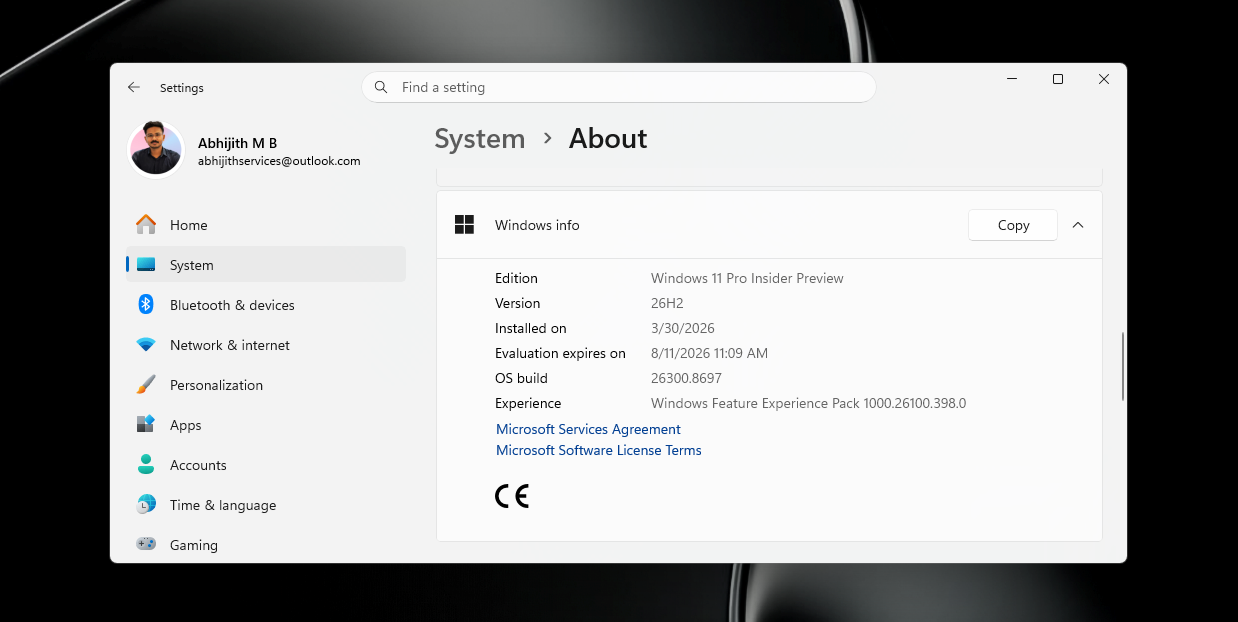
Since the branch is the same, Microsoft doesn’t need to wait until Windows 11 26H2 becomes a thing to ship new features. It can release them through regular cumulative updates, while much of the code for the next version can already sit on your PC in a disabled state.
Microsoft confirmed that monthly cumulative updates are cumulative across Windows releases on the same servicing branch, and “the payload (i.e., new features) for the next version is included in the LCU in a disabled state.”
In other words, your Windows 11 24H2 or 25H2 PC can already receive much of the code that eventually becomes part of 26H2. You’re not really missing out on anything except the Windows lifecycle reset.
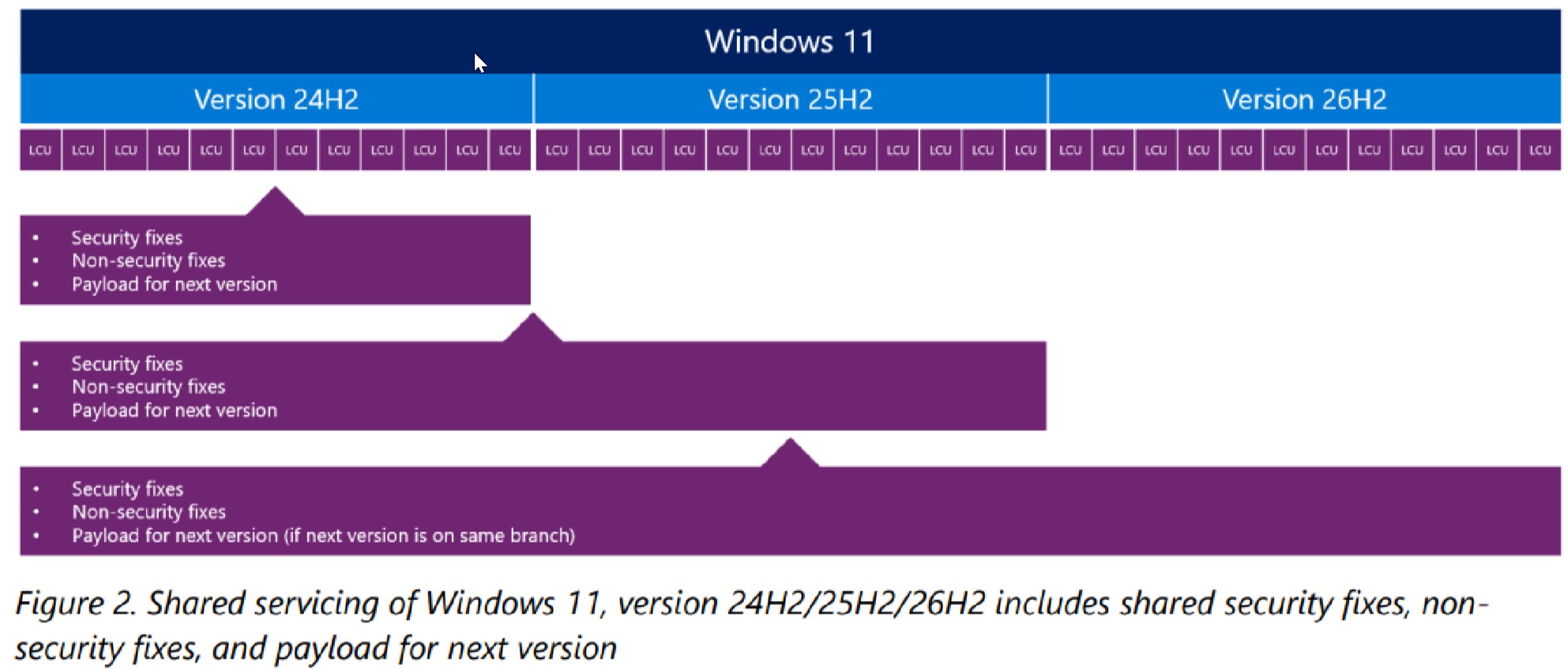
This is a win-win situation for two types of customers: those who prefer stability and those who want new features.
Another advantage is that you can reset the lifecycle without risking major compatibility issues caused by moving to a new servicing branch. Windows 11 24H2 support ends in October 2026, so you can move to Windows 11 25H2, and later move to Windows 11 26H2 when 25H2 gets closer to the end of support.
Windows 11 26H2 is based on the same servicing branch as version 25H2 and 24H2, so what happens when you upgrade?
When Windows 11 26H2 becomes available, you’ll be able to get it through new installation media (ISO), a full feature update, or an enablement package (eKB), depending on which version of Windows you’re currently using.
An ISO means a full installation of the OS, so there’s nothing particularly interesting about that. What’s more interesting is the difference between a full feature update and the enablement package.
The full feature update is needed when Windows has to replace the underlying OS branch, while the much smaller eKB can be used when the device already has the necessary code from cumulative updates.
“It is the eKB that enables a device currently running Windows 11, version 25H2 to quickly become Windows 11, version 26H2,” Microsoft added.
If you’re on the Windows 11 24H2/25H2 branch, you’ll therefore be offered Windows 11 26H2 as a tiny enablement package. It should take less than a minute or two to download and not much longer to install.
But if you’re on a different branch, such as Windows 11 22H2 or 23H2, you’ll be offered Windows 11 26H2 as a full-fledged feature update.
Moving from Windows 11 23H2 to Windows 11 26H2
If you’re on Windows 11 23H2, which is not on the same servicing branch as Windows 11 24H2, 25H2, and 26H2, you’ll notice that Windows 11 26H2 is a massive update compared with the enablement package.
Microsoft doesn’t provide the final size of the Windows 11 23H2 to 26H2 upgrade in the document, but it gives us a very similar example involving Windows 11 23H2 to 25H2.
In that case, the full feature update includes a 5.3GB Windows 11 24H2 base image and an 887MB cumulative update containing the complete additions for 25H2. Microsoft says the resulting full feature update is close to 6.5GB.
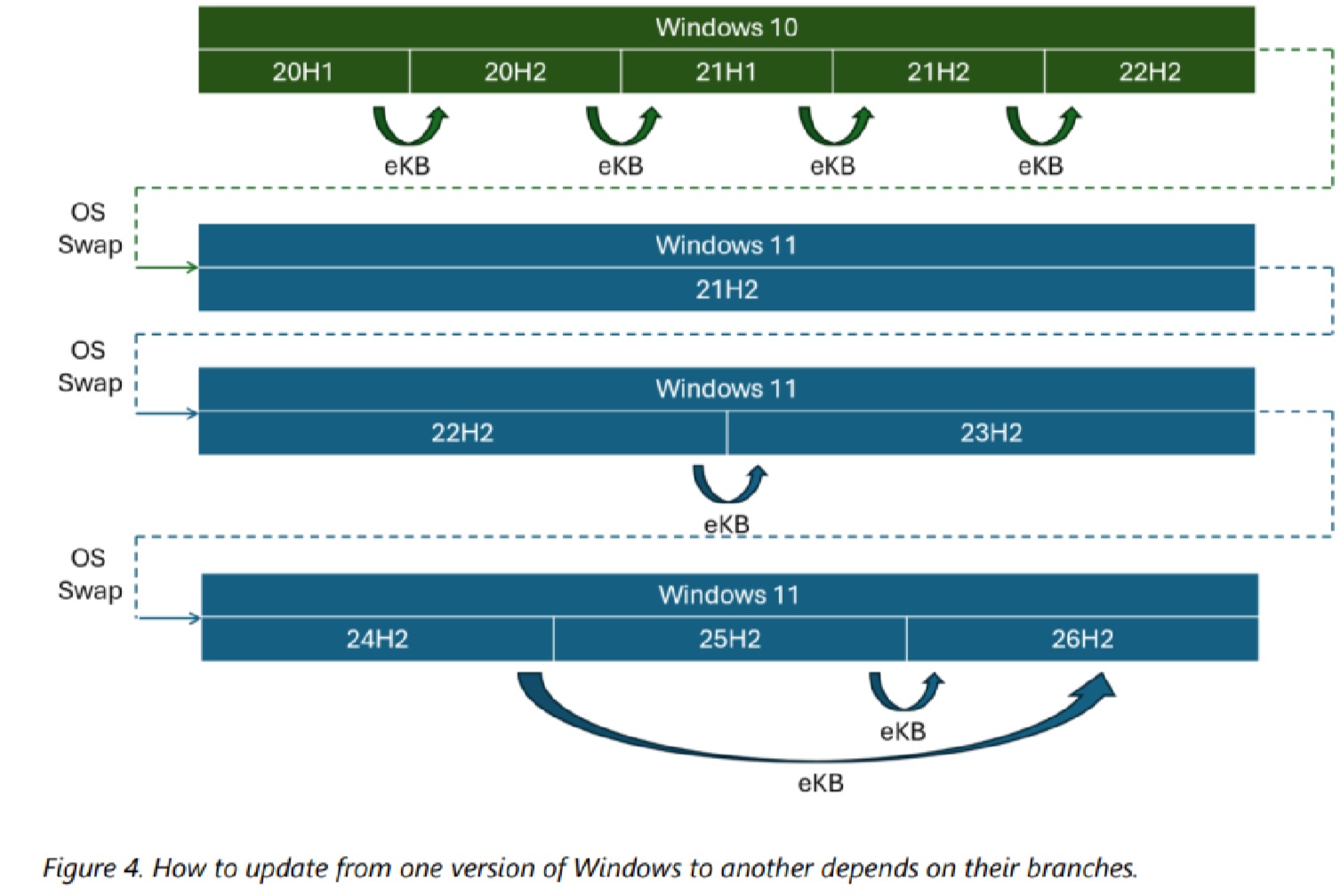
Windows 11 26H2 uses the same 24H2-based servicing branch, so moving from 23H2 to 26H2 still requires Windows to move your PC from the older 22H2/23H2 branch to the newer branch.
Moving from Windows 11 24H2 or 25H2 to Windows 11 26H2
Windows 11 26H2 is on the same servicing branch as 24H2 and 25H2, so you’ll get the feature update as an enablement package.
As Windows Latest previously reported, the Windows 11 26H2 enablement package is just 174KB on PCs already running Windows 11 24H2 or 25H2.
If the PC was already up to date and running Windows 11 24H2, Microsoft says upgrading to Windows 11 25H2 required an enablement package of just 174KB, compared with the roughly 6.5GB full feature update needed from the older branch.
Microsoft described that 174KB package as about “three-thousandths of one percent of the roughly 6.5 GB full feature update.”
This is largely because almost everything required for the next Windows version is already sitting on your PC through previous cumulative updates. The enablement package mostly turns on the new version and moves you to the new lifecycle.
Windows 11 26H2’s installation process via the enablement package has four stages. The new code flags are changed from disabled to enabled, the PC is restarted, the new features are enabled, and finally, the Windows build version number is updated.
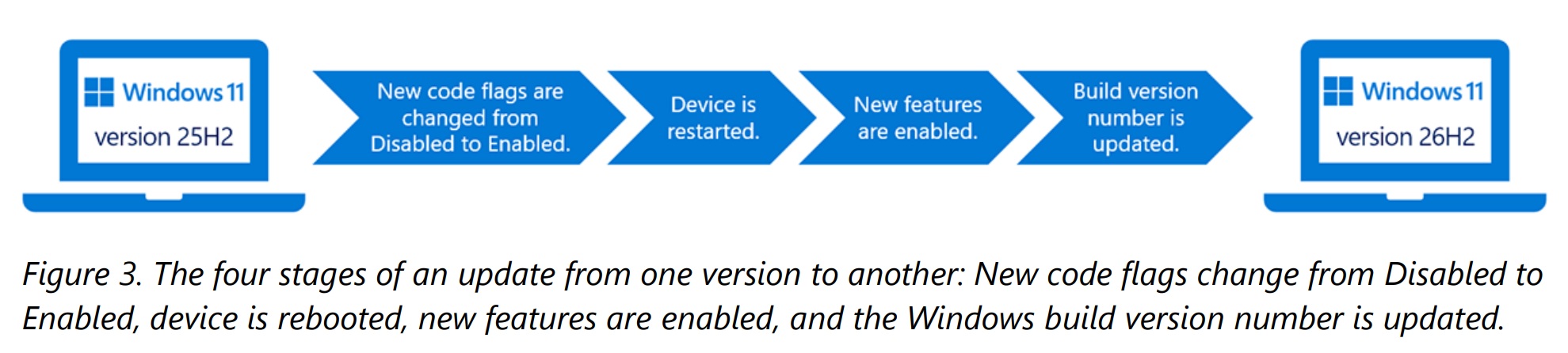 Windows 11 26H2 installation process on existing PCs
All of that explains why Windows 11 26H2 is such a boring update if you’re already on Windows 11 24H2 or 25H2, and it’s for all the right reasons.
What’s actually new in Windows 11 26H2?
My honest answer is that nothing is really new, and if you’ve read posts on the internet that claim it’s a big release, you’re being lied to. Everything that ships with Windows 11 26H2 also ships to PCs running 25H2 or 24H2 at the exact same time, and new changes arrive via the monthly cumulative update, not version 26H2.
But there’s at least one notable change in Windows 11 26H2. It’s not exactly a new feature, but you should still know about it:
1. Point-in-time restore is now enabled by default
Microsoft has been testing a feature called “Point-in-time” restore for more than a year, and it recently started rolling out to everyone running Windows 11 24H2 or 25H2. With Windows 11 26H2, Microsoft has confirmed that it will auto-enable Point-in-Time restore on all PCs.
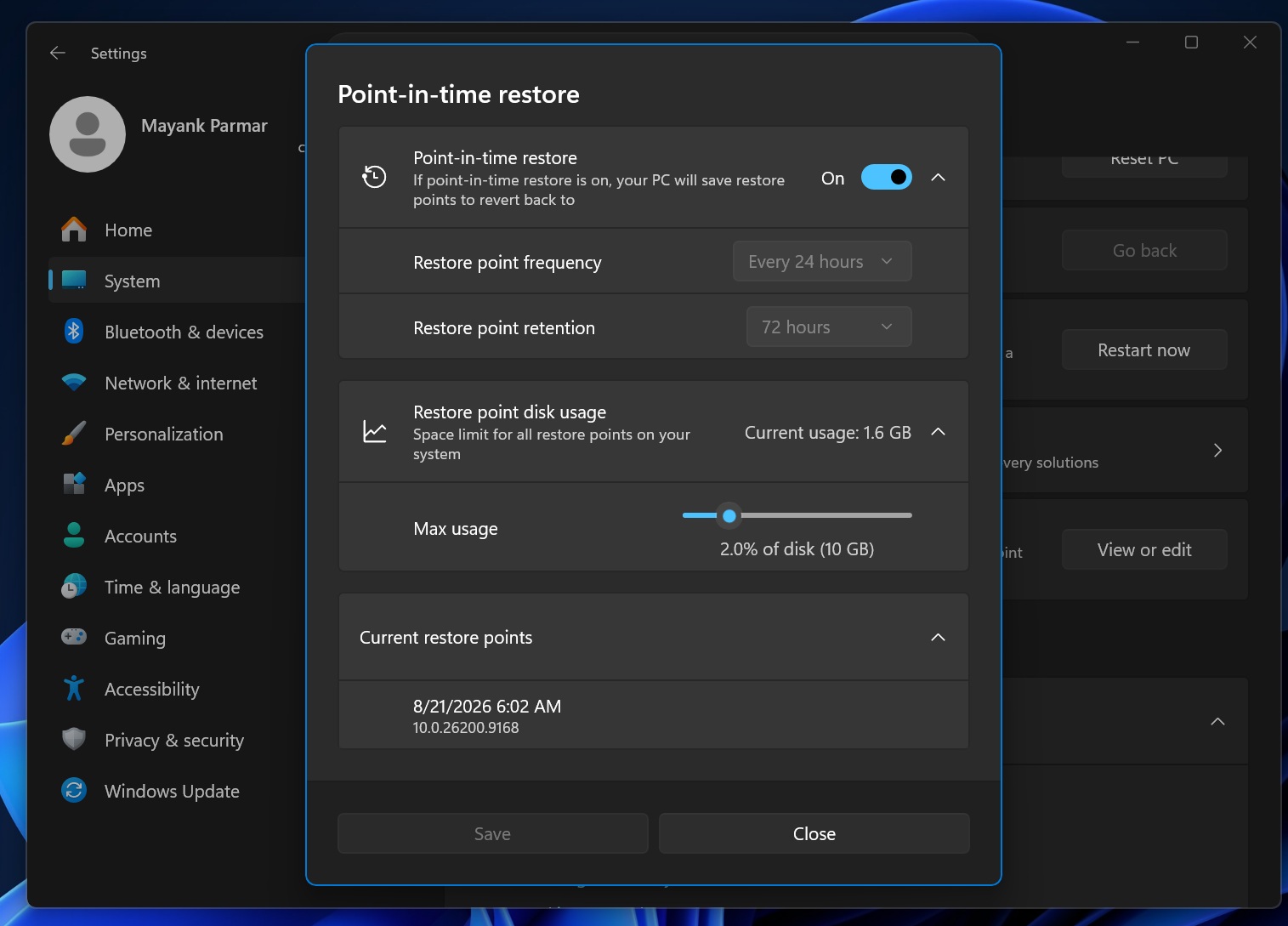
Point-in-Time restore is one of my favorite features because it can create a full snapshot of your PC, including the installed version of Windows, settings, and even personal files, so if something goes wrong, you can go back in time and restore your PC. It might sound similar to the existing System Restore, but it’s far more powerful because it also backs up your personal files.
For example, if you installed a driver or a malicious app and something goes wrong with your PC, you can use Point-in-Time Restore’s snapshots to restore the PC from 24 hours ago.
Point-in-Time will also be enabled on enterprise PCs with Windows 11 26H2 by default.
2. Windows 11 2026 update enables Windows Backup by default
Windows Backup is an app that backs up your files and folders to OneDrive and allows you to use the backup when you’re setting up a new device or reinstalling the OS. Until now, Windows Backup has not been enabled on PCs by default, but that changes with Windows 11 26H2.
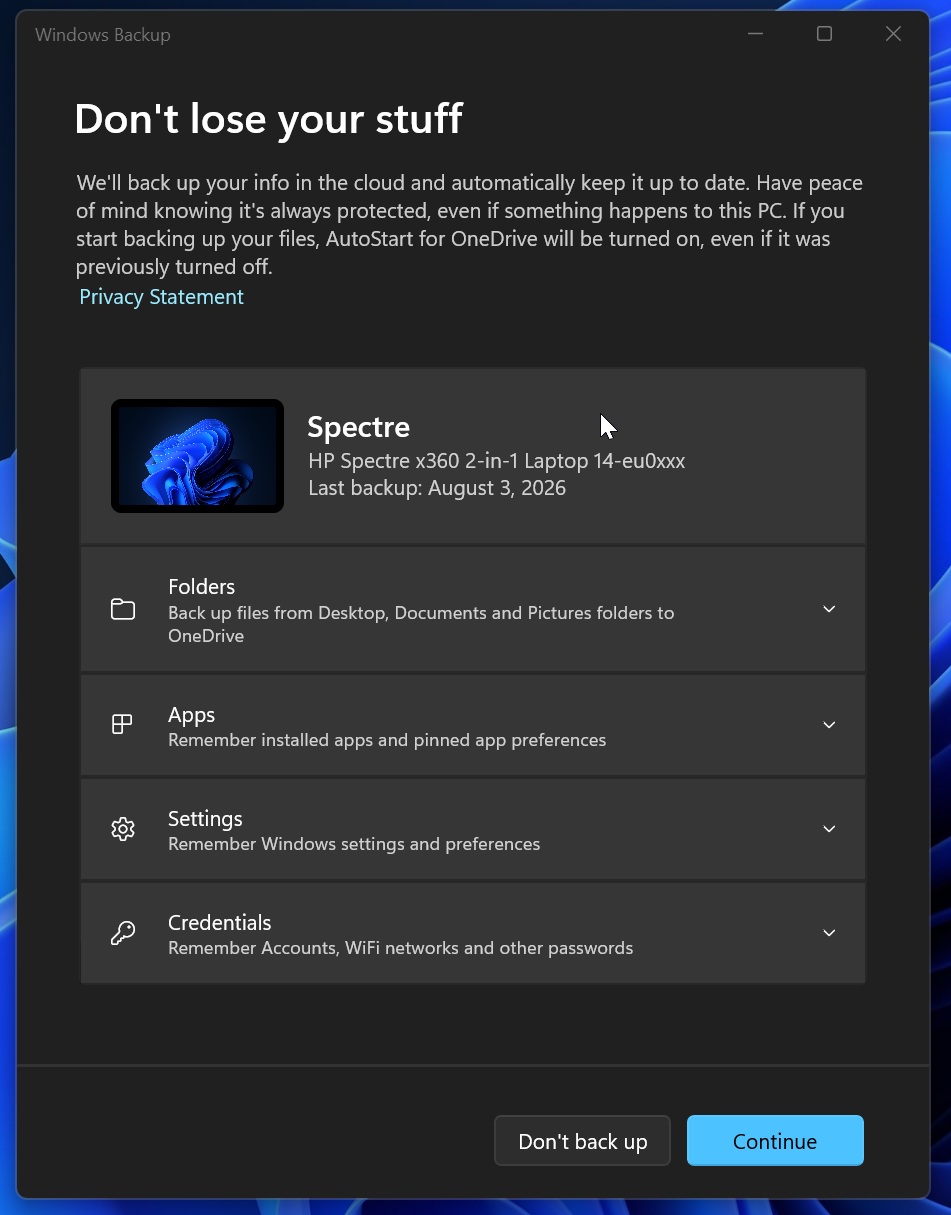
This feature will now be enabled by default on all PCs running Windows 11 26H2 or newer, so “you can move to a new device and resume work quickly,” according to Microsoft’s documentation.
Windows 11 26H2 is about the reset support cycle
Some wouldn’t call it a “new” feature, but it’s also the primary reason why Windows 11 26H2 even exists in the first place.
Microsoft supports each annual Windows 11 feature update for 24 months on Home and Pro, while Enterprise and Education get 36 months. That means Microsoft can’t simply keep Windows 11 24H2 around forever, even if it continues to receive the same features and improvements as newer releases.
Windows 11 24H2 reaches the end of support for Home and Pro on October 13, 2026. Windows 11 25H2, despite using the same servicing branch, resets that clock and remains supported until October 12, 2027.
Windows 11 26H2 gives you more time to stay on Windows 11 24H2’s servicing branch, and when the branch does not change, you don’t have to deal with instability or major bugs.
Instead of forcing everyone onto another major platform release just to keep their PCs supported, Microsoft can keep using the stable 24H2-based servicing branch and reset the lifecycle for another year.
Windows 11 versionServicing branchHome and Pro support endsEnterprise and Education support endsWindows 11 24H224H2 / GermaniumOctober 13, 2026October 12, 2027Windows 11 25H224H2 / GermaniumOctober 12, 2027October 10, 2028Windows 11 26H224H2 / GermaniumExpected around October 2028*Expected around October 2029**Microsoft has not published the final Windows 11 26H2 end-of-support dates yet. Windows 11 annual feature updates receive 24 months of support for Home and Pro and 36 months for Enterprise and Education, so the exact dates will depend on when 26H2 becomes generally available.
This means someone could start with Windows 11 24H2 in 2024, move to 25H2 in 2025, and then move to 26H2 in 2026 without changing the underlying Windows servicing branch. By moving to 26H2, Home and Pro users should remain supported until roughly late 2028, while Enterprise and Education should get until late 2029.
Windows 11 27H2 should finally be the major platform upgrade
Microsoft has not pushed users to a new “servicing” branch since the release of Windows 11 24H2 in 2024. But this shared servicing branch probably ends with Windows 11 26H2.
As Windows Latest previously reported, we understand that Windows 11 27H2 is planned as a new platform release (a new servicing branch) rather than another enablement package built on top of 24H2.
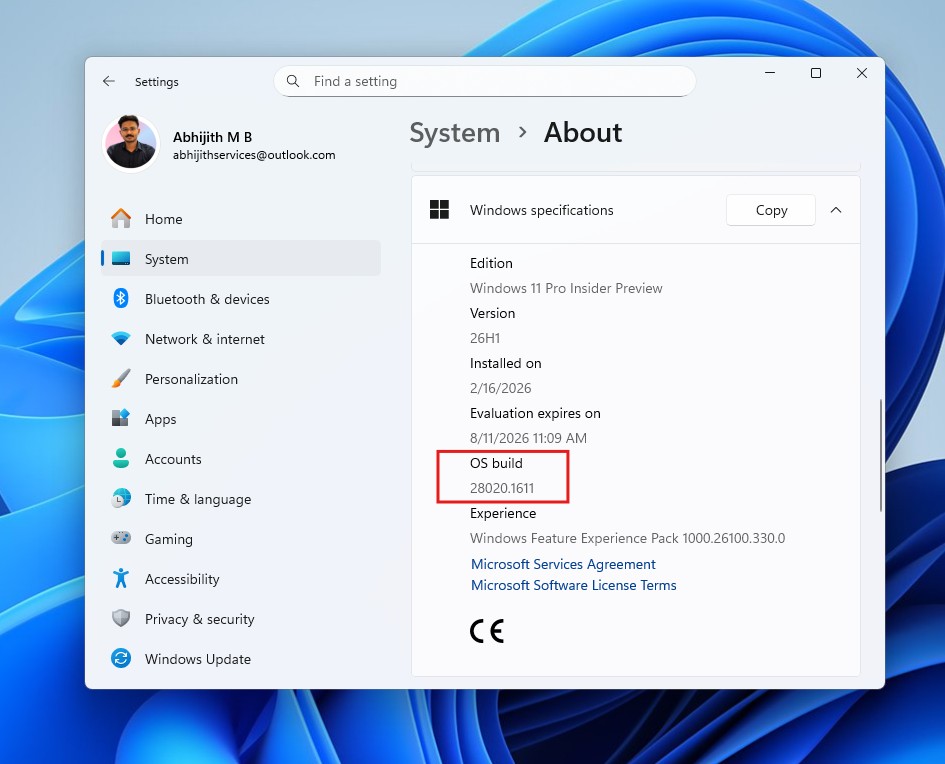 Windows 11 26H1 Build 28020.1611
Windows 11 26H1, which ships on newer Arm PCs, already uses a different Windows core from 24H2, 25H2, and 26H2. Microsoft has confirmed that those PCs will have an upgrade path to a future Windows release, and Windows Latest understands that 26H1 and 26H2 will merge with Windows 11 27H2 in the second half of 2027.
Arm-based PCs running Windows 11 26H1 and existing/regular PCs running version 24H2/25H2/26H2 will move to 27H2 in the second half of 2027.
Microsoft wouldn’t confirm Windows 11 27H2’s plans when I asked, so this isn’t official yet, but based on what we know from reliable sources, 26H2 looks like the final lifecycle extension of the Windows 11 24H2 platform before Microsoft moves everyone to the next major Windows branch.