Windows 11 is full of web apps eating 1GB+ RAM because Microsoft neglected WinUI, and now it’s finally fixing it by adding basic features developers wanted
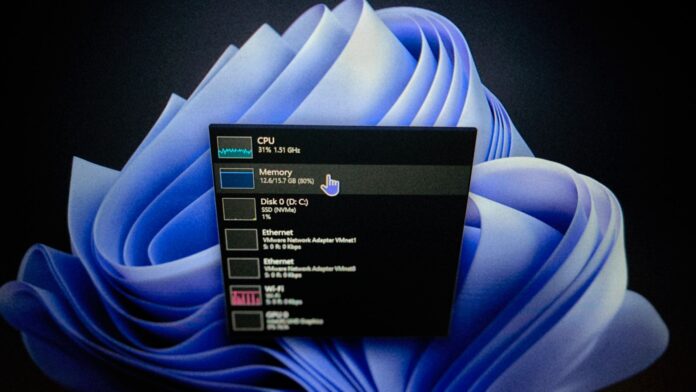 WinUI’s new TableView and Chart controls bring native data tables and charts to Windows 11 apps
Microsoft is finally giving WinUI, Windows 11’s native framework for modern apps, a data table, charts, and pen inking, which are three basics needed by finance tools, admin panels, and note-taking apps. Without them, building on the web might’ve been the easier route. TableView and Chart came to Windows App SDK 2.5.4 Experimental on September 29 along with reworked inking controls, and WinUI Gallery 3.0 lets developers try them, but Microsoft says these are not yet ready for production apps.
At Build 2026, Chris Anderson from Microsoft’s Windows UI team admitted WinUI has “a ton of feature gaps in the platform,” and said DataGrid and Charting were “up and coming.” It was also the conference where Microsoft pushed developers toward WinUI over web frameworks and dropped the “3” from the name to convince them that the company isn’t planning yet another framework.
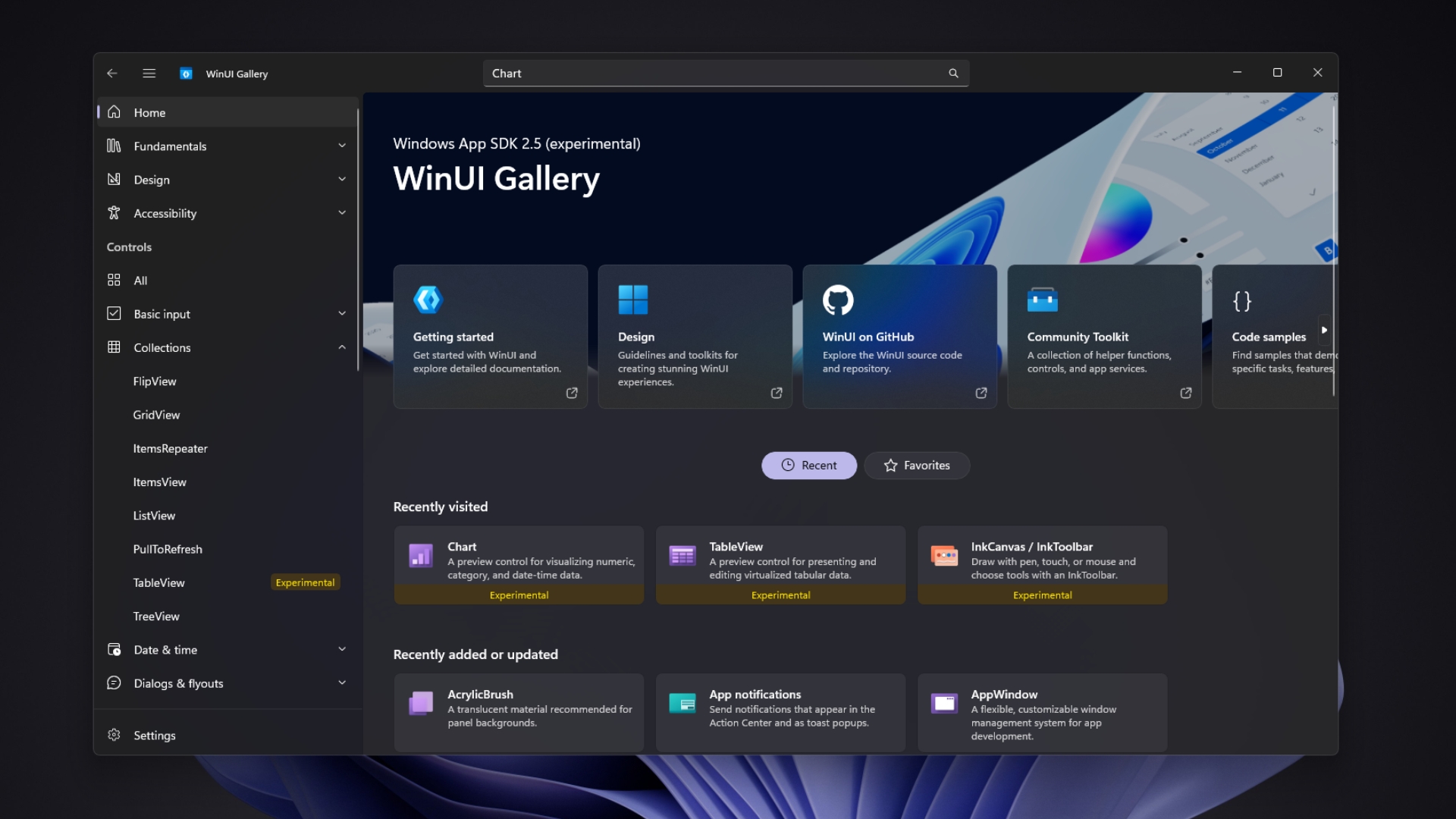 WinUI Gallery with Chart, TableView and InkCanvas in Experimental rollout. Credit: Windows Latest
For context, WinUI is the UI framework, and the Windows App SDK is the package of Windows APIs and tools that ships it.
WinUI 3 is finally getting the basic controls developers have been asking for
The experimental release brings three first-party building blocks to WinUI 3 apps.
- TableView, a native table for displaying, sorting, filtering, grouping, and editing large sets of records
- Chart, a native control for line, area, and bar charts
- InkCanvas and InkToolbar, which let users write and draw with a pen, finger, or mouse
Until now, developers had to buy these from third-party vendors or borrow them from community projects, maybe even build them by hand. TableView’s code showed up in WinUI’s GitHub repository in September.
TableView brings a native data grid to WinUI 3 apps
When Windows App SDK 1.0 came in November 2021, Syncfusion, DevExpress and Telerik were already advertising their WinUI DataGrid and Chart controls. Microsoft’s version took almost five years!
“For a long time, the community has asked for data table support in WinUI 3,” Pranav Gupta from the WinUI team wrote in the TableView announcement.
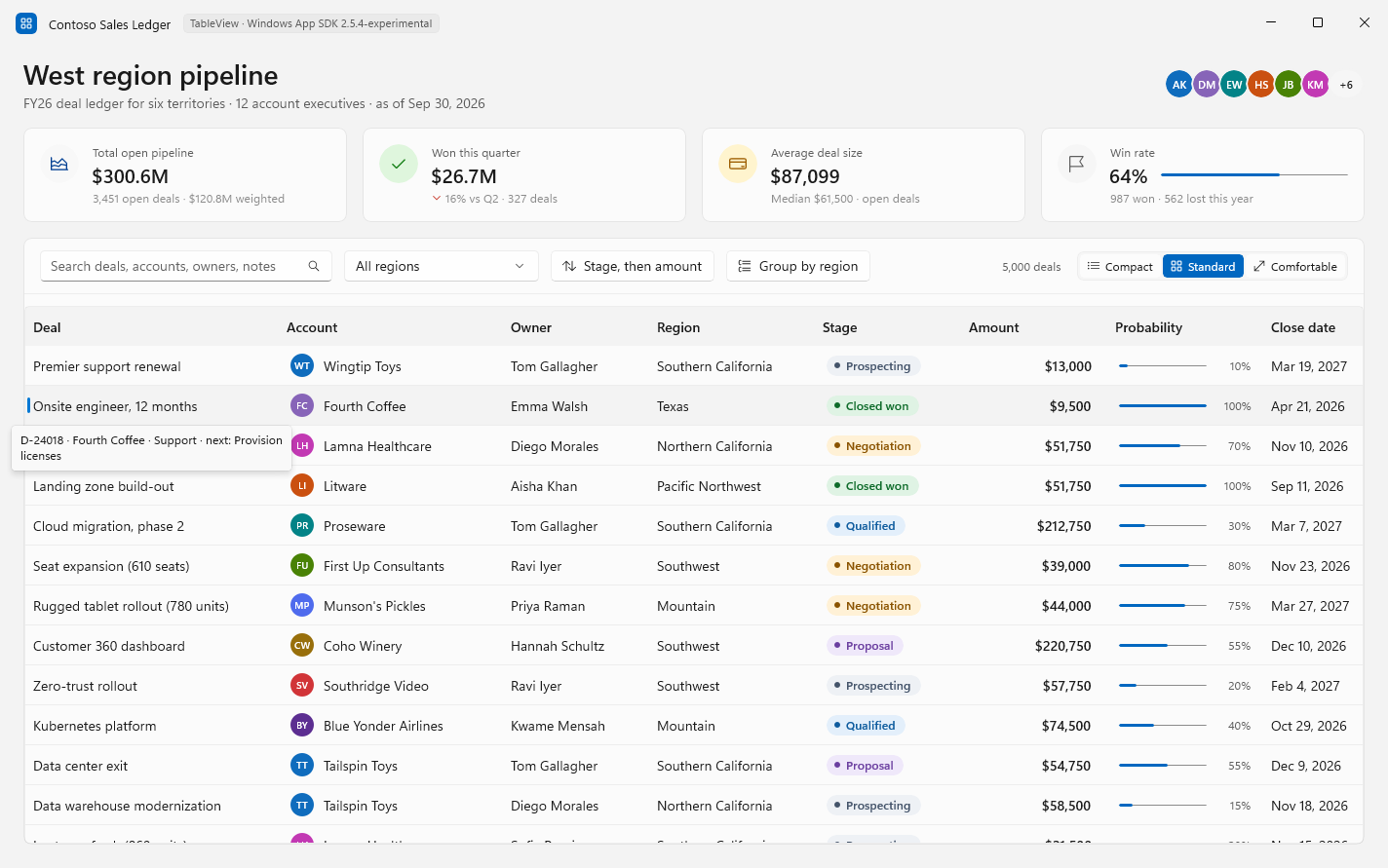 Contoso Sales Ledger app with TableView in WinUI. Image: Microsoft
Users can click a header to sort, resize and freeze columns, and switch between Compact, Standard and Comfortable row density. Developers get template columns for richer cells like status pills or progress bars, filtering and grouping through a shared TableViewSource, editing with validation, and virtualized rows, which is how Microsoft’s Contoso Sales Ledger demo handles 5,000 deals across eleven columns.
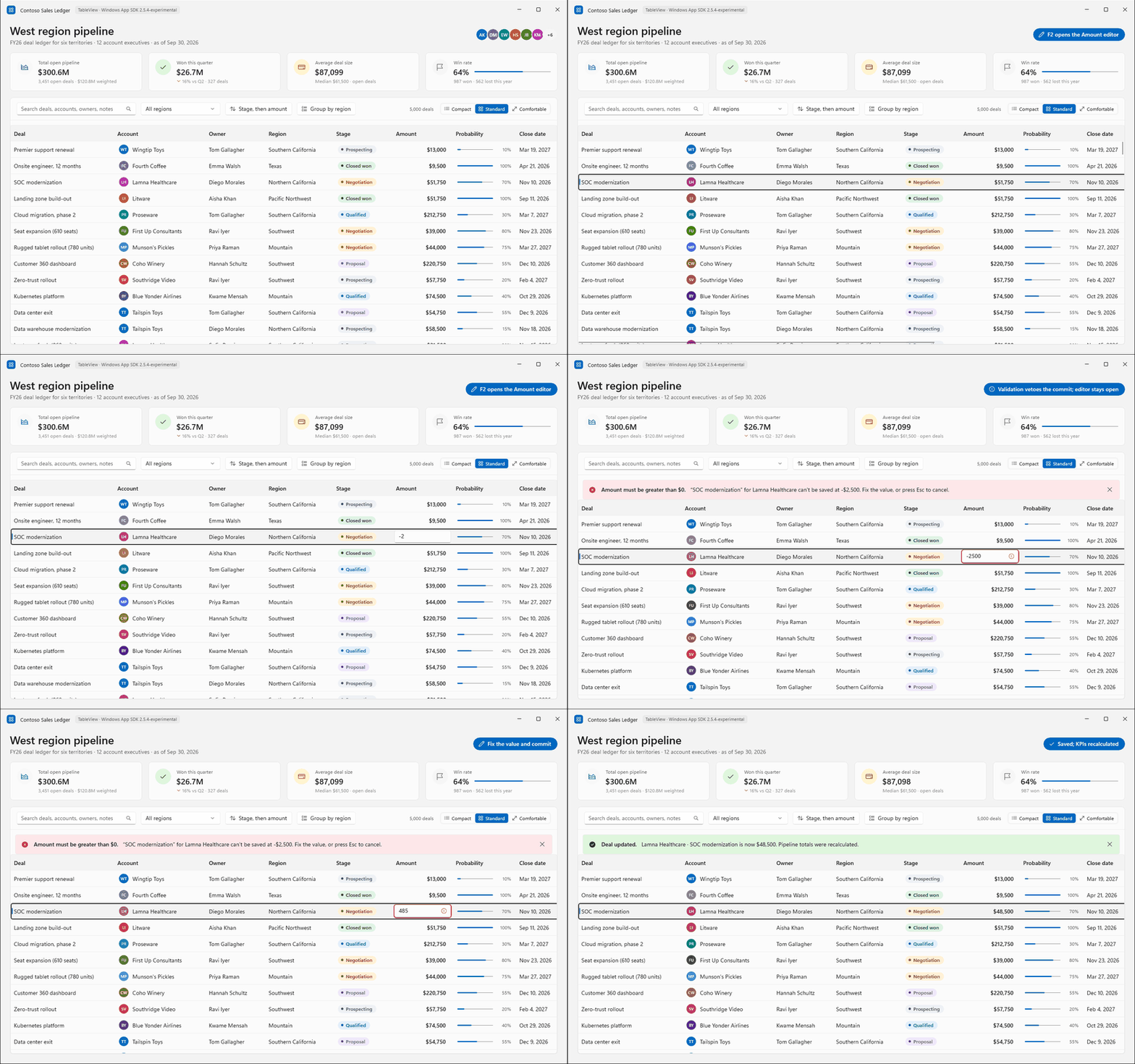
An inventory app, for example, could let users sort products by stock, filter by supplier, group by category, and fix a wrong price in place, without the developer stitching a grid together from basic controls.
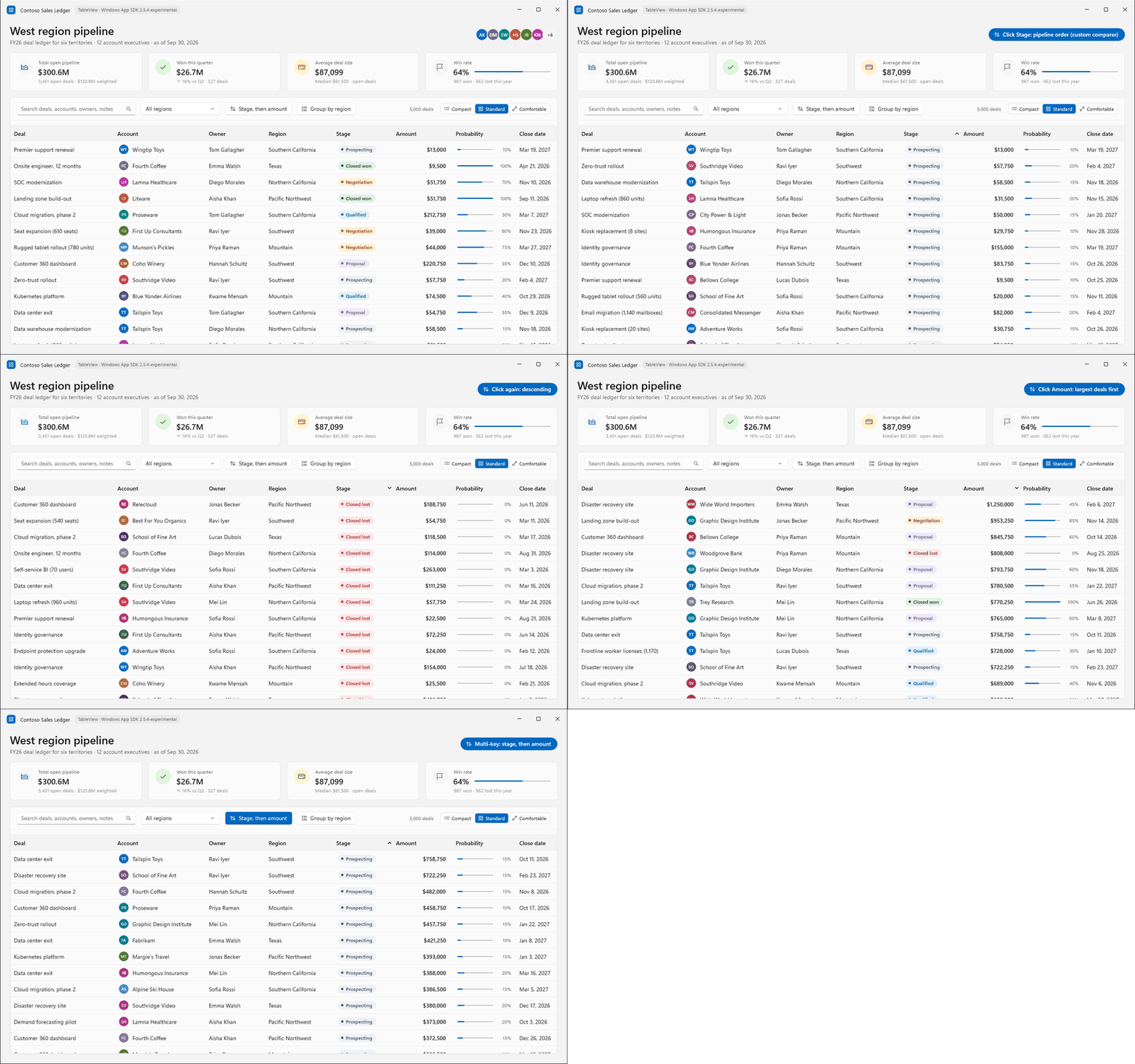 Full ledger demo, including its app-defined sorting controls. Source: Microsoft
Ironically, Microsoft promised a DataGrid at Build, but its TableView documentation says the control “isn’t a DataGrid replacement and doesn’t provide spreadsheet-style interaction.” Users can select only one row, sort by one column at a time, and group by only one level, and columns can’t be reordered. Microsoft says hierarchical views and app context menus are already in the works.
WinUI 3 finally gets its own native Chart control
A finance dashboard needs revenue against expenses, a cash balance trend and maybe a portfolio curve, and considering how common such apps are, WinUI developers had to do the hard work of pulling in a third-party charting library to make such apps.
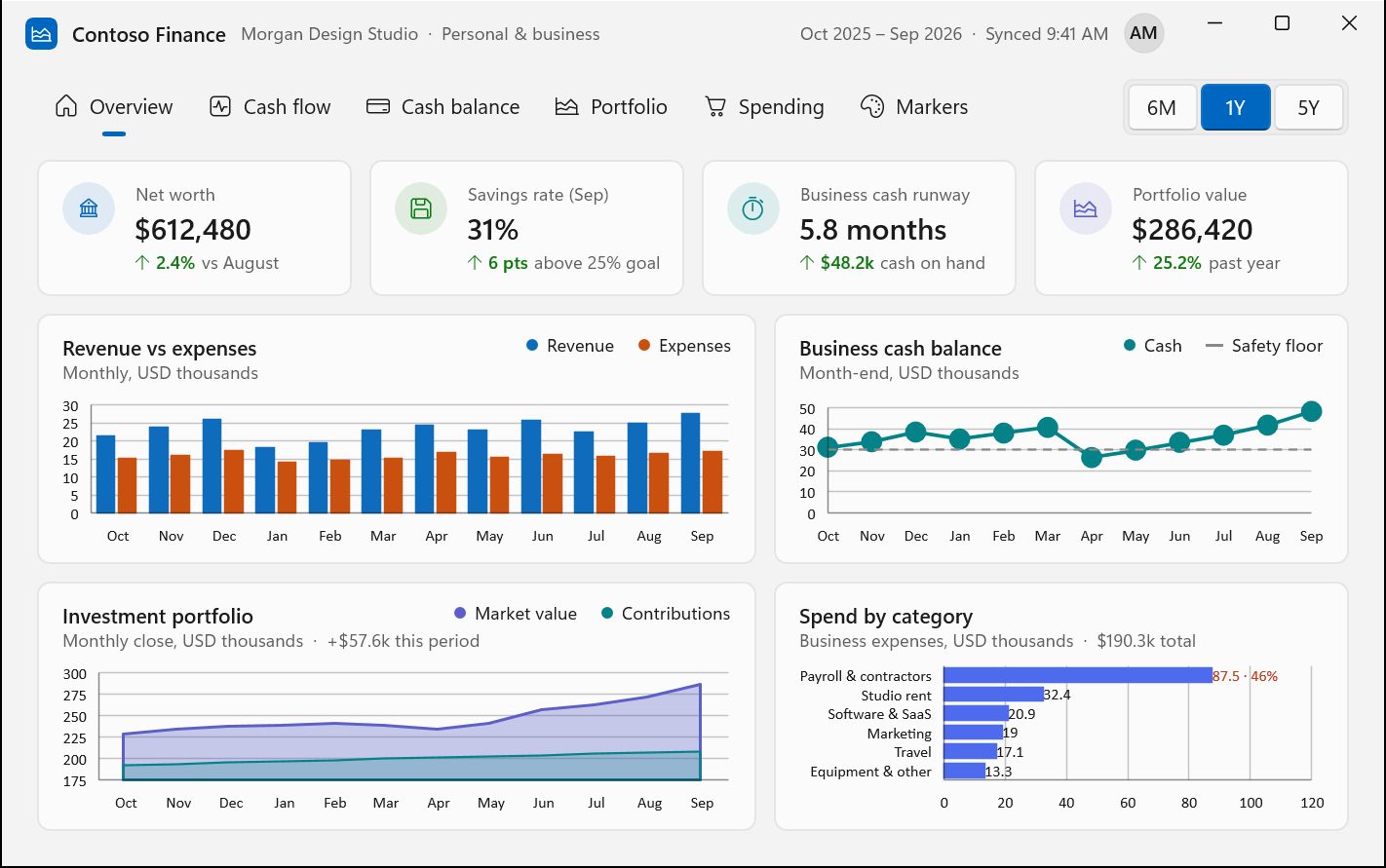 Contoso Finance app with different types of WinUI Charts. Image: Microsoft
Microsoft’s Chart control comes with line, area, and bar series, category and date-time axes, numeric value axes, legends, data labels, and markers. Multiple series can share axes, and the WinUI Gallery sample shows a series updating live from an ObservableCollection.
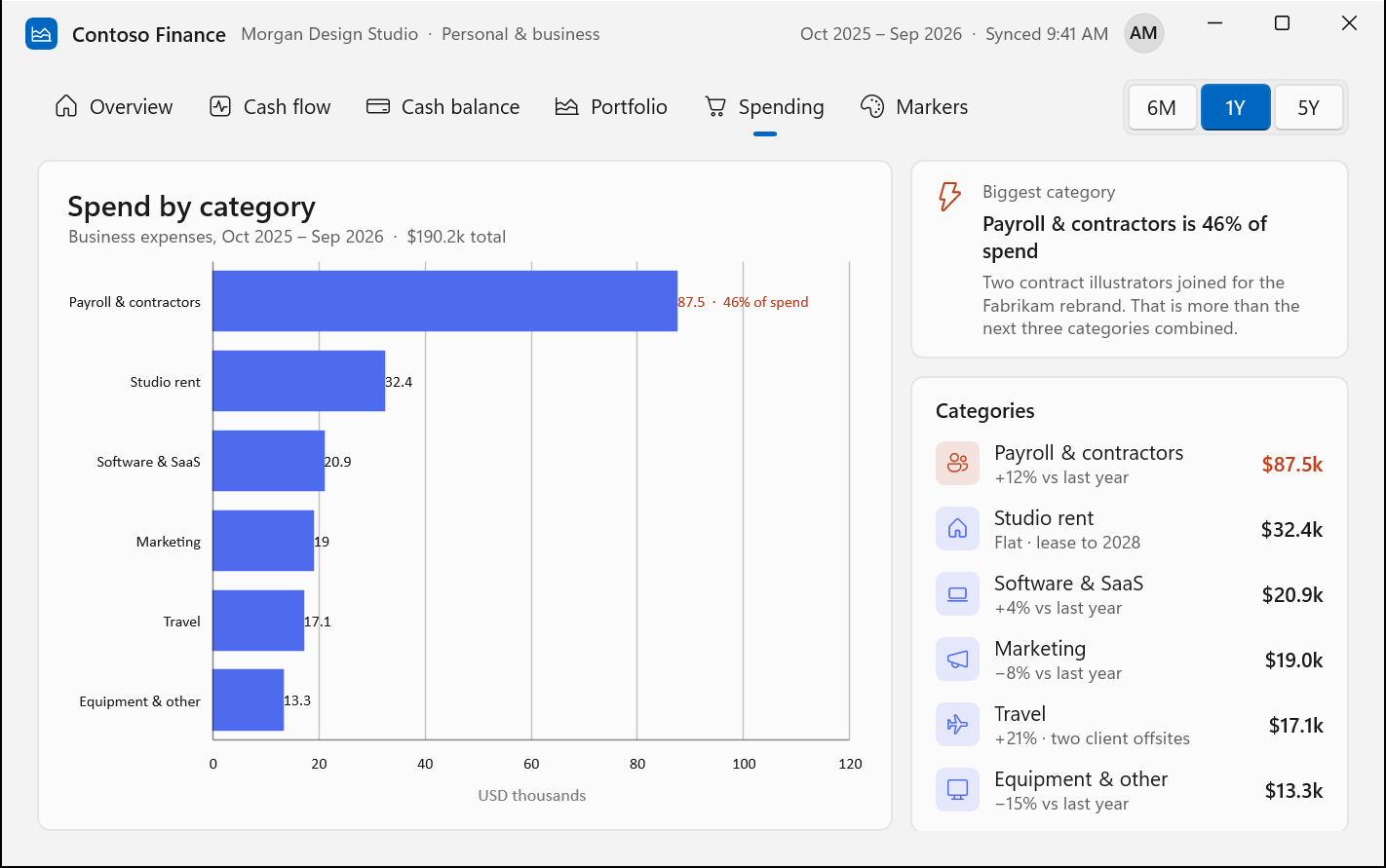 Horizontal spending bars made with Charts in WinUI. Image: Microsoft
In Gupta’s Contoso Finance demo, columns compare monthly revenue and expenses, a line tracks cash on hand, and horizontal bars break down spending. The chart only draws prepared data, though. “Calculations such as savings rate, cash runway and category totals belong to the app, not the chart control,” Gupta wrote.
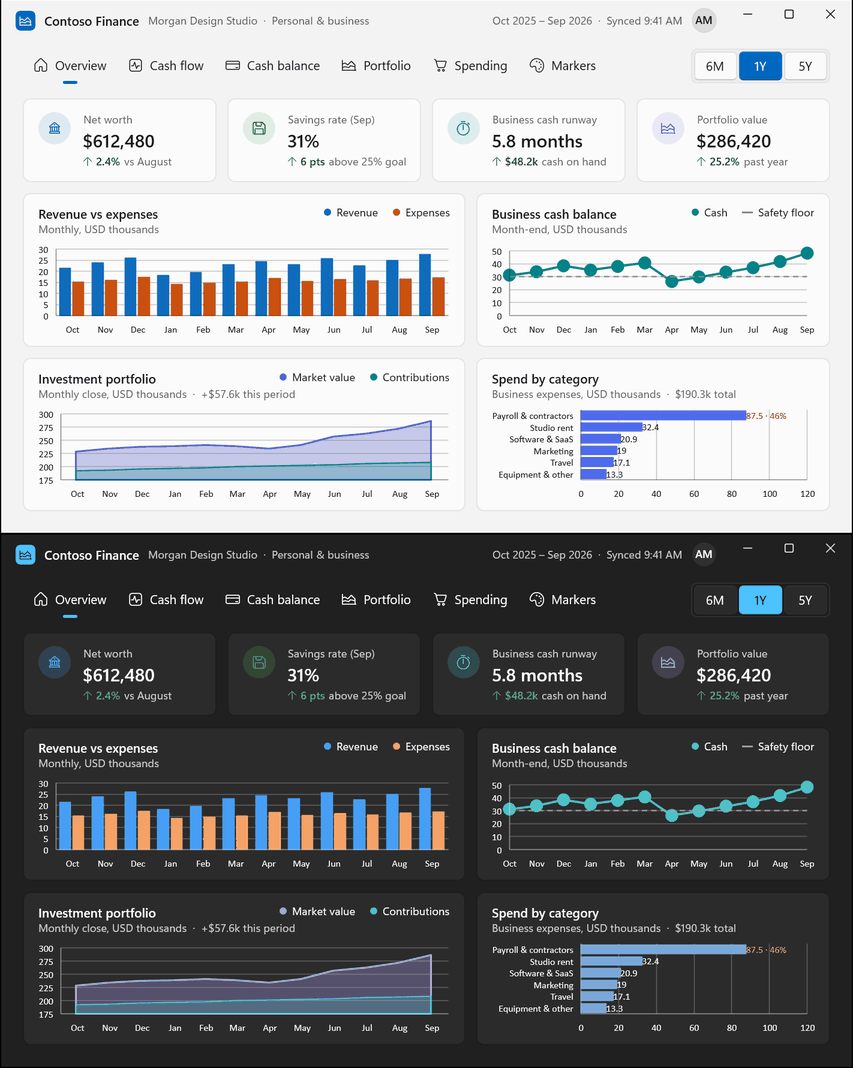 Sample finance app in dark and light themes made with Charts in WinUI. Source: Microsoft
Developer feedback has been mixed, to say the least. One simply asked, “there is no pie chart, why?” while others want zoom and pan, and an issue already complains that the control doesn’t follow Fluent design.
Microsoft is bringing InkCanvas and InkToolbar to WinUI 3
UWP apps have had InkCanvas for years, but when developers moved those apps to WinUI 3, the control “simply was not there,” as Gupta put it in the inking announcement.
Inking first came with Windows App SDK 2.4.1 Experimental in August with InkCanvas, InkToolbar and InkPresenter, plus clipboard and high-contrast support. The 2.5.4 release lets InkToolbar drive an InkPresenter without an InkCanvas and adds InkSynchronizer, so apps can themselves render committed ink.
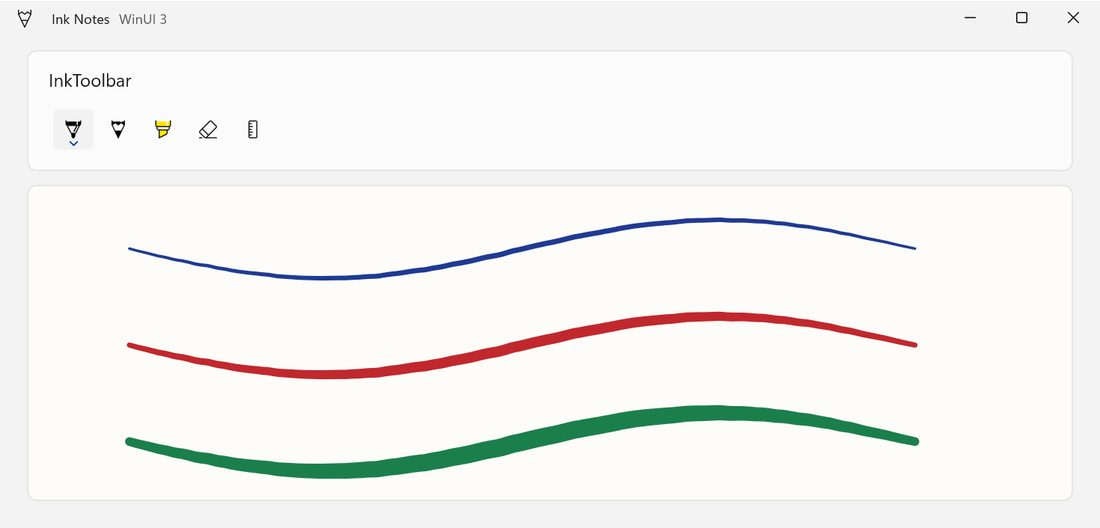 Pen strokes at increasing widths with InkToolbar in WinUI 3. Image: Microsoft
The toolbar has pen, pencil, highlighter, eraser, and ruler buttons, and strokes can be saved as a regular GIF that still reloads as editable ink. Gupta says the controls mean “a note app stops being a drawing engine you have to write yourself,” which helps anyone signing a PDF or scribbling meeting notes on a Surface.
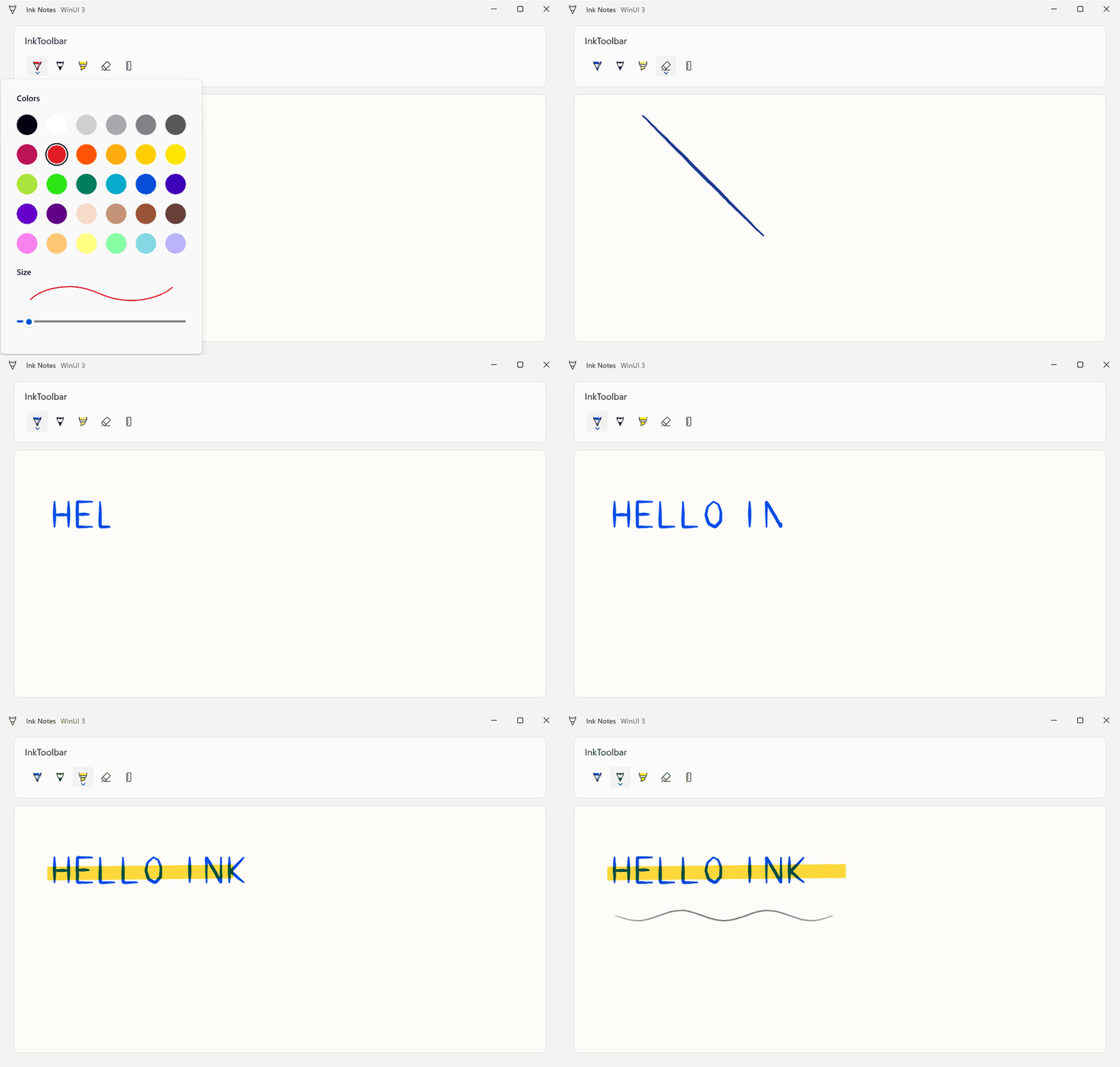
I’ve always felt Windows hardware, with its pens and convertibles, is miles ahead of Apple’s, so it was odd that Microsoft’s modern framework couldn’t handle a pen!
WinUI Gallery 3.0 lets developers test experimental controls sooner
“Until now, new controls usually showed up in the Gallery after they reached a stable Windows App SDK release,” Senior Product Manager Niels Laute wrote on October 13 while announcing WinUI Gallery 3.0, the reference app where developers try WinUI controls and copy sample code.
Version 3.0 runs on the experimental Windows App SDK and ships it self-contained, so developers don’t have to install anything extra. Laute says the idea is to get sample code out sooner and collect feedback while the APIs can still change. Experimental pages will have a badge, and the Gallery also has samples for WrapPanel, LayoutPanel, PagerControl, and new Window width and height properties.
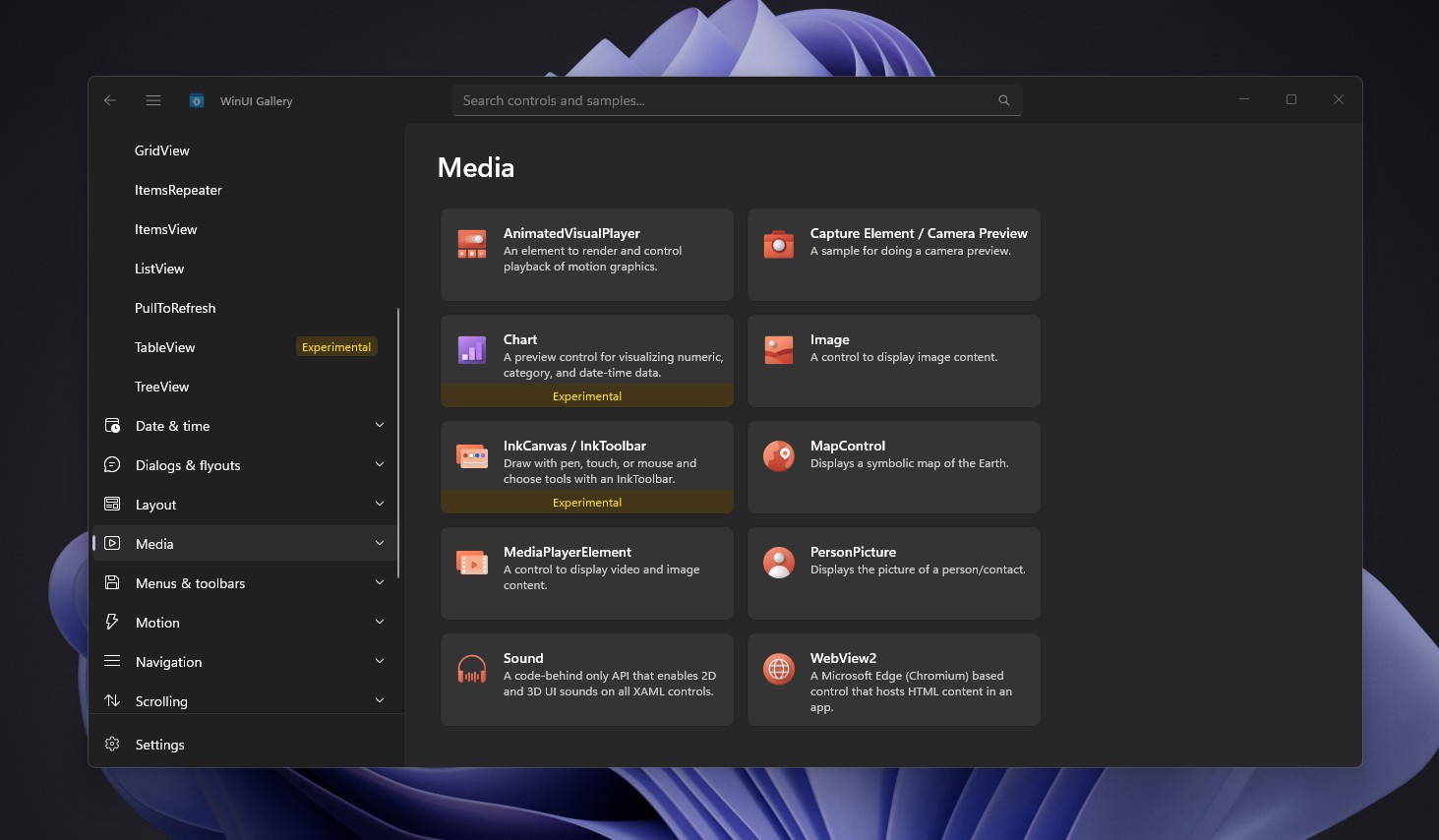 Media section in WinUI Gallery. Credit: Windows Latest
Unsurprisingly, one developer under the post asked, “So it now has ‘experimental’ capabilities that existed in WPF for decades?”
WinUI’s development has taken years, and Microsoft is still opening it up
I was surprised to know that WinUI 3 has been around for seven years, and the push to fully open up its development only started last year. Well, better late than never…
DateMilestoneNovember 2019Microsoft introduces the WinUI 3 direction.February 2020WinUI 3 Alpha arrives.May 2020WinUI 3 Preview 1 adds Win32 support.March 2021Project Reunion 0.5 ships with WinUI 3.June 2021Project Reunion 0.8 arrives.November 2021Windows App SDK 1.0 ships.May 2022Windows App SDK 1.1 adds features and improvements.November 2022Windows App SDK 1.2April 2023Windows App SDK 1.3August 2023Windows App SDK 1.4February 2024Windows App SDK 1.5September 2024Windows App SDK 1.6 adds Native AOT support.March 2025Windows App SDK 1.7July 2025Microsoft announces its phased WinUI open-source plan.September 2025Windows App SDK 1.8April 2026Windows App SDK 2.0 ships.May 2026Microsoft completes Phase 3 of its WinUI open-source plan.August 2026Mainline WinUI development moves to GitHub; Phase 4 completes.August 2026Experimental WinUI 3 inking support arrives.September 2026Experimental TableView and Chart controls arrive.October 2026WinUI Gallery 3.0 showcases new experimental controls.
“This isn’t a flip-the-switch moment, it’s a deliberate process,” Microsoft’s Beth Pan wrote when she announced the open-source plan in July 2025. Microsoft has since completed Phase 4, moving mainline WinUI development to GitHub in August 2026. Microsoft engineers now create branches, open pull requests, review and merge code in public. But that doesn’t mean outside developers can contribute yet. Microsoft says it is still validating the contribution process, while the XAML compiler remains partly closed and cannot yet be built entirely from source.
Ironically, a developer under the Chart announcement pointed out that the new controls ship in a closed source package!
Better native controls could give Windows apps a reason to ditch Electron
Developers pick Electron because one HTML, CSS, and JavaScript codebase runs on Windows, macOS, and Linux. Chances are that you’ve already used multiple Electron or WebView2 apps and saw the RAM usage climb like it’s rendering a game!
Electron uses Chromium and Node.js to run web-based desktop apps, while WebView2 embeds Microsoft’s Edge-based web rendering engine. Both let developers reuse web technologies, but they also come with extra browser-related processes and memory usage.
When I tested the new WhatsApp for Windows, the WebView2 version used about 600MB of RAM while idle, and the old native app was under 100MB. Personally, I’m still holding on to Outlook Classic, and I’d switch to the New Outlook (WebView2 app) the day it becomes a native app.
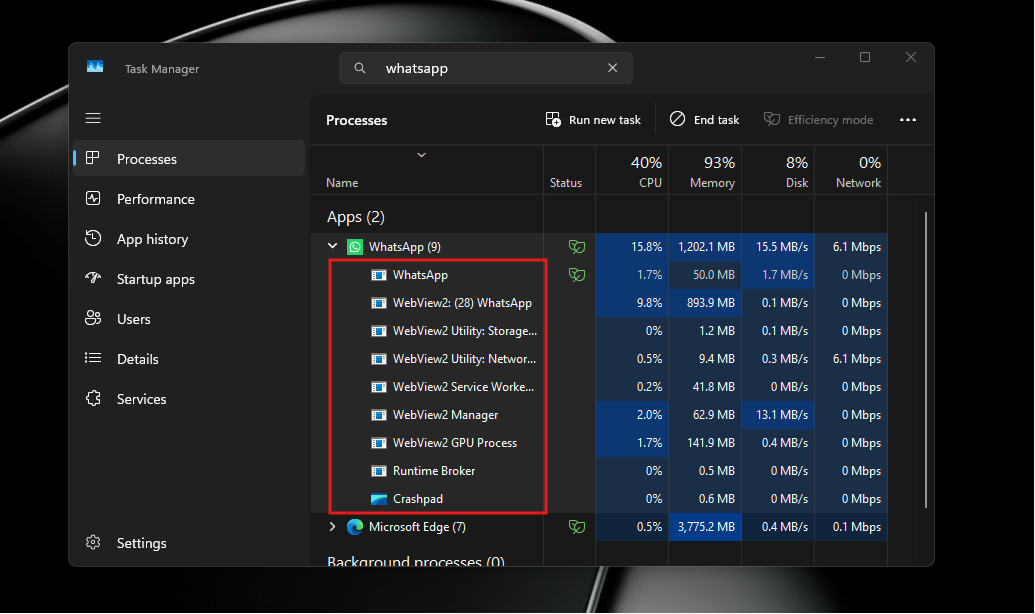
That said, WinUI isn’t automatically efficient. Microsoft admitted WinUI apps can hog RAM, and fortunately, Anderson’s priority list at Build included this. “The first and foremost is performance, fundamentals, quality, fixing a lot of bugs,” he said.
The 2.5.4 release takes care of some of that memory growth by fixing a resource-tracking bug that grew memory when apps repeatedly created visual-state storyboards or resolved static or theme resources, and by improving cleanup of unreachable native WinUI objects in .NET apps after a tab or page closes. Smaller stuff is still missing too, like the Shift+click scroll bar shortcut that even Electron apps support.
For now, a developer prototyping an accounting app in WinUI can build the ledger, the dashboard and the signature box with Microsoft’s native controls. Of course, this doesn’t mean fewer web apps on your PC all of a sudden, as it depends on how quickly these leave the experimental channel, and whether Microsoft finally gives developers the Visual Studio visual designer they keep asking for.