Windows 11 Copilot now tells you what’s slowing down your PC, while using 1GB RAM itself
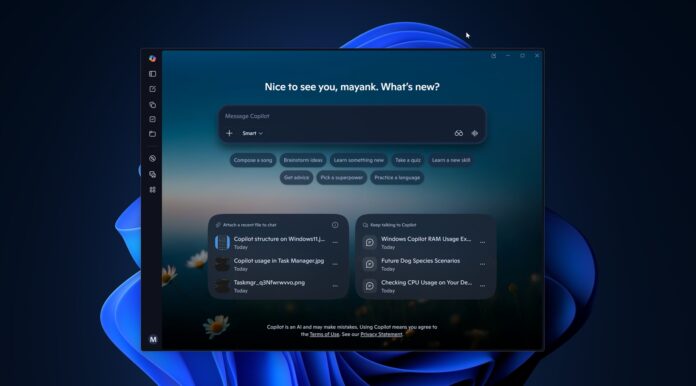
Windows 11 is testing a new AI-powered feature that will allow Copilot to understand system resource usage, including current CPU and RAM usage, and help you identify the root cause of a problem. Ironically, Copilot for Windows ships with a private copy of Microsoft Edge, is a full-blown web app, and uses up to 1GB of RAM while doing nothing.
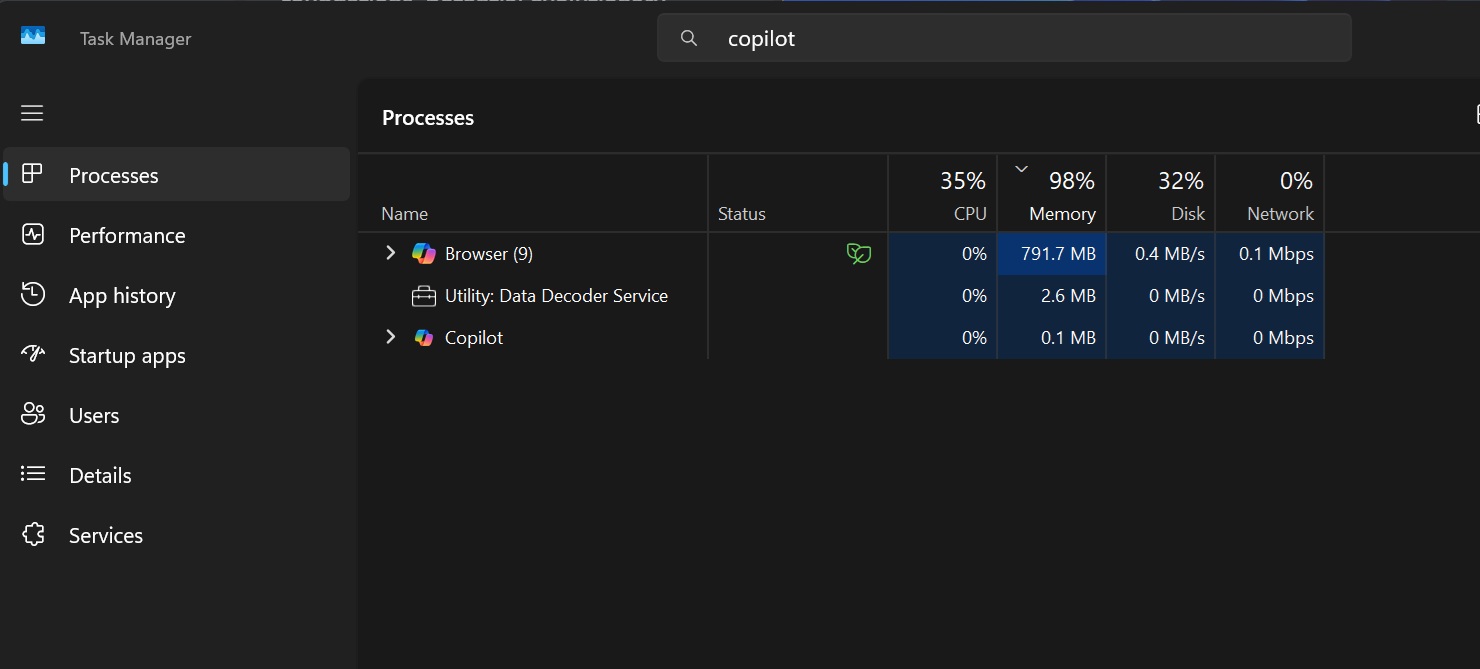 Copilot using almost 1GB of RAM on a 32GB RAM PC after I opened it | Note: Copilot identifies itself as a “Browser” in Task Manager after recent updates. “Browser” and “Copilot” in the screenshot represent the “Copilot for Windows” app.
In our tests, Windows Latest found references to a feature called “PC Insights” in Copilot, and as the name suggests, it is all about analyzing your system for potential performance or storage issues. Right now, Copilot’s PC Insights is not available to everyone, as Microsoft told me it is slowly rolling out in the United States.
I do not see Copilot PC Insights on my end yet, but I managed to obtain some details thanks to a support document and references in the app codebase.
What is Copilot’s new “PC Insights”?
Copilot’s PC Insights is an optional feature that allows you to ask questions about your Windows PC and get answers based on the current state of the hardware.
For example, if you normally ask ChatGPT or Claude about your CPU, attach a screenshot showing an Intel Core i9, and ask about its performance or other features, it can provide a fairly balanced answer because it was trained on millions of websites it did not pay for.
While there is no denying that ChatGPT and Claude are superior for most day-to-day tasks, Copilot’s PC Insights could actually do a better job with questions about Windows without making assumptions, as it relies on the device’s current state.
By default, Copilot is not supposed to read your PC specifications, monitor processes hogging resources, or log connected hardware. However, after a new update, it can now tap into Windows APIs and analyze pretty much everything.
In our tests, Windows Latest found that Copilot’s optional PC Insights feature can read and interpret the following information:
- System resources, including CPU, RAM, and GPU usage. It can also calculate available storage space, total storage capacity, and whether there is enough room to install more apps or games.
- Copilot cannot read the contents of individual files unless you give it explicit access, but it can calculate folder and file sizes, including the size of your Downloads and Documents folders.
- USB and connected devices, including currently connected USB devices, external hard drives, printers, webcams, and their current state.
- Network information, including the current state of Bluetooth and Wi-Fi.
- Battery health, whether antivirus protection is running, system specifications, BIOS information, and the overall device state.
Copilot can use these details and respond contextually. For example, if you ask how much free storage space you have and it responds with 87GB, you can then ask a follow-up question about whether you can install GTA V.
At that point, Copilot can search the internet and report back that GTA V requires more than 100GB, which is at least 13GB more than the space currently available. It could then recommend cleaning up files to create more room.
Microsoft argues that you can ask Copilot questions instead of digging through Task Manager, Settings, or File Explorer.
“With your permission, Copilot gathers the relevant information and explains it in plain language so you can take action faster,” the company argues while explaining how its AI is better than Task Manager for answers to basic questions.
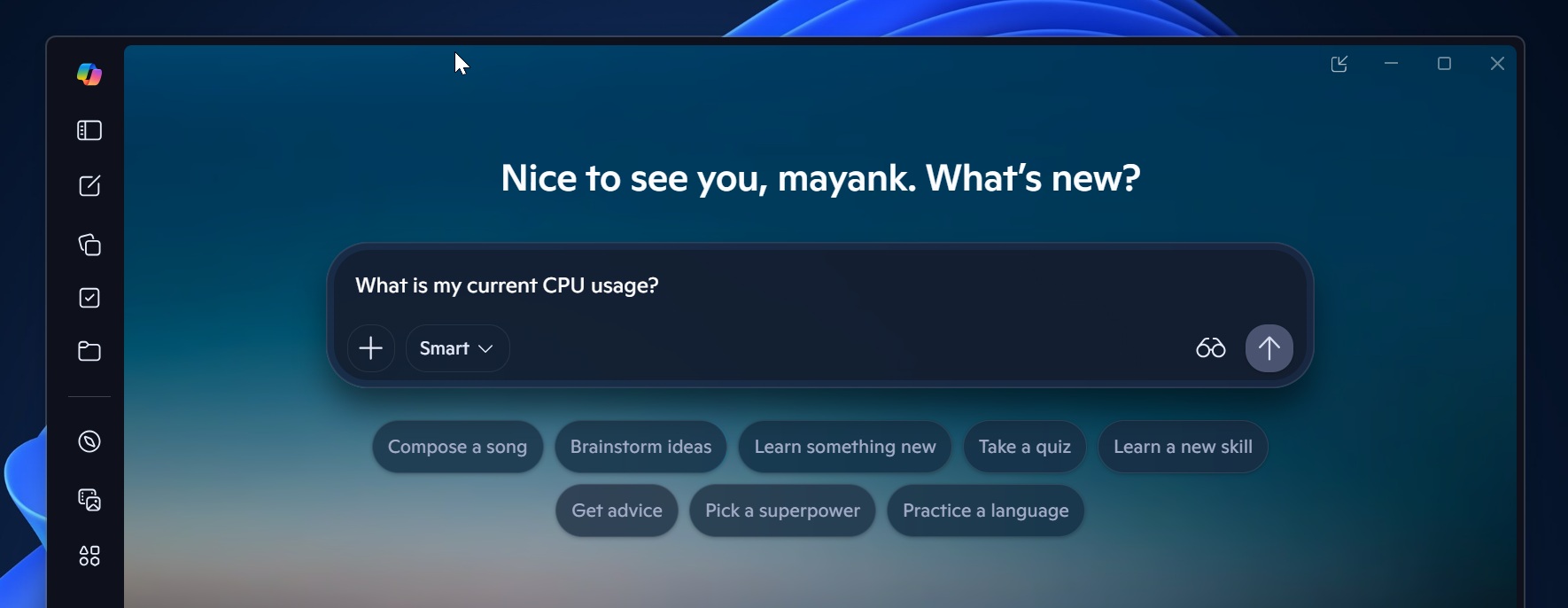
Microsoft lists questions such as “Do I have enough space for a 100GB game?”, “What graphics card do I have?”, and “What’s my current CPU usage?” as examples of what you can ask Copilot.
I compiled a list of questions currently supported by the Copilot app for Windows 11:
CategoryExample questions to ask CopilotGeneral examples“What graphics card do I have?”“Do I have enough space for a 100GB game?”
“What’s my current CPU usage?”Device and system“What are my computer’s full specifications?”
“Is my antivirus running?”
“How is my battery health?”
“What’s my BIOS version?”Performance and activity“What USB devices are plugged into my computer?”
“What’s my current CPU usage?”
“Is my external hard drive recognized?”
“What network adapters does my PC have?”Storage and files“How big is my Downloads folder?”
“Do I have enough storage for a large game or app?”Connected devices“Is my printer online?”
“Is my webcam detected?”
You can’t use AI to fix Windows problems, yet
Copilot cannot “fix” your problems, as it is currently limited to read-only access, but that could change in the future.
Moreover, Microsoft wants you to believe that Copilot will not scan your PC in the background without permission, and the feature will be opt-in.
“Copilot only accesses information after you give permission. When you ask a question, Copilot prompts you before accessing relevant information from your PC,” Microsoft noted in a support document spotted by Windows Latest.
However, if you trust Copilot with your system hardware and storage data, you can change the permission from “Ask every time” to “Always allow.”
Will Microsoft train AI on your system information or personal files?
At this point, it is clear that Microsoft wants Copilot to understand everything about you, and that includes your Windows PC and the personal files stored on it.
However, the company insists that it will never train its models on your personal files or system information. Only conversation activity, such as prompts and responses, may be used to improve the models.
“Your personal files and system info aren’t stored or used to train models,” Microsoft said. “Copilot may use conversation activity, like prompts and responses, to improve the experience, including training AI models, depending on your settings.”
Microsoft wants you to use Copilot to understand system usage while Copilot itself uses over 1GB of RAM
The hypocrisy is sometimes too real. Copilot’s PC Insights could be a useful addition, especially for beginners, but Copilot itself is a resource hog and can use up to 1GB of RAM while doing nothing. For example, I just opened Copilot and is already using 800MB when it’s doing nothing:
Copilot using almost 1GB of RAM on a 32GB RAM PC after I opened it | Note: Copilot identifies itself as a “Browser” in Task Manager after recent updates. “Browser” and “Copilot” in the screenshot represent the “Copilot for Windows” app.Copilot for Windows has never been great, but it has gotten worse over the past several weeks.
For those unaware, Copilot originally debuted as an Edge-based sidebar and has since gone through several radical redesigns. Most of them were built around web technology, but after Mustafa Suleyman took over as Microsoft AI CEO, he convinced the company’s leadership to build a native Windows app.
Copilot was eventually rebuilt from scratch for Windows using WinUI, and it worked very well.
Unfortunately, following a recent reorganization, it no longer appears that the consumer Copilot app is under Suleyman’s leadership, and Microsoft has now switched it back to a web app.
New Copilot ships with a private Edge and uses more RAM
The new version is arguably worse than before because Copilot now comes with its own private Microsoft Edge installation to support a new “browsing” feature. Instead of redirecting you to your default browser, Copilot now has a built-in browser, which is why Microsoft ships a separate copy of Edge with the app.
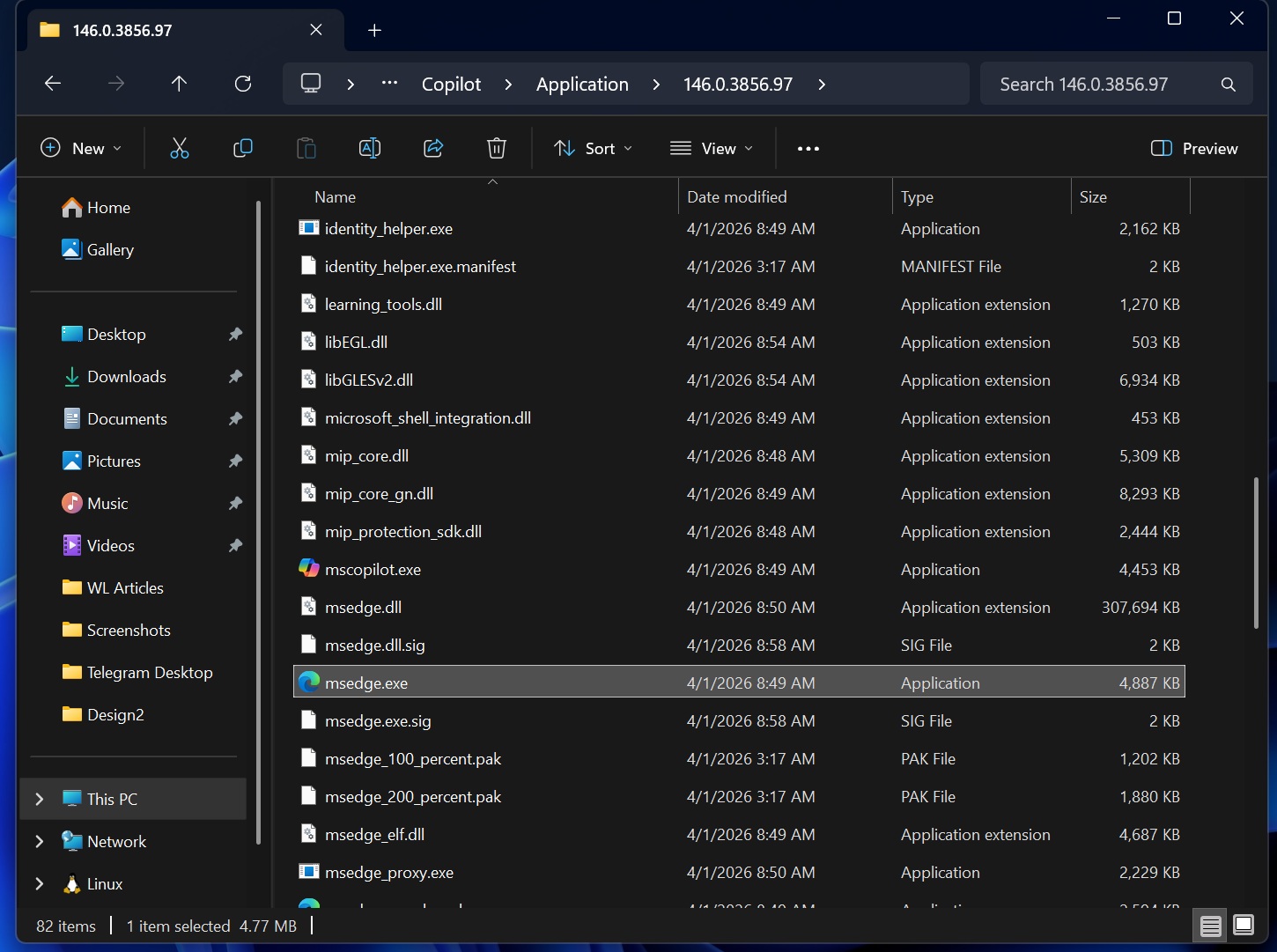
Copilot for Windows comes bundled with msedge.exe and all of Chromium’s codeFor example, if you go to the folder where Copilot is installed, you will notice that it contains a full-blown copy of Microsoft Edge, including msedge.exe.
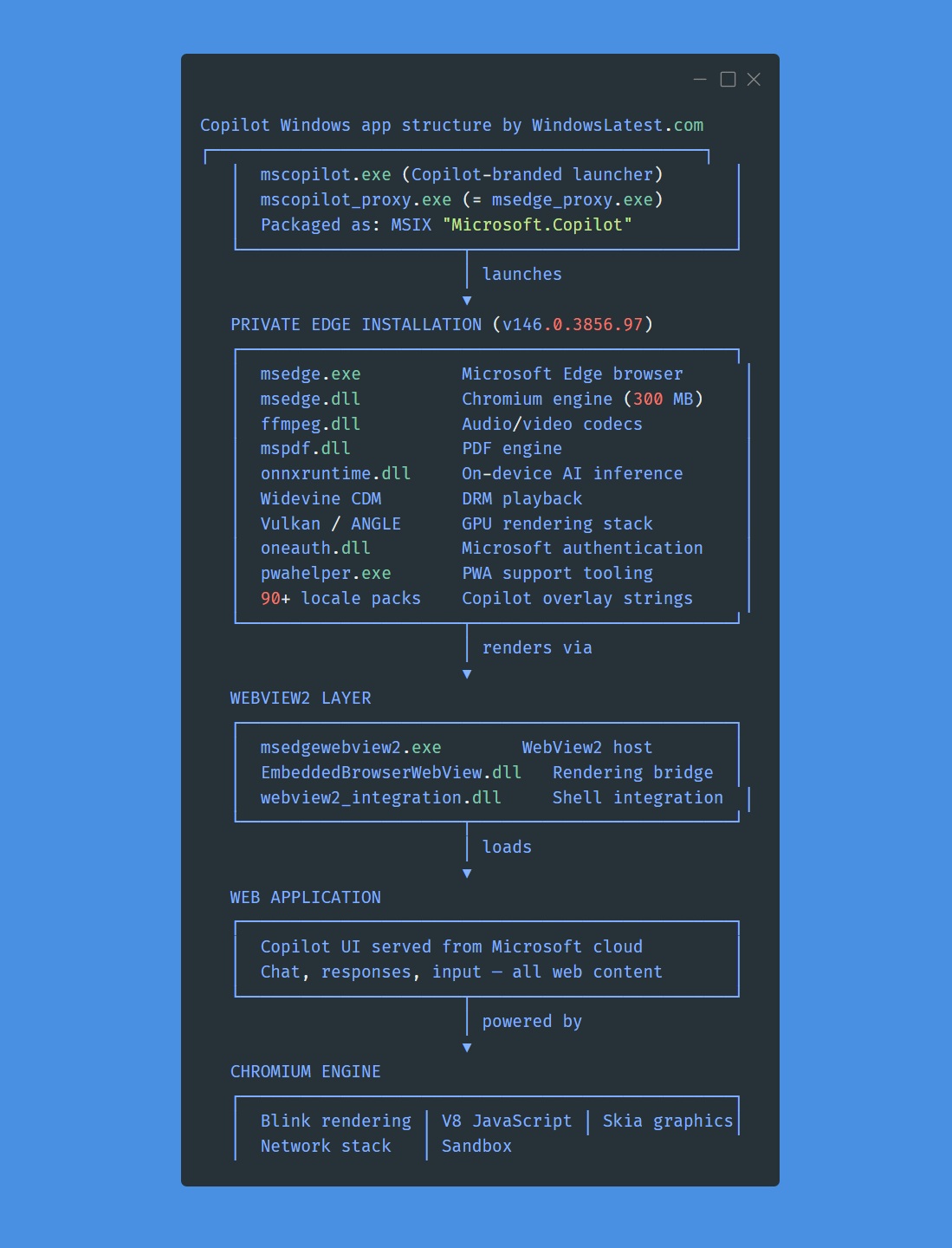
If you look closely, you will also notice that Copilot now appears as a “browser” in Task Manager, which should tell you everything you need to know about its current state.
At the end of the day, you can always remove Copilot and block it using Group Policy. At the same time, if Microsoft wants you to optimize Windows 11 performance using Copilot, it should first optimize Copilot, Microsoft Teams, Outlook, and all the other web slop it has created over the past several years.